43
Recording/Streaming your
Loop-back Source
Once you have selected the Loop-back
Inputs as your audio source in your
recording/streaming software, you can
now setup your Loop-back mix using the iD
Mixer.
The first step is to decide which source you
will use for your Loop-back stream.
If you wish to combine audio from your
computer and microphones/instruments
into a single mix then selecting either the
Main Mix or one of the Cue Mixes is the best
option as you can use the faders in the mixer
to send multiple channels to the same Mix.
For example, below you can see the CUE
A mix being used as the Loop-back source
with the Mic 1 and DAW 1+2 being sent to
the CUE A mix. When recording the Loop-
back inputs with this setup, you would hear
both the Mic Channel and the Computer
Playback on a single stereo channel.
Using the Loop-back Mixer
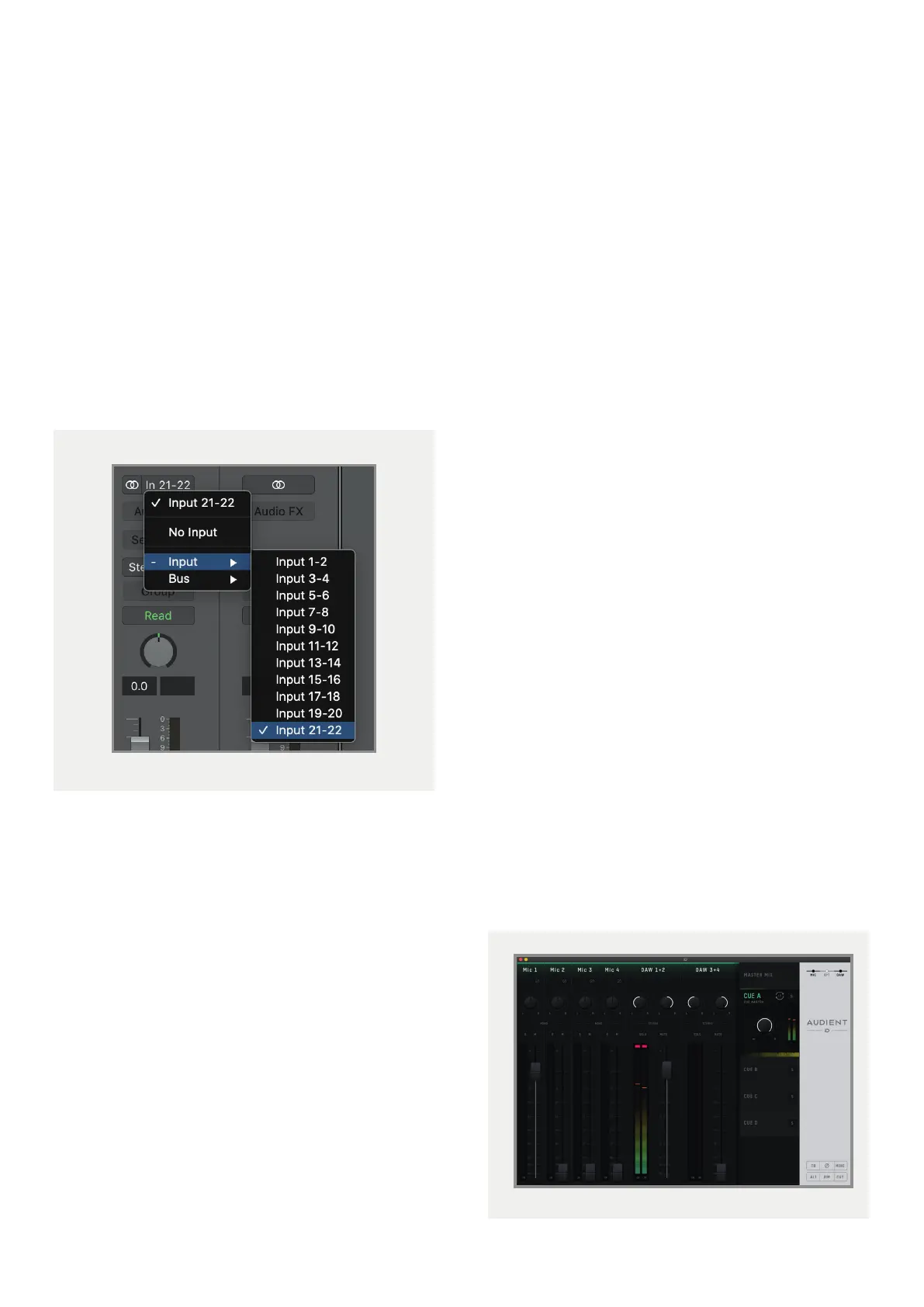
To record or stream your Loop-back mix in your
audio software, you need to select the Loop-
back channels as your input channels in your
audio software. Depending on the software you
are using, they may appear as either Loop-
back 1+2 or Input 21-22. For example the image
below shows how you would select the Loop-
back input in Logic Pro X.
A similar process would be used in other
software. If you are unsure on how to adjust the
input on your audio software, we’d recommend
referencing the user manual for your software.
On Windows, you may also need to adjust
the audio device in your System settings from
Analogue 1+2 to Loop-back 1+2.
Please note: Some software will not allow you
to adjust the input channel you are using and
will just default to Channels 1+2.
This limitation
with some software can stop you from using
Loop-back with this software as you are unable
to select Channels 21+22.



 To Next Page