48
Operation with Logic Pro
Once iD44 has been successfully installed
following the installation process that can be
found at the start of this manual, launch Logic
Pro and check the following:
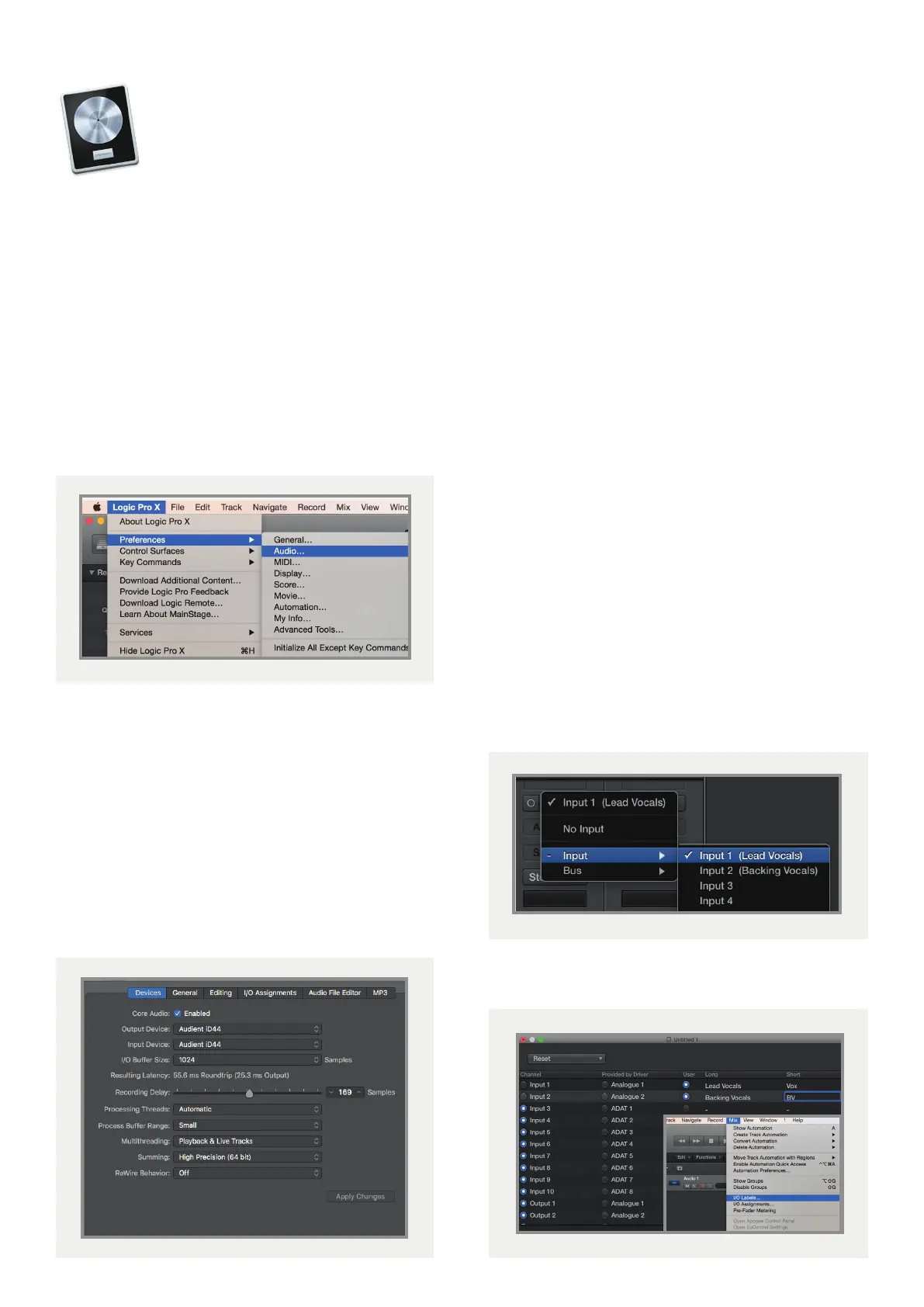
Logic Pro > Preferences > Audio
Ensure that iD44 is selected as the active
audio device and set the buer size (to aect
system latency). If you are experiencing issues
with playback stability and CPU loading, try
increasing the buer size. This appears with
“overload” errors and/or pops and clicks and
distortion in the audio.
Logic Pro Setup
If you are using the iD mixer to monitor input
signals while recording, be sure to disable
Logic’s software monitoring to avoid phasing
as the same source will be heard twice with
a short delay between the low latency DSP
signal and the delayed software monitoring
signal.
Assigning I/O
All of iD44’s input and output channels will
be available to Logic for routing. There are
a total of 20-inputs and 24-outputs reported
from the driver.
You can rename input and
output channels to whatever you wish using
the I/O label function. This is a great way to
keep things organised.
Mix > I/O Labels



 To Next Page