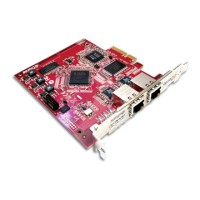
Dante PCIe-R Card
CONFIDENTIAL. Copyright © 2014 Audinate Pty Ltd. All Rights Reserved.
-12-
Installing the Card
Before You Install
Before you install the Dante PCIe-R, you should note down the last 6 characters of the MAC address of
the card.
This is printed on a label on the card itself. The last six characters of the MAC address of the card are used
in the default device name.
For example, a Dante PCIe-R with MAC address 00:1D:C1:03:01:C4 will show as PCIe-0301C4 in
Dante Controller until it is given a more suitable name.
Installing and Removing the Dante PCIe-R
For instructions on installing and removing the Dante PCIe-R, please refer to the technical manual for the
computer in which you are installing the card, and the relevant Thunderbolt expansion chassis manual (if
applicable).
If you remove the card, store the card in its anti-static bag and packaging while not in use.
Installing the Dante PCIe-R Driver
You will need to install the relevant driver files on your computer before your Dante PCIe-R can be used.
Please refer to the README file included with the driver software for instructions on how to install the
driver file.
Note: The Windows 8.x PCIe driver requires Microsoft .NET to support the ASIO control panel. The
driver installer will install it automatically if it is not already present, but the installation will require
internet connectivity.
System Requirements
OperatingSystem
Note: For optimum performance, please ensure you have the latest operatingsystem updates
installed for your platform.
Windows
The Dante PCIe-R supports the following Windows operating systems (32-bit and 64-bit):
n Windows 8.1
n Windows 8
n Windows 7


 To Next Page