Dante PCIe-R Card
CONFIDENTIAL. Copyright © 2014 Audinate Pty Ltd. All Rights Reserved.
-22-
o
Click the device name in the Dante Controller network view (either in the Transmitters row, or
the Receivers column) and select Device menu > Device View; or:
o
Click the device name and type Ctrl+D; or:
o
Double-click the device in the network view.
This opens a Device View window for the selected device.
If you only have one Dante PCIe-R in your Dante network, it will be the only device with a device name
beginning ‘PCIe’.
If you have more than one Dante PCIe-R, to identify a particular card:
n Look for the device name ending in the last six characters of its MAC address; or:
n After selecting a device at random, use the Identify feature in the Dante Controller to check which
card it is.
Identifying Individual Dante PCIe-R Cards
When you have several Dante PCIe-R cards installed, it can be very useful to know which card is which.
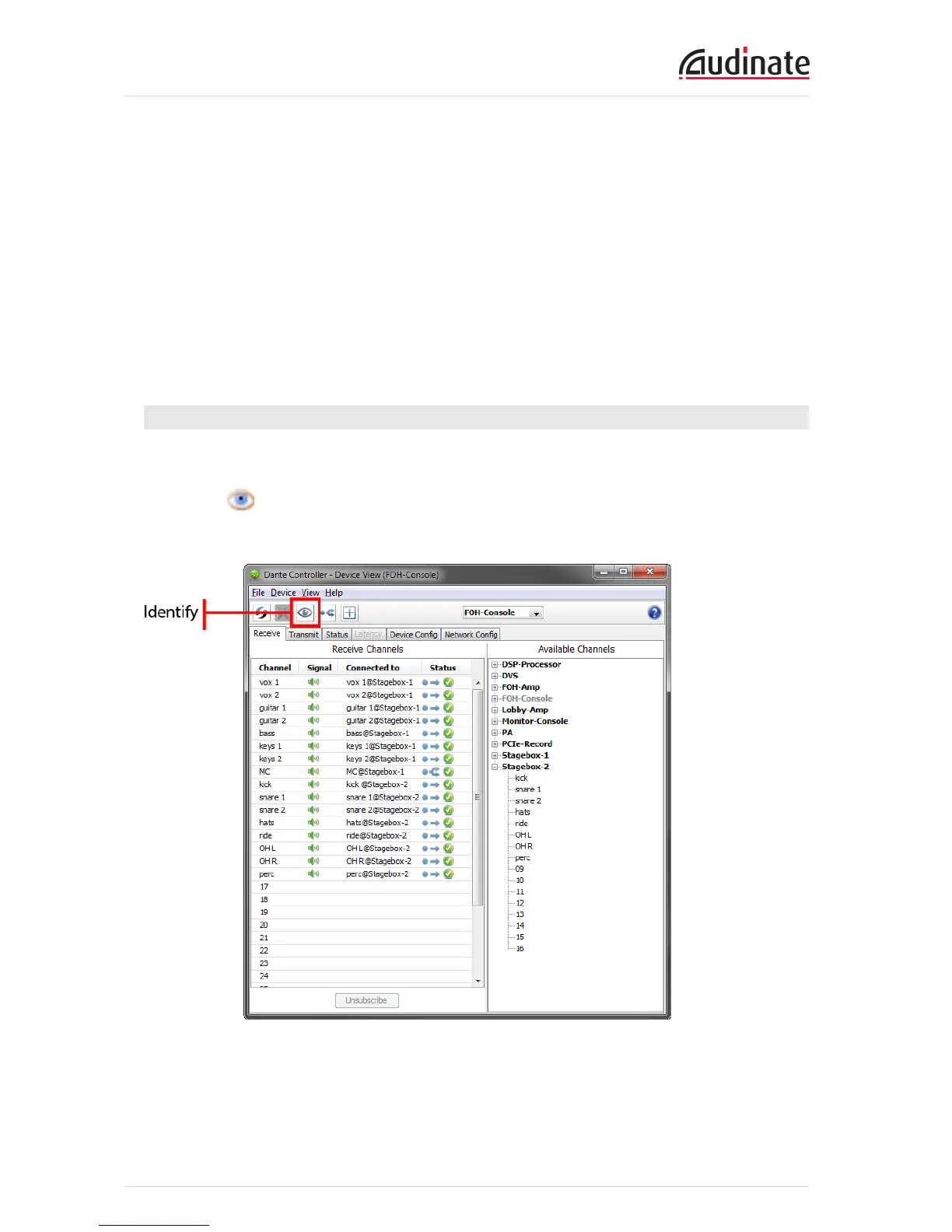
Once you have selected a particular card within Device View in the Dante Controller, you can click on the
Identify icon in the Device View toolbar. This will cause all of the LEDs on the Dante PCIe-R to flash
green for about ten seconds.


 To Next Page