13
T752
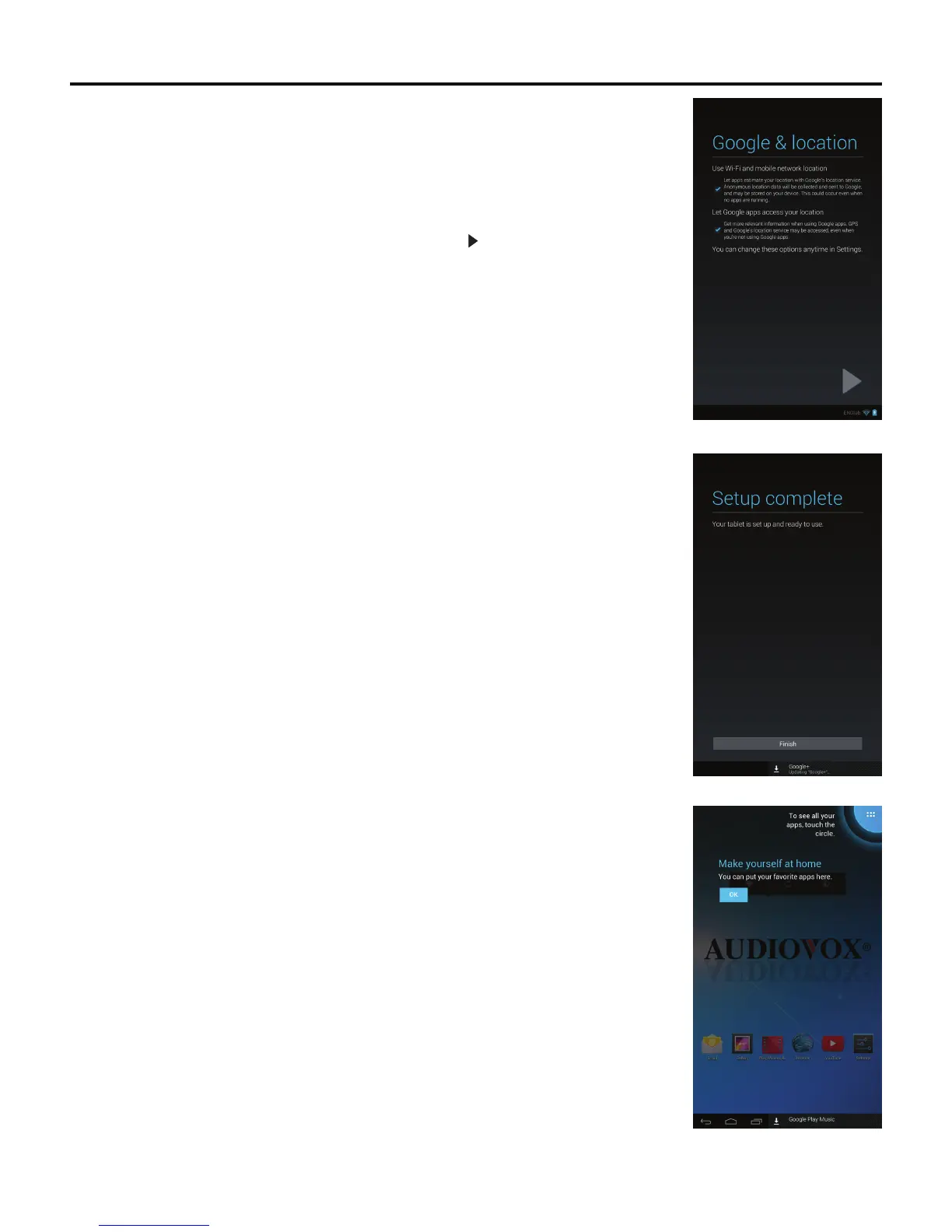
7. The Google & location screen appears.
To let apps estimate your location with Google’s location service, check the Use Wi-Fi and
mobile network location check box.
To get relevant information when using Google™ apps, check the Let Google Apps access
your location check box.
To proceed to the next screen in the initial setup, tap the button.
8. The Setup complete screen appears.
The tablet is set up and ready to use. Tap the Finish button.
9. The Make yourself at home screen appears.
To go to the Home screen, tap the OK button.
To see all your apps, touch the circle in the upper right hand corner of the screen. The App
Drawer appears.



 To Next Page