Page 14 579-1165AC Rev C
4007ES Operator’s Manual
6 Main Menu
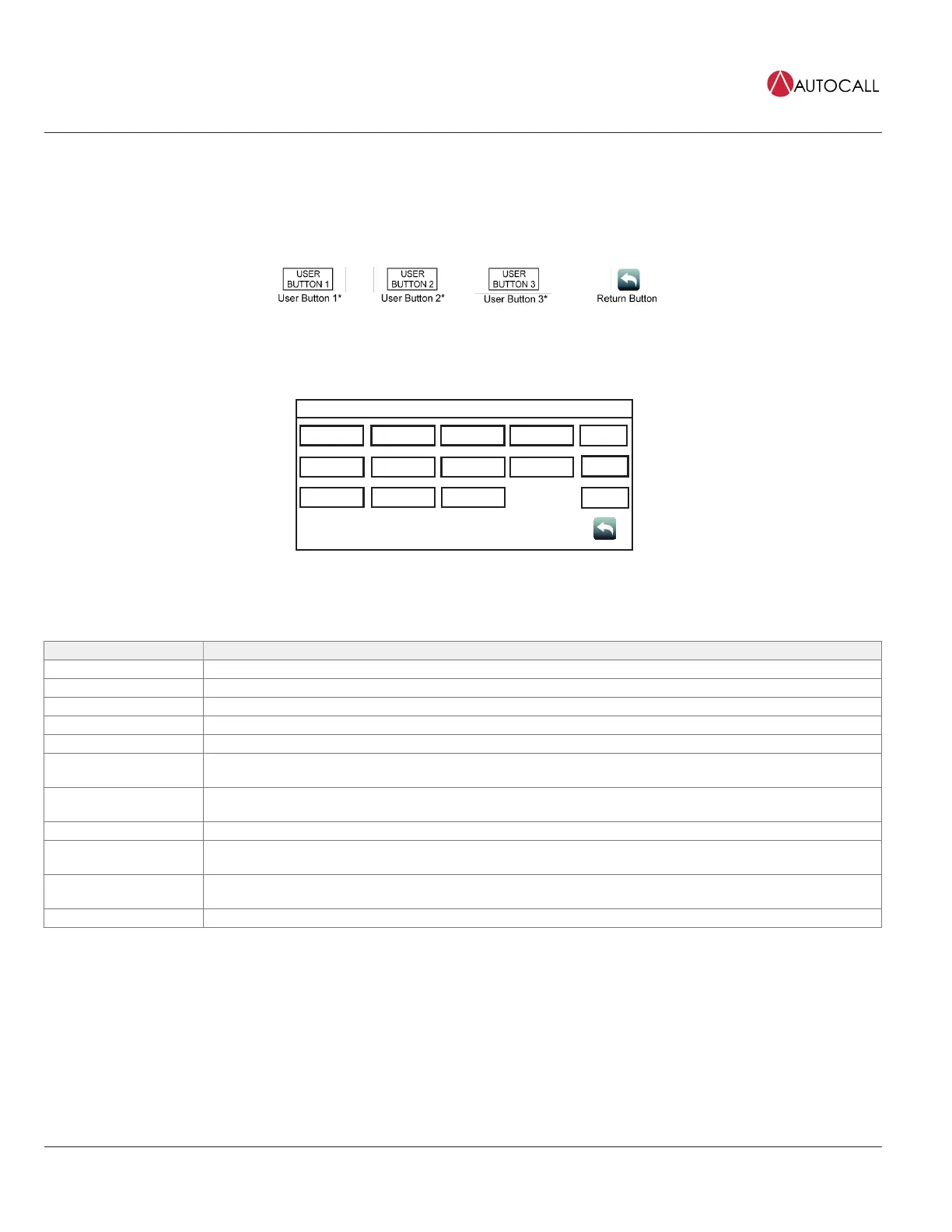
The Main Menu screen displays the functions available at the panel and can be accessed by:
• Tapping anywhere on the touchscreen to remove the screensaver image.
• Tapping the Menu button on the user interface if the user interface is in use.
6.1 Main Menu Screen Buttons
Fig 21: Main Menu screen buttons
Note: * User Buttons can be assigned to custom panel functions. Each function can be assigned to a task, such as Manual evacuation or City
Disconnect. User buttons that have not been assigned a function do not appear on the user interface.
Main Menu
System Info Panel Setup Alarm Log Trouble Log
USER
BUTTON 1
USER
BUTTON 2
USER
BUTTON 3
Search System Reset
Hardware
Reset
Diagnostics
User Access
Level
Lamp Test
Report Menu
Date
Time
Fig 22: Main Menu screen
Table 4: Description of Main Menu icons
Main Menu Icons Description
System Info Use the System Info function to obtain detailed information regarding the panel and its components.
Panel Setup Use the Panel Setup function to modify the configuration of the basic components.
Alarm Log The Alarm Log screen contains the list of alarms that the panel has received.
Trouble Log The Trouble Log screen contains the list of Troubles that the panel has received.
Search Use the Search screen to look for any configured point on the system controlled by the panel.
System Reset
Tap the System Reset button to reset all devices in alarm and clear all acknowledged Alarms, Troubles and Supervisory
conditions.
Hardware Reset
Tap the Hardware Reset button to re-initialize the state of certain hardware components. A hardware reset is typically
used to reset Class A Troubles after the problem causing the Trouble is resolved.
Diagnostics Use the Diagnostics function to run tests on the panel and the connected devices.
User Access Level
Tap the User Access Level button to access the login screen. From this screen, the user can log into the panel with a
desired access level, or log out of the access level that he is currently in.
Lamp Test
Tap the Lamp Test button to light all 9 LEDs on the front panel for 5 seconds. The three dual-colored LEDs blink
alternately. The touch screen alternates between red, green and blue.
Report Menu Tap the Report Menu button to generate various types of reports on the system points.



 To Next Page