Page 20 579-1165AC Rev C
4007ES Operator’s Manual
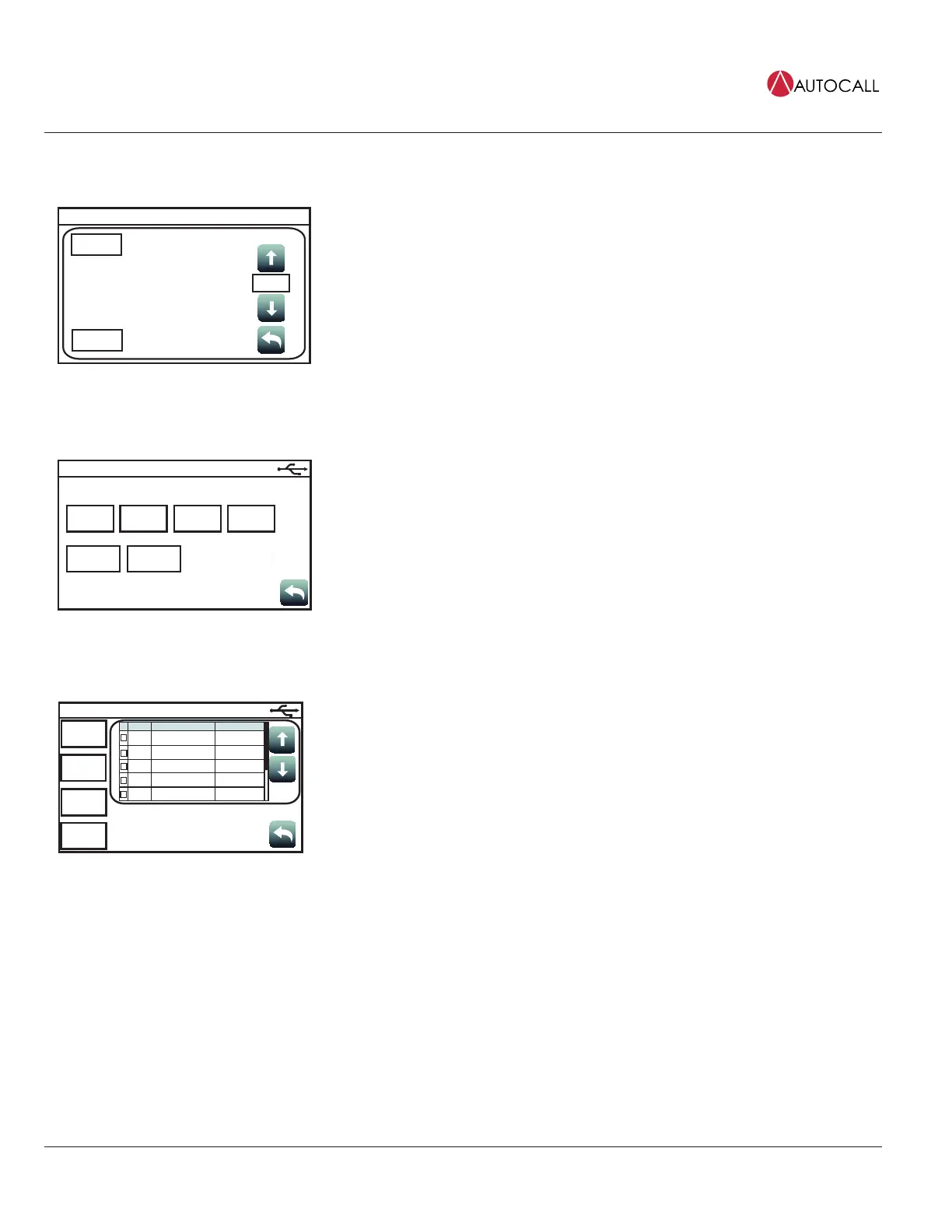
9.1.3 Touchscreen Calibration
Calibrate
Clear
Sensitivity
3x
Panel Setup
Date
Time
Tap the Touchscreen Calibration button to access the calibration screen and adjust the sensitivity
of the user interface touchscreen. Follow these steps to adjust:
1. Increase or decrease the touchscreen sensitivity by using the Scroll Up and Scroll Down
buttons.
2. Tap the Calibrate button and then tap the “+” signs that appear to adjust the precision of the
touchscreen pressure sensors.
3. Return to the System Menu screen.
9.1.4 Mass Storage
System
Upgrade
Mass Storage
Job
Backup
Save
Reports
Upgrade
Status
SnapShot
Recovery
Eject USB
Tap the Mass Storage button to access the functions listed below. The USB key must be inserted in
the USB Port slot of the 4007 CPU Card for the Mass Storage button to work.
• Job Backup: Tap this button to save the job currently loaded on the panel to the USB key.
• Save Reports: Tap this button to save reports to the USB key.
• Upgrade Status: Tap this button to see the progress of the software upgrades.
• SnapShot Recovery: Tap this button before doing a system upgrade to copy the software types
currently loaded on the panel to the USB key.
To upload these software types back on the panel, re-insert the USB key in the USB Port of the
4007 CPU Card and tap the SnapShot Recovery button.
• Eject USB: Tap this button to safely remove the USB from the panel.
9.1.5 System Upgrade
Select
All
System Upgrade
Change
Job
Refresh
Reset
Process
Upgrade
0 of 10 files selected
CARD
SOFTWARE TYPE
REVISION
0
0
0
0
0
4007H1LN
Main App
Bootloader
Kernel
Filesystem
1
302.03.02.02
1.00.00.14
1.00.00.11
1.00.00.20
With a USB thumb drive inserted, tap the System Upgrade button to open the System Upgrade
screen which contains a list of all the panel software types and their current revisions. The software
type in bold and colored green indicates that its more recent version can be loaded on the panel.
Note: The System Upgrade screen is launched by default when the USB key is inserted in the USB
Port of the 4007 CPU Card.
• Use the Select All button to select all of the software types listed in the table.
• Use the Change Job button to load a new job on the panel.
• Use the Refresh Reset button to refresh the software type list.
• Use the Process Upgrade button to proceed with the change.



 To Next Page