Software Operations
20 | P a g e
- When you have completed the physical on all bins within the column displayed, press the Next button.
- Report process until complete.
- Move the bin door bypass switch to RUN.
Issue
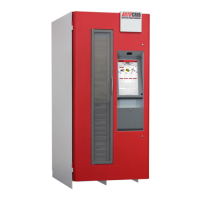
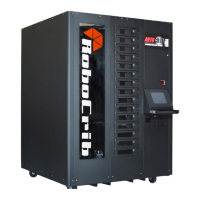
- At the RoboCrib, insert the badge number and PIN.
- Select the Issue button.
- Select appropriate responses from the blue validation tables. (i.e. Department, Job, etc)
- Click on the Item field and search for item using the item code, descriptions, class, or custom fields. Press Enter.
- The RoboCrib software will find the closest match. Highlight the item you want and press the Issue button.
- The software will retrieve the bin and open the door. After removing the item, close the door and Logout of the
software.
Return
- At the RoboCrib, insert the badge number and PIN.
- Select the Return button.
- Select the item you wish to return by either scrolling down, or search for the item. Press Enter.
- Highlight the desired item.
- Insert the quantity being returned into the appropriate field; return, scrap, or regrind.
- Place the item in the correct return location; regrind bin, active RoboCrib bin, or trash.
- Note: An item can only be returned to the RoboCrib if the crib has been designated as “returnable” in the
AutoCrib software and the item being returned is a perishable, durable, or gage type item.
Locate
- At the RoboCrib, insert the badge number and PIN.
- Select the Locate button.
- Type in an item code or partial description of the item you wish to locate. Press Enter.
- The system will filter the database to the closest possible matches.
- The crib and bin number will be displayed as well as the current on hand/burn inventory.


 To Next Page