35146AJ
23
Motion
AvertX cameras are set to register motion as events in the video
timeline. By default, the entire camera will be configured as a motion
area. You can customize areas of the field of view that will register
motion events.
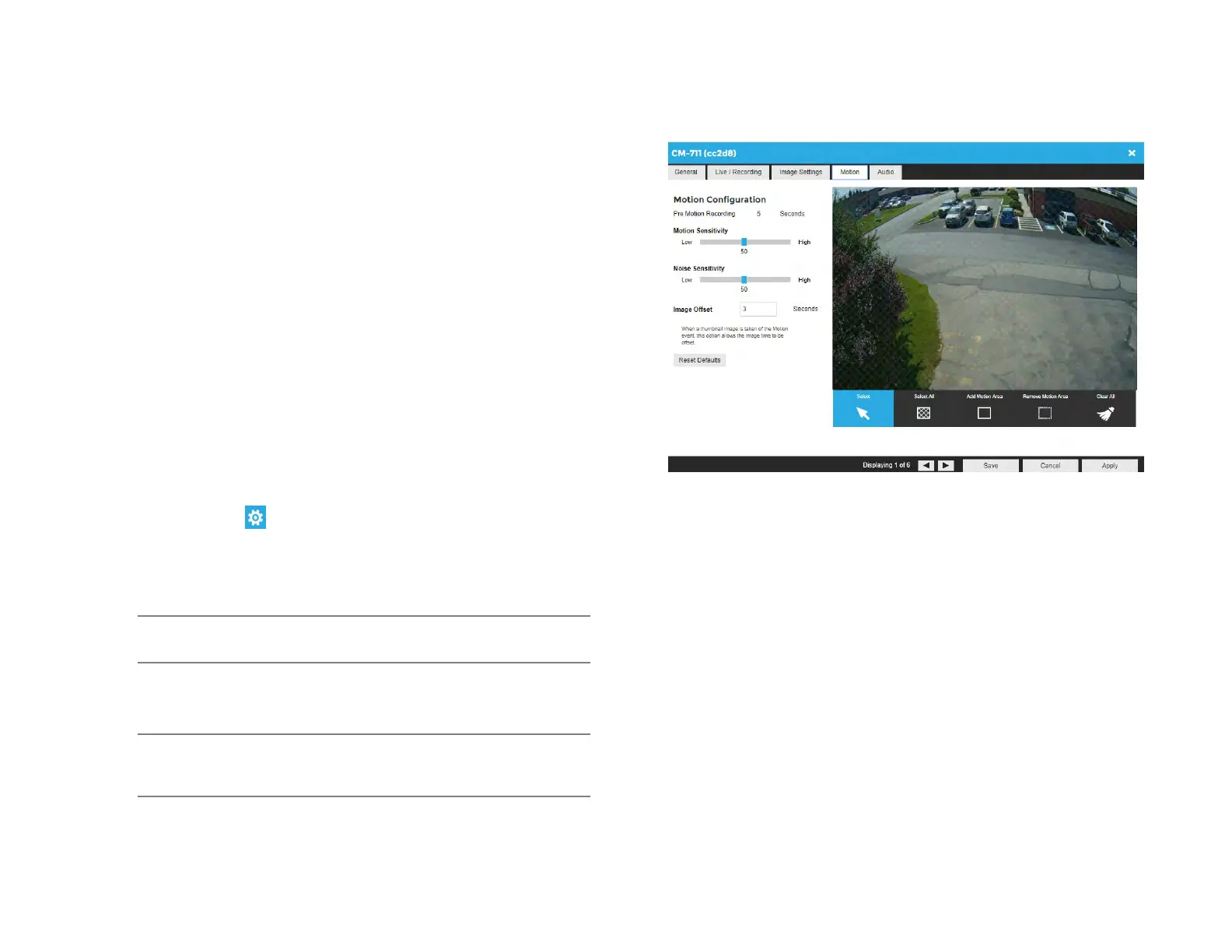
Motion Sensitivity – Reduce or increase the sensitivity of motion
detection.
Noise Sensitivity – Reduce or increase noise sensitivity detected on a
camera.
Image Offset – Offset when an image is captured from a motion event.
Reset Defaults – Resets motion sensitivity and noise sensitivity back to
default values.
Select – Allows motion detection grids to be moved.
Select All – Draws a full motion detection grid over the image.
Add Motion Area – Draw individual motion detection grids.
Remove Motion Area – Allows removal of motion detection grid areas
within a grid.
Clear All – Removes all motion detection area grids.
To Configure Motion:
1. Click Setup , then Cameras.
2. Click the desired camera in the Camera List.
3. Click the Motion tab.
4. Click Add Motion Area or Remove Motion Area, and then click
and drag the capture square to create the area.
Note By default, the entire camera will be configured as a motion
area.
5. Continue modifying Motion Areas as desired using the tools below
the camera frame.
Note Motion Areas can be subtracted to disable motion detection
for specific areas of the video stream and motion grids can be
drawn over each other.
6. Click Save.


 To Next Page