35146AJ
22
Stream Configuration & Remote Viewing – This is where you
designate what high, medium, and low-quality streams are. You can
choose one of these as the recording stream, and the system
automatically chooses the highest res stream under 720x576 (D1) to
use for motion detection. These streams are also used as high,
medium, and low-quality streams in the live view.
Note If at least one resolution at 720x576 or below is not available,
the following warning below will appear.
Note Smart codec should not be enabled on the secondary stream
that is used for video motion detection. For devices using
single stream, smart codec should be disabled for video
motion detection.
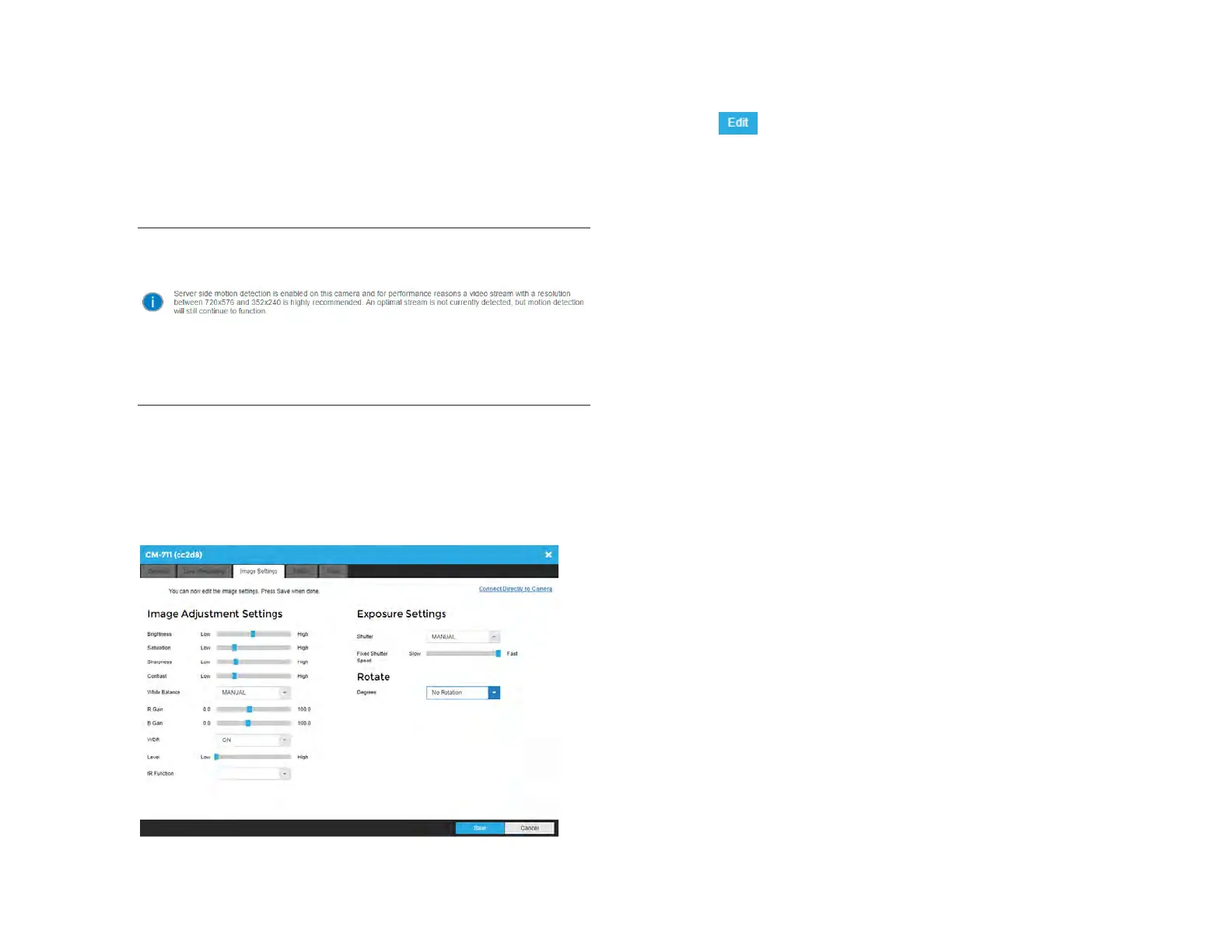
Image Settings
The Image Settings tab displays Picture Adjustment Settings and
Exposure Settings. These settings have a direct correlation to the
camera performance and recorded video quality. The settings displayed
here are options made available through the appropriate drivers. Making
changes to these settings will then push the changes to the camera.
Select to adjust the camera settings.
Brightness – Depth of light and shadow in the image.*
Saturation – Depth of color in the image.*
Sharpness – Manage image texture, particularly visible in dark
scenes.*
Contrast – Difference between bright and dark areas of the image.*
White Balance – Select Manual to adjust preset colors corresponding
to natural or artificial lighting for the most accurate color representation.
Wide Dynamic Range – Select On to enhance details both in the
foreground and background.**
IR Function – Activate the camera IR (infrared) lights if available, for
use with night-time recording.
Shutter – Select Manual to designate shutter speed. Longer shutter
speed will increase visibility at night, but also result in blurred movement
in the frame.**
Rotate – Allows the camera to be flipped 90, 180 or 270 degrees.
* This option can drastically affect the quality of recorded video. The
default value is recommended.
**Using this option results in improved video quality but increases
recorded video file size.


 To Next Page