6-2 Equipment Manual
Setting the Print Contrast in Offline (Stand-alone) Mode
Having the correct print contrast/density setting is important because it affects bar code
scan ability and printhead life.
To change the print contrast:
1. From the Main Menu, select Menu.
2. Press the navigation button until Offline Setup is highlighted. Press Select.
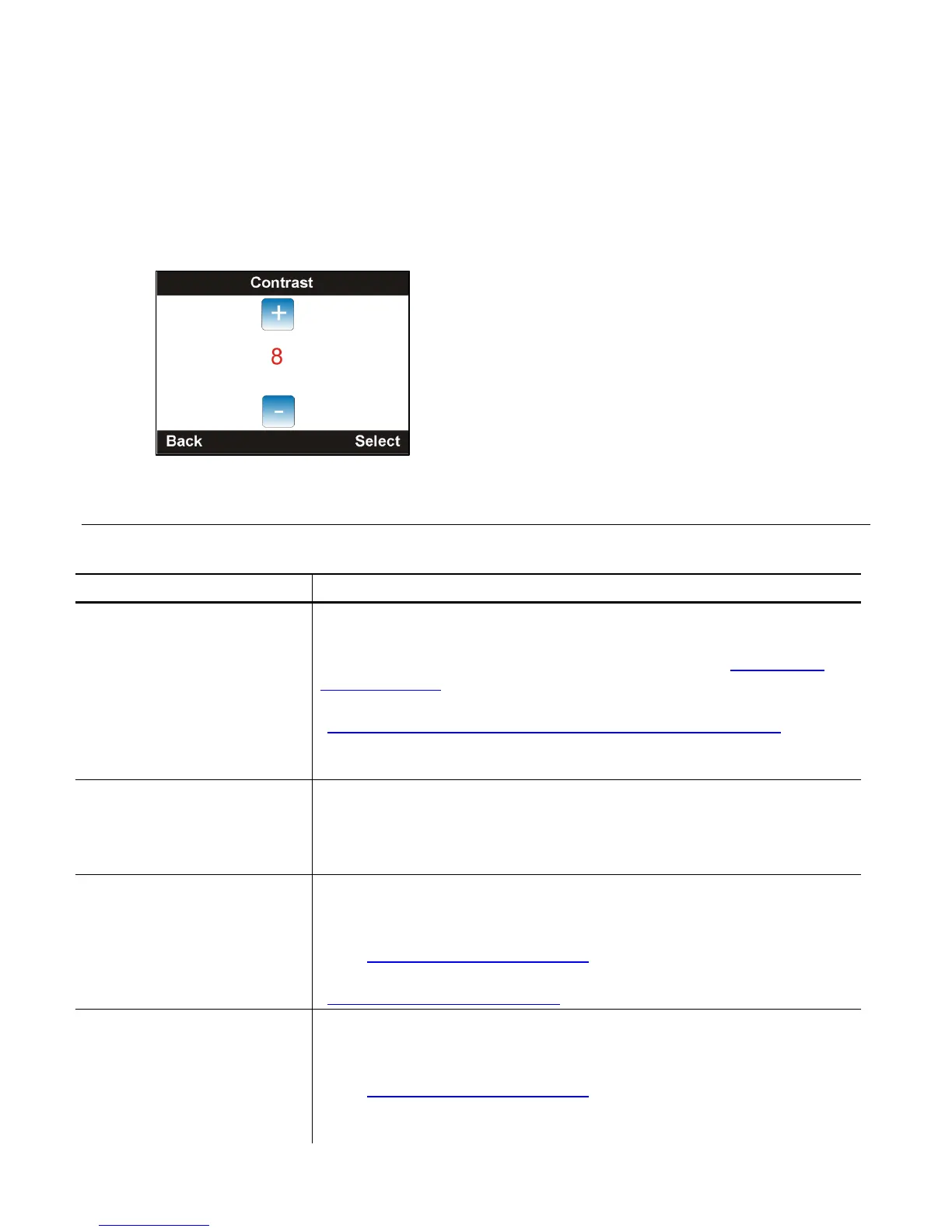
3. Press Select when Contrast is highlighted. Use the navigation buttons to increase or
decrease the value. Press Select when finished. The print contrast range is
0 to 15 and the default is 8.
4. Press Back until you see the Main Menu.
Common Problems
Use this information to solve some common problems.
Problem Action
Does not print.
OR
“Paper Jam”
“No Paper”
Check/load supply and ribbon.
Check connection to host.
Check printhead density/contrast setting. See “
Setting the
Print Contrast.”
Make sure the printer’s supply type is set correctly. See
“Setting the Printer’s Supply Type/Calibrating Supply
” for
more information.
Clean the printhead.
Does not feed. Check supply.
Check ribbon.
Clear jam.
Close printhead completely.
Light/Dark printing or
voids in print.
Check supply and ribbon.
Clean the printhead and platen roller.
Check printhead density/contrast and printer speed settings.
See “Setting the Print Contrast
.”
Adjust the platen roller based on supply thickness. See
“Adjusting the Platen Roller
” for more information.
Serial bar codes print
with voids or do not
scan.
Check supply and ribbon.
Clean the printhead and platen roller.
Check printhead density/contrast and printer speed settings.
See “Setting the Print Contrast
.”
Your System Administrator can change the contrast/print
speed.









 To Next Page