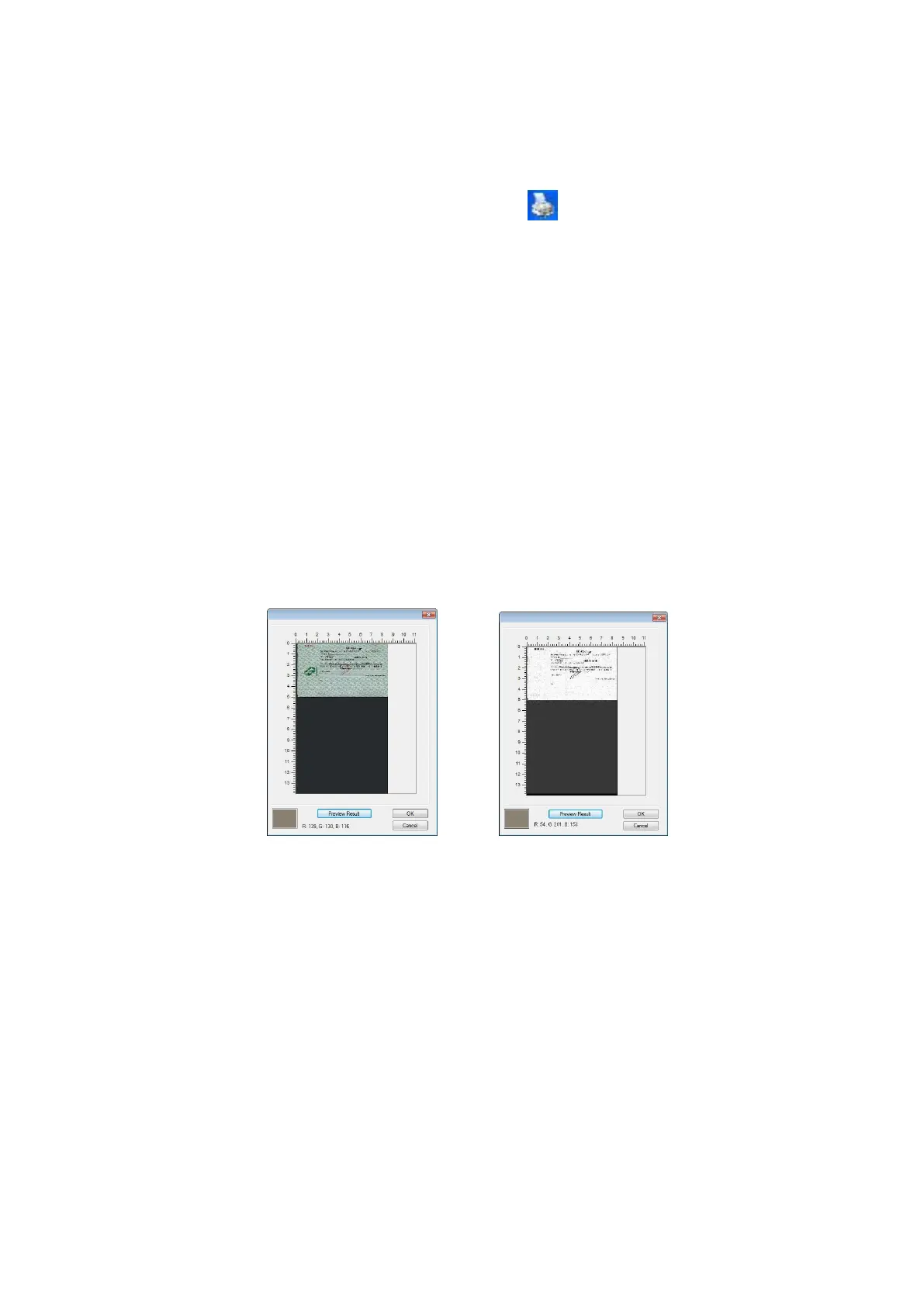
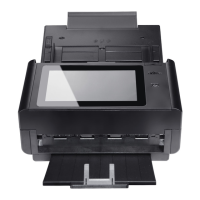
Preview the color dropout result:
To preview the color dropout result, please follow these steps:
1. Click the [Scanner Properties] icon ( ) on the upper left corner, and
choose [Tab] to show available tab names.
2. Choose [Preview] to show the Preview tab.
3. Click the [Preview] tab to show the Preview page.
4. Load your document to the scanner and click the [Preview] button to get a
preview image.
5. On the [Image] tab, click [Gray] or [Black and White] image mode and then
choose [Custom] on the [Color Dropout] tab. A [Preview window] button will
be displayed.
6. Click the [Preview window] button to prompt the [Preview] window with
the previewed image.
7. Move your cursor over the preview image. Your mouse cursor now becomes
an Eyedropper.
8. Click to select a color which you wish to remove.
9. Click and hold your mouse button to view the result after removing the
specified color. If the result is satisfactory, click [OK] to close the Preview
window.
The Preview Window The Color dropout result



 To Next Page