The Color Dropout Tab
Color Dropout Selection
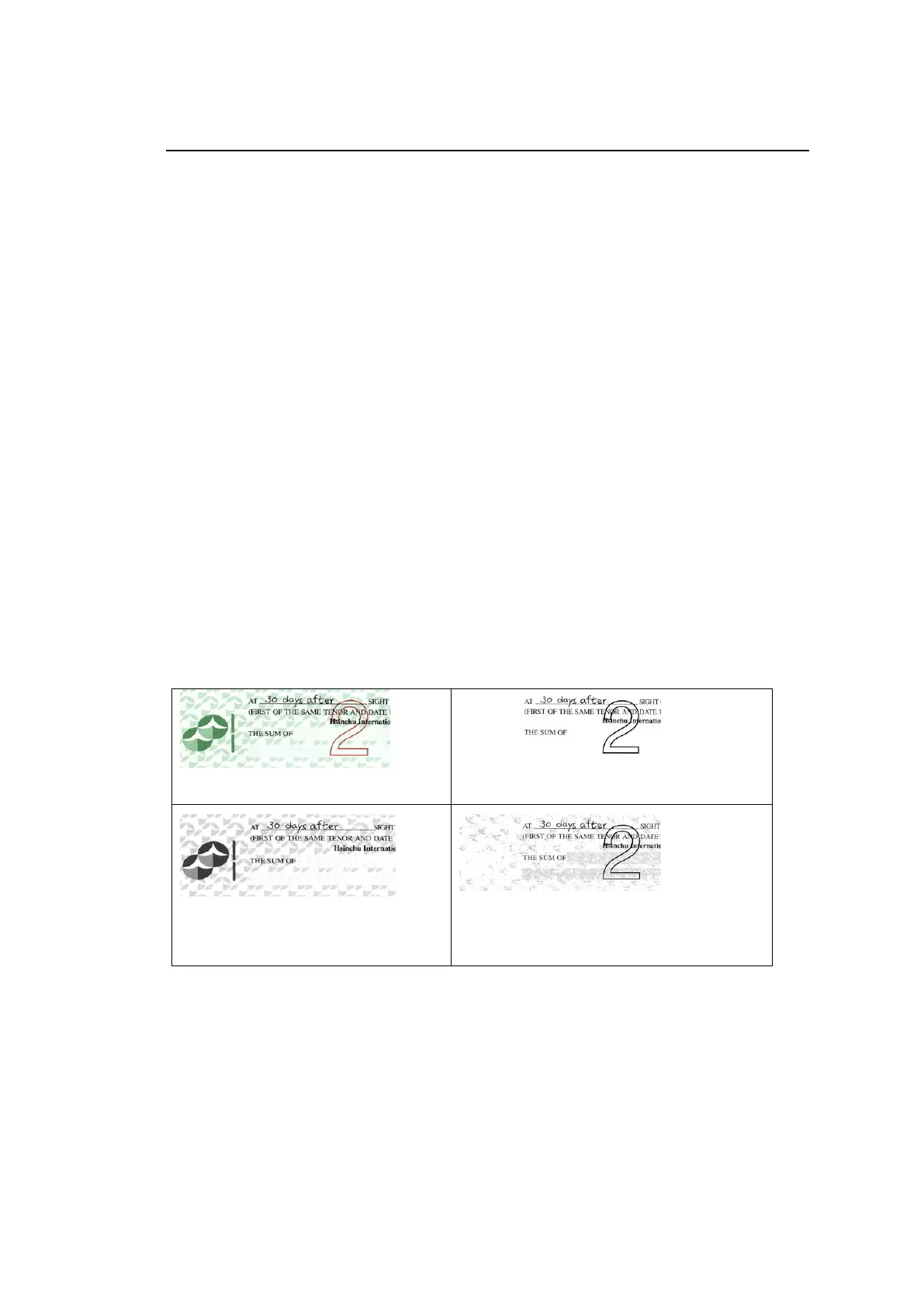
The [Color Dropout] tab allows you to select either green, red, blue, or a color of
your choice to remove the details of the selected color from a scanned image. This
feature is used to sharpen your text when using OCR (Optical Character
Recognition) software. Note this feature applies only to the gray or black and white
image.
Choice: None, Auto, Remove Red, Remove Green, Remove Blue, Custom
- None: Does not remove any color.
- Auto: Automatically outputs the image with the details of the primary color
removed.
- Remove Red/Remove Green/Remove Blue: Outputs the image with the
details of the specified color removed.
- Custom: Specify the color you wish to remove by entering its RGB (Red, Green,
and Blue) value respectively.
Advanced Options:
- Quality Mode: Range: 0~20. Default: 10
When [Quality Mode] is selected, you can determine the color to be dropped out
using the [Filter Threshold] slider. A lower value will drop more of the selected
color out, while a higher value will leave more of the selected color in.
- Normal Mode: Use an optimized setting to determine the color.
Auto/Remove Green (normal mode)
Remove Green (quality mode:
Threshold: 18)



 To Next Page