Configurations Customized Only Via the LCD Touch
Screen
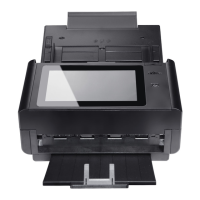
There are some activities which can be set only through the LCD touch screen, for
example, the service mode. The service mode is set to provide saving system
log file, updating firmware for quick troubleshooting your problems.
Accessing the Service Mode
To access the service mode,
1. On the product’s LCD screen, choose [Settings] and then [Service Mode].
2. The Service Mode screen will be displayed with following options: [FW
Updated], [Reset to Default], [Run-in Test], and [Save Log].
Follow these steps to update the firmware:
1. Locate the latest firmware file from the web
site (http://www.avision.com).
2. Store the firmware file on your removable USB
disk.
3. Plug the removable USB disk into the USB disk
port of the machine.
4. Tap [FW Updated] to update the firmware
file.
Choices include [Reset Admin], [Reset Network
Settings], [Reset Admin and Network], [Reset
to Factory Default].
Reset Admin: Reset the login user name and
password of the product’s web page.
Reset Network Settings: Reset the network settings
to factory default.
Reset Admin and Network: Reset both the login
information and the network settings to default.
Reset to Factory Default: Reset all configurations to
factory default values.
Plug a removable USB disk into the USB port of the
machine and tap [Save Log] to save system log
file.



 To Next Page