Home
Avision
Scanner
AN360
Page 137 (Rotation Tab Settings)
Avision AN360 - Rotation Tab Settings
186 pages
Manual
Save Page as PDF
To Next Page
To Next Page
To Previous Page
To Previous Page
Loading...
132
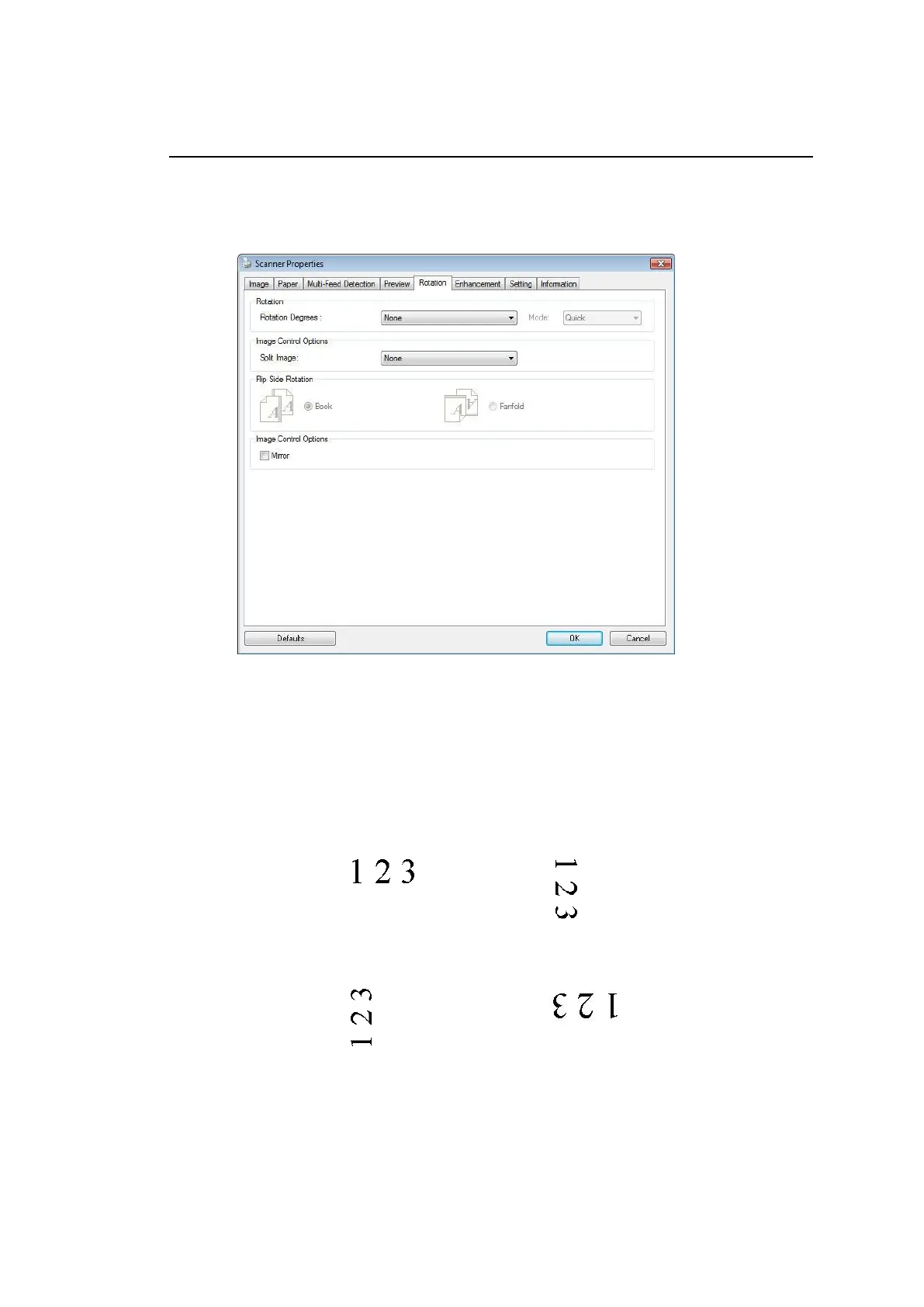
The Rotation T
ab
The Rotation
tab all
ows you to set the foll
owing imag
e rotating options
:
Rotate Image
Choose the rotati
on angle from the drop
down list i
f
you wish to rotat
e your scanned i
mage.
Choice: None, 90°
CW
(clock
wise),
90°
CCW(counter cloc
kwise), 180°
, Auto b
ased
on contents. Aut
o rotate eve
ry even page.
Original
Rotate 90°
CW
Rotate 90°
CCW
Rotate 180°
136
138
Table of Contents
Main Page
Federal Communications Commission (FCC) Compliance Information Statement
3
Getting Started
6
Various Scan to Destinations
6
Package Items
8
External View
9
The Front View
9
The Rear View
10
Removable Parts
11
Pre-Installation Information
12
Frequently Used Buttons on the Touch Screen
14
Installing Your Machine
15
Minimum Configuration Requirements
15
Installing the ADF Paper Tray
16
Connecting the Ethernet Cable
17
Connecting the Power and Turning on the Machine
17
Turning off the Machine
18
Selecting Your Language
19
Setting Date and Time
20
Specifying the Product's TCP/IP Address
21
Specifying the Product's Mail Server
22
Creating Your Address Book
23
Operation
32
Document Loading Tips
32
Loading Document(S) in the ADF
33
Scanning a Stack of Document with Various Sizes and Weights
35
Scanning and Sending Your Document to E-Mail Addresses
37
Settings Descriptions
41
Sending Your Document to a Network Folder, a USB Flash Drive or a Public Folder
46
Sending Your Document to Clouds
52
Creating a Shortcut Button
58
Using the Shortcut Buttons
60
Scanning and Broadcasting Your Images
61
Setting up and Managing Destinations
67
Setting up Your E-Mail Address Book
67
Adding a New E-Mail Address
67
Editing a Current E-Mail Address
68
Deleting a Current E-Mail Address
68
Adding a New E-Mail Group
69
Editing a Current E-Mail Group
70
Deleting a Current E-Mail Group
70
Customizing the Product's Configurations by the Touch Screen
74
Customizing the Product's Configurations by the Product's Web Page
74
Summary of the Product's Configurations
76
Configurations Customized Only Via the LCD Touch Screen
82
Configurations Customized Only Via the Product's Web Page
84
Using the Product as a Regular Scanner
86
Installing the Scanner Driver
86
Connecting to the Computer
87
Verifying Your Scanner Installation
91
A Glance of the Scanner Properties Dialog Box
93
Using the Scanner Properties Dialog Box
94
Buttons on the Scanner Properties Dialog Box
95
Showing or Hiding Tabs
97
The Image Tab
98
The Image Selection Box
99
Other Image Options
102
Scanning Color Images
110
Scanning Grayscale Images
110
Scanning B&W Images
110
Editing Profiles
111
The Compression Tab
113
The Color Dropout Tab
115
Color Dropout Selection
115
The Paper Tab
119
Other Paper Selection
123
The Multi-Feed Detection Tab
128
The Preview Tab
130
The Enhancement Tab
131
The Rotation Tab
137
The Separation Tab
142
The Setting Tab
146
The Imprinter Tab
148
The Information Tab
152
ISIS Interface Operation
153
Installing Button Manager V2
154
Checking the Button Configurations before Scanning
155
Scanning from One Touch of the Buttons
157
Troubleshooting
158
Clearing Paper Jams
158
Questions and Answers
159
Errors Indicated on the Touch Screen
160
Technical Support
173
Maintenance
175
Cleaning the Touch Screen
175
Cleaning the ADF
175
Cleaning the Glass
177
Replacing the ADF Reverse Roller
179
Replacing the ADF Roller
182
Specifications
185
Other manuals for Avision AN360
Getting Started
2 pages
Related product manuals
Avision AN360W
207 pages
Avision AN240W
172 pages
Avision AVA6
43 pages
Avision AV121
27 pages
Avision AD345
2 pages
Avision AD240
26 pages
Avision AV332U
135 pages
Avision AD340G
142 pages
Avision AD215L
136 pages
Avision AV5200
20 pages
Avision AV176U
107 pages
Avision AV332IL
135 pages



 To Next Page