Using the Shortcut Buttons
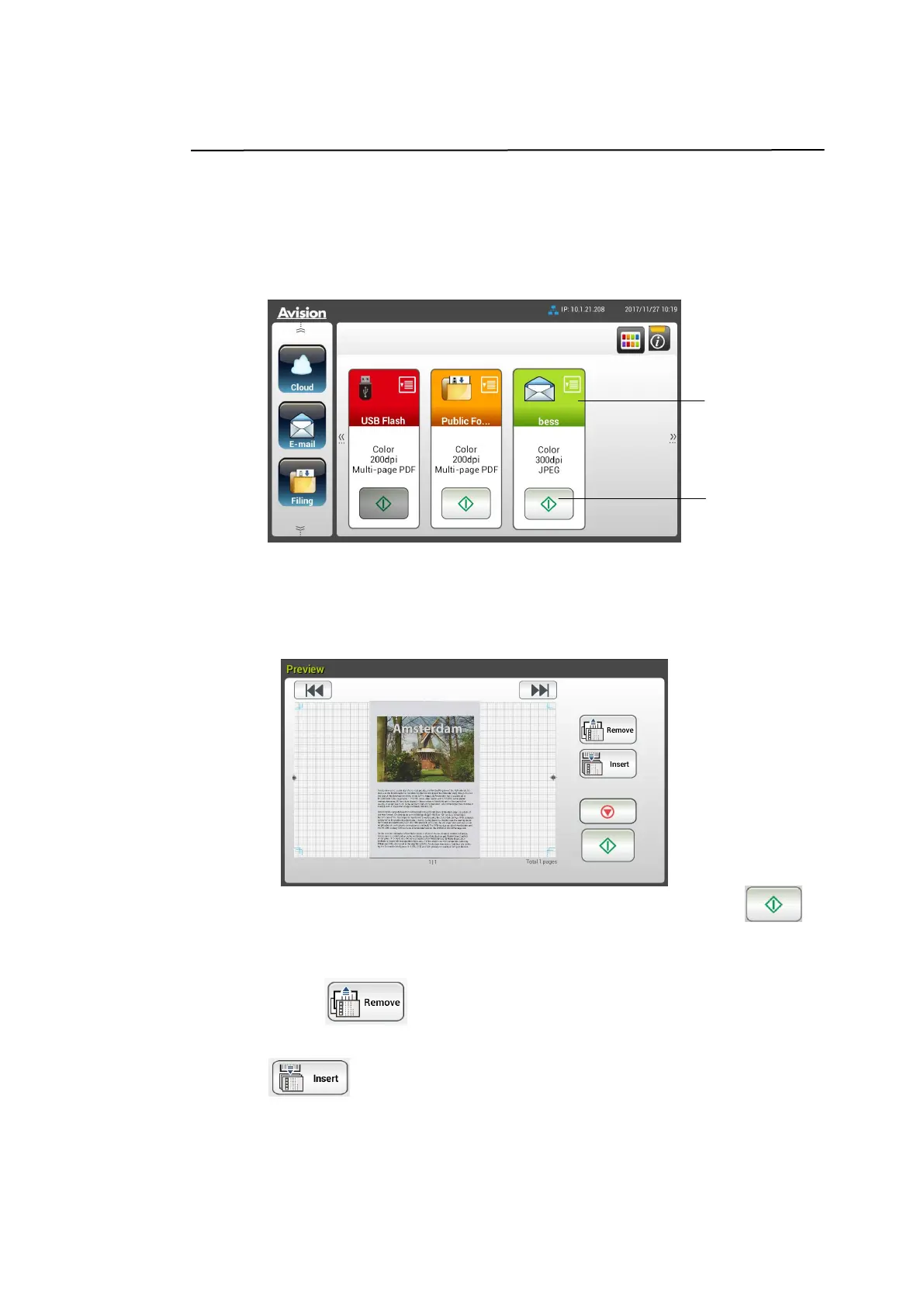
To use a Shortcut button,
1. Tap the [Start] button of your desired ShortCut button on the touch screen.
2. The scanner starts scanning and a preview image will be displayed.
3. On the Preview screen,
Start: If the scanned image is OK, press the [Start] button ( ) on
the touch panel to distribute the scanned image.
Remove: If the scanned image is not satisfactory, tap the [Remove]
button ( ) to delete the scanned image.
Insert: You may also insert more pages by taping the [Insert]
( ) button.
Cancel: If the scanned image is not OK, tap the [Cancel] button to
abort the job.
4. The scanned images are sent to your specified destination.



 To Next Page