Setting Date and Time
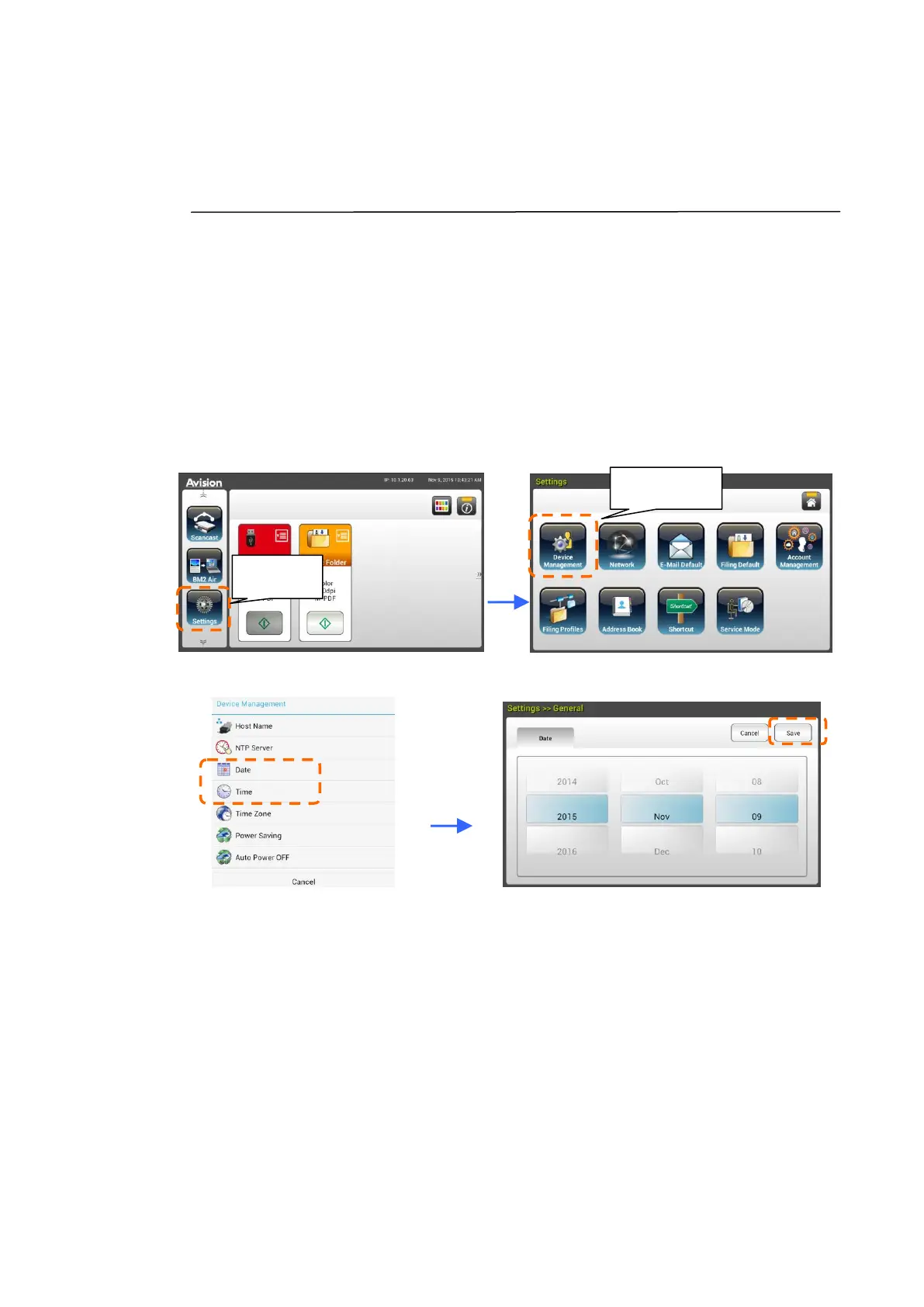
To let the product show current date and time, please set your date and time for
the product before using it.
1. On the Home Screen of the LCD Touch Panel, tap [Settings]>[Device
Management]>[Date] in succession and then set your current date.
Note: Login to Settings with the default credentials Login Name: admin
and Password: admin.
2. Tap [Save] to save the setting and go back to the previous screen.
3. On the [Device Management] screen, tap [Time] to set your current time.
4. Tap [Save] to save the setting and go back to the previous screen.



 To Next Page