4. If desired, enter the file name prefix in the [File Name] field for the
scanned document.
5. Check if the document side, output color, or file format meets your
requirements. If not, change the settings to suit your needs.
6. Tap the [Start] ( ) button. The scanner starts scanning your
document.
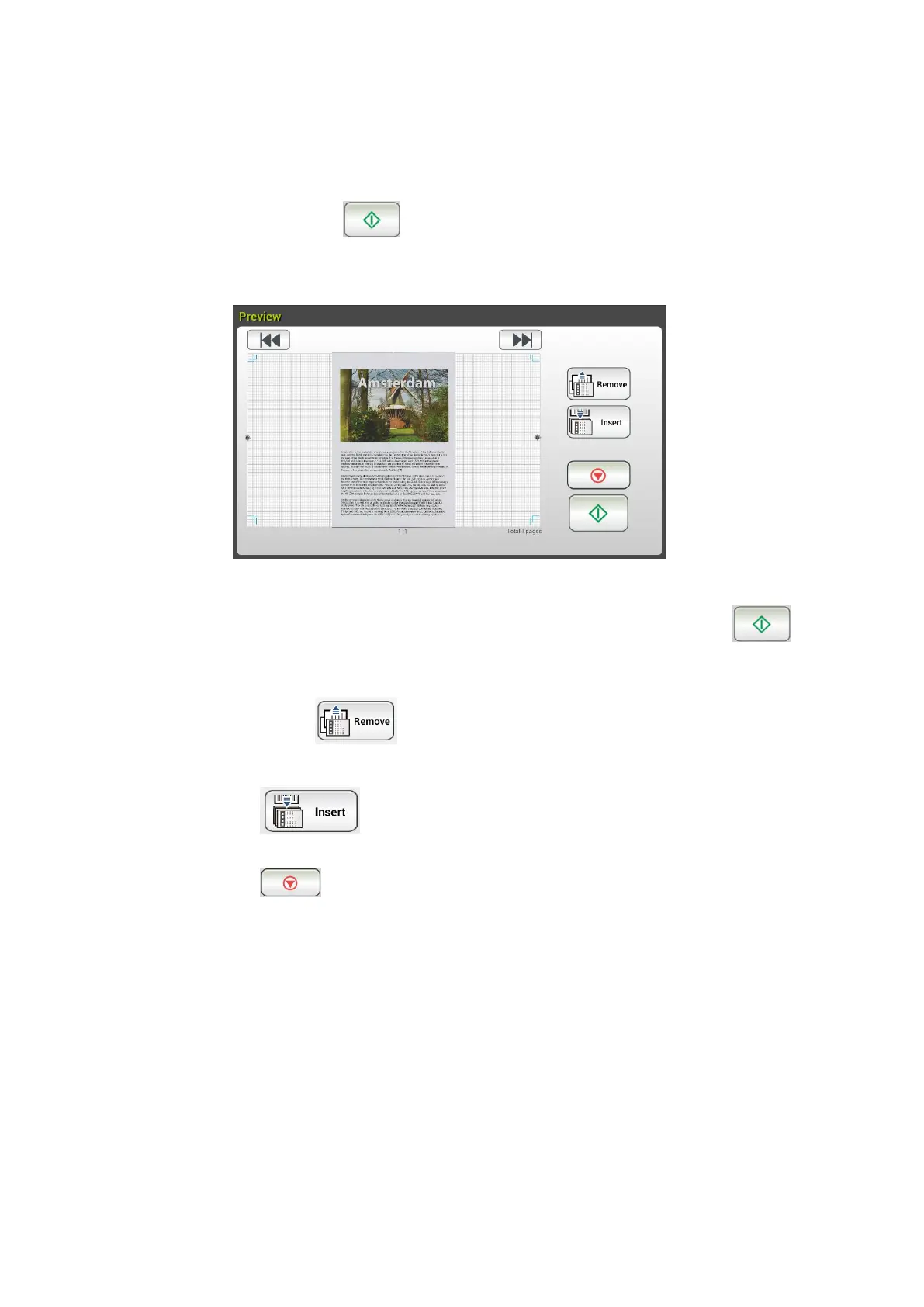
7. The product starts scanning and the preview image will be displayed.
8. On the Preview screen,
Start: If the scanned image is OK, press the [Start] button ( )
on the touch panel to distribute the scanned image.
Remove: If the scanned image is not satisfactory, tap the [Remove]
button ( ) to delete the scanned image.
Insert: You may also insert more pages by taping the [Insert]
( ) button.
Cancel: If the scanned image is not OK, tap the [Cancel] button
( ) to abort the job.
9. Enter your user name or password when the Login window appears.
10. In a second, the scanned image will be sent to your specified destination.



 To Next Page