APPENDIX 3 SET PUSH VIDEO
64
A3.2 Enable Push Video
A3.2.1 From iOS Mobile Device (iPhone / iPad)
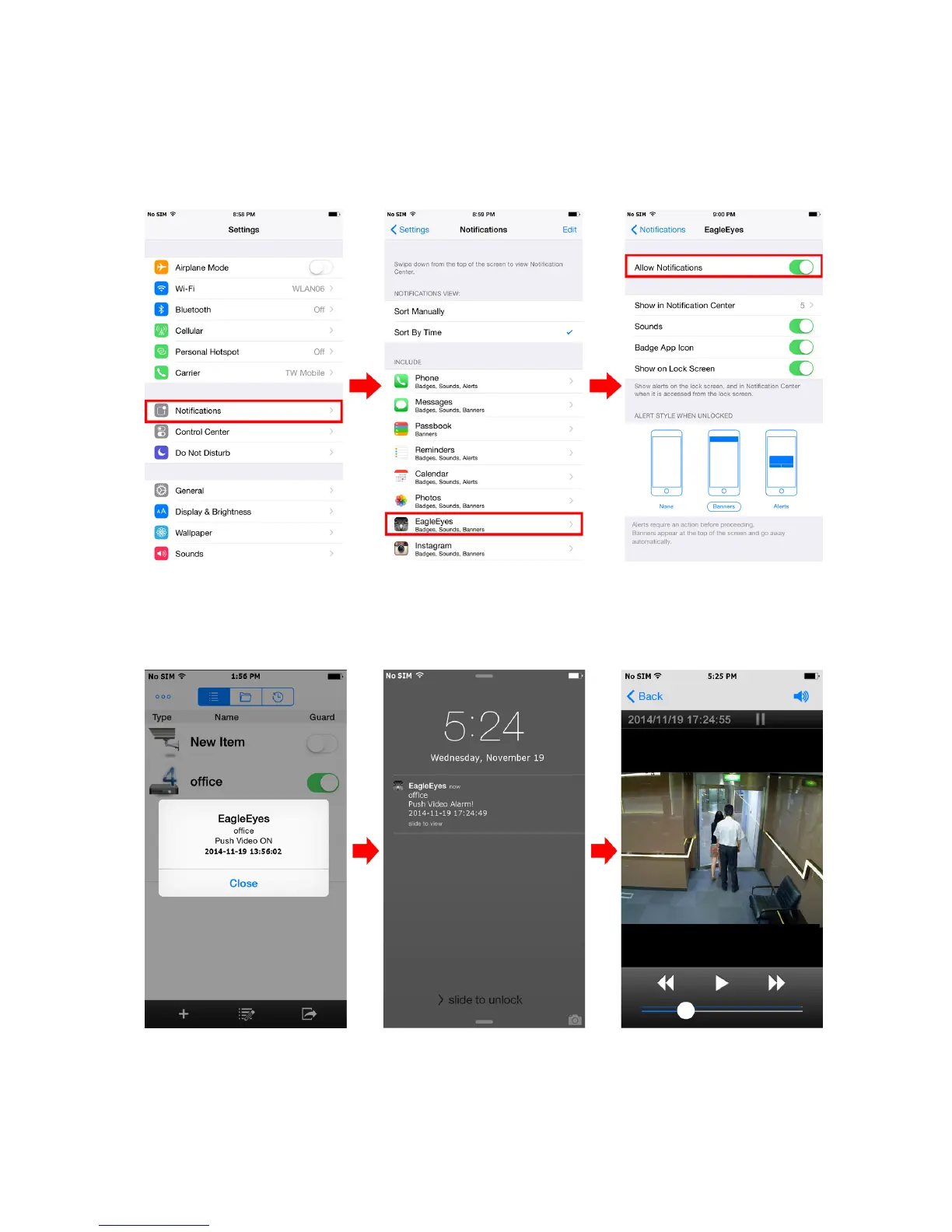
Step1: In the iPhone / iPad main menu, select “Settings” “Notifications”. Select “EagleEyes”, and make sure the
notification is set to on.
Step2: Open “EagleEyes”, and switch “Guard” to “ON”. You’ll receive the message indicating that Push Video is
on.
Step3: Return to the main page or standby page of iPhone / iPad. You’ll receive event notifications when there’s
an alarm event. Follow the on-screen instruction to immediately play the recorded clip.


 To Next Page