ChroMate
®
Microplate Reader Operator’s Manual Doc. 4300 Rev. Q 29
4.2.2.3 Edit a Curve
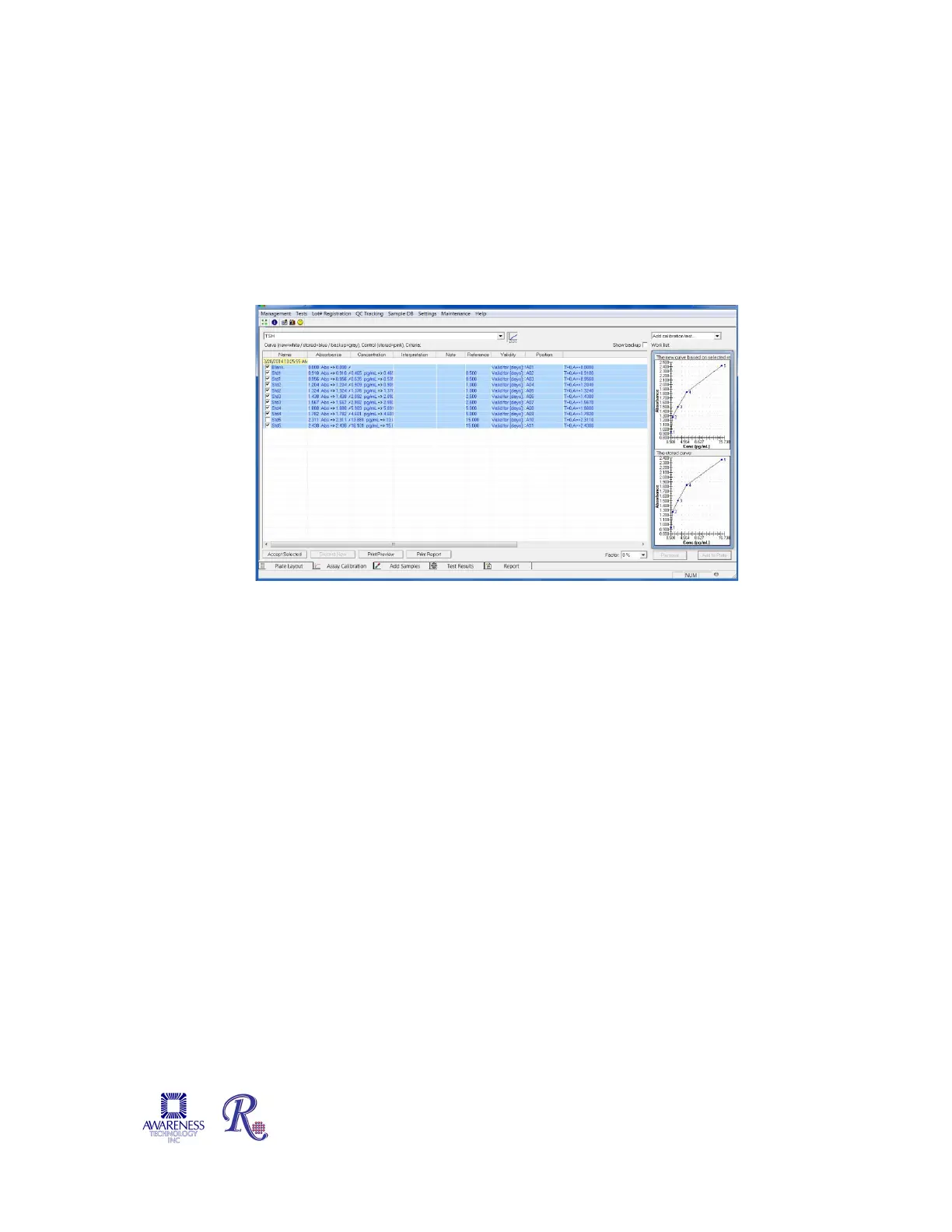
If a curve is not automatically accepted, it will be displayed in the upper right box. This is
labeled “New curve based on selected records.”
To create a valid curve, one or more standards can be eliminated from the calculation by
NOT including them (check boxes for the standards to be included in the calculations).
Once the curve is edited to create a valid curve, press the “Accept Selection” button at
the lower left to store the edited curve. The edited curve will now be saved and shown in
the lower right hand box, which is labeled “The stored curve”.
Figure 4.2.2.3-1 Editing a Curve
NOTE: If a curve is edited by not selecting one or more of the Standards, “Incomplete”
will be posted next to the name of the assay. This indicates that the accepted, valid curve
does not consist of all of the originally programmed Standards.
In the Assay Calibration tab, add the New Curve and New Control to the Work List by
selecting the corresponding option from the drop-down menu (1). In the example shown
below (Figure 4.2.2.3-2), [ALL] has been selected. All programmed Calibrators and
Controls will be added to the Work List. You may run more than one of each of the
calibrators.
Samples can be read without running new calibrators. Once loaded onto the plate, at
“Read”, a message will pop up “Do you want to add a new curve (blank) to the plate for
this assay?”
Concentrations of the samples and controls are calculated using the stored standard
curve. This can reduce reagent cost significantly, however it is the decision of the user,
using good lab practices, to determine whether or not to re-calibrate the assay (and
generate a new curve) by adding the new calibrators and blanks. You should answer
“yes” at a minimum when a new reagent lot is being used.


 To Next Page