ENG
Select the desired .lst playlist line to be deleted and press Remove.
It is possible to import a previously created complete schedule by clicking on Import.
Then select the schedule saved in .LSTS format from the window that appears to open it here.
It is possible to save the entire schedule by clicking on Export. Add all the desired .lst playlists lines and press
Export to save your current schedule in .LSTS format with the desired and customized file name.
Through this button a check is performed on the playlists added to the scheduler.
The presence of files in the indicated paths is re-checked, their individual durations are re-checked and the different
durations, from those currently displayed, are updated with new ones.
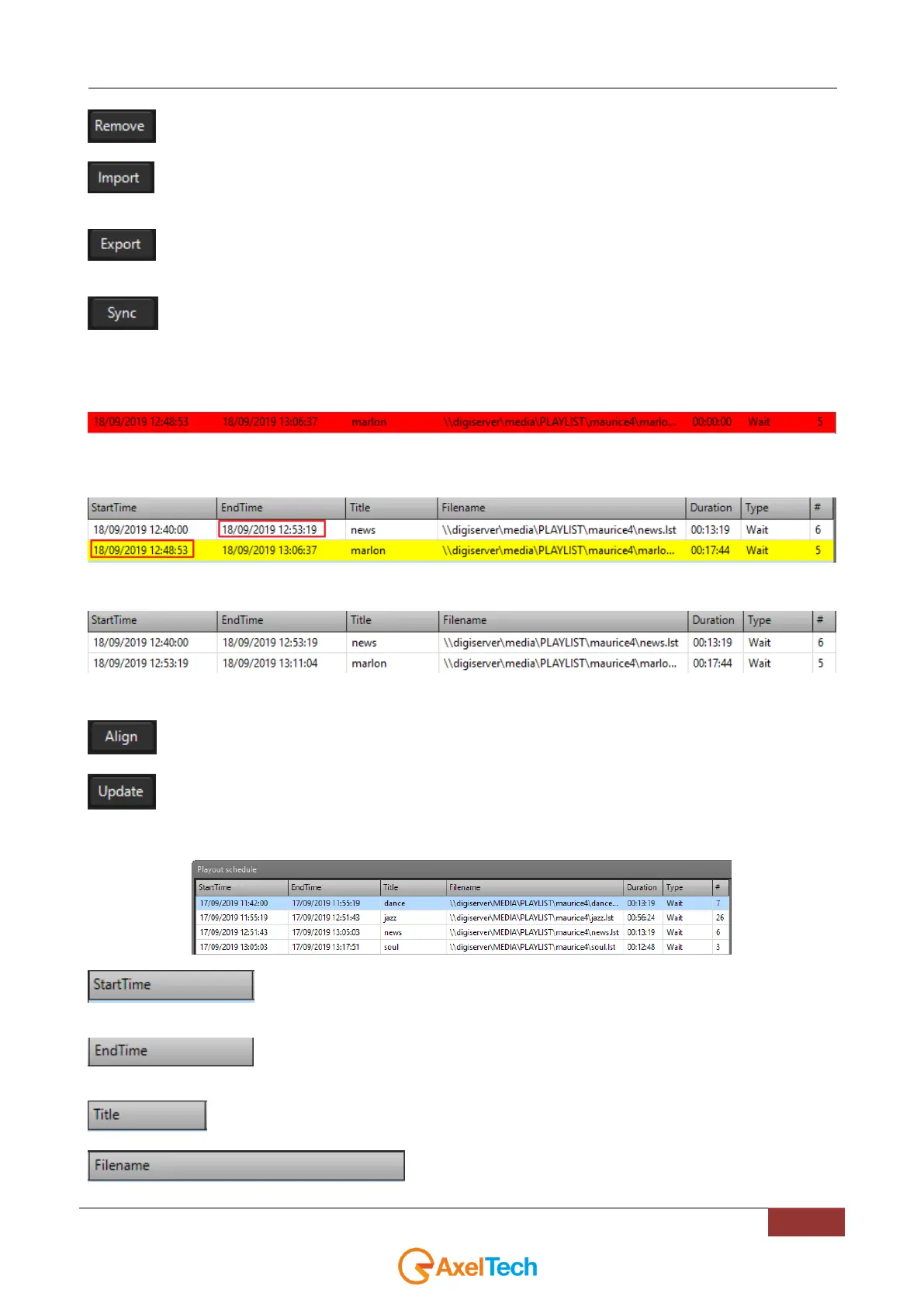
If a schedule line turns red it means the playlist-file is not found in the displayed path like the following example:
If a schedule line turns yellow it means the playlist STARTIME is set before the ENDTIME of the previous playlist like the
following example:
If a schedule line is white coloured it means that all is OK:
NB: this coloring of the scheduler lines is independent of the TYPE parameter that can be set on WAIT or CUT
To align the STARTIMES of the clips with the ENDTIMES of the previous ones press ALIGN.
The UPDATE button performs both the Sync button and the Align button operations.
With UPDATE button it is also synchronized the selected playlist STARTIME with the YOUPLAY-PC.
This is the line of the column headers:
In this column you will find the playlist file StartTime. It is possible to edit it by doubleclicking
on the playlist StartTime in this tab.
In this column you will find the playlist file EndTime, calculated in accordance with file
duration. The parameter displays the result of an automatic calculation and it is not editable.
In this column you can read the playlist title.
In this column you can read the path of the playlist



 To Next Page