ENG
Add the entire content of a folder to the playlist
Shows as first element of the playlist the one currently on air
It is possible to set a WATCHFOLDER, that is a folder where you can constantly check the presence of new
clips and insert them quickly. WATCHFOLDER is very useful to add new contents to a program (e.g.
newscasts) after a few minutes that the clip is recorded.
If enabled, checks the presence of new files on the WATCHFOLDER.
Use this button to set the path of the desired WATCHFOLDER
When this button turns to yellow, it means that there are new clips on the WATCHFOLDER.
Clicking on this button all the new clips inside the WATCHFOLDER will be inserted on the playlist.
NB The clips can be moved inside the playlist using drag and drop feature.
2.3.1 PLAYLISTS SCHEDULER
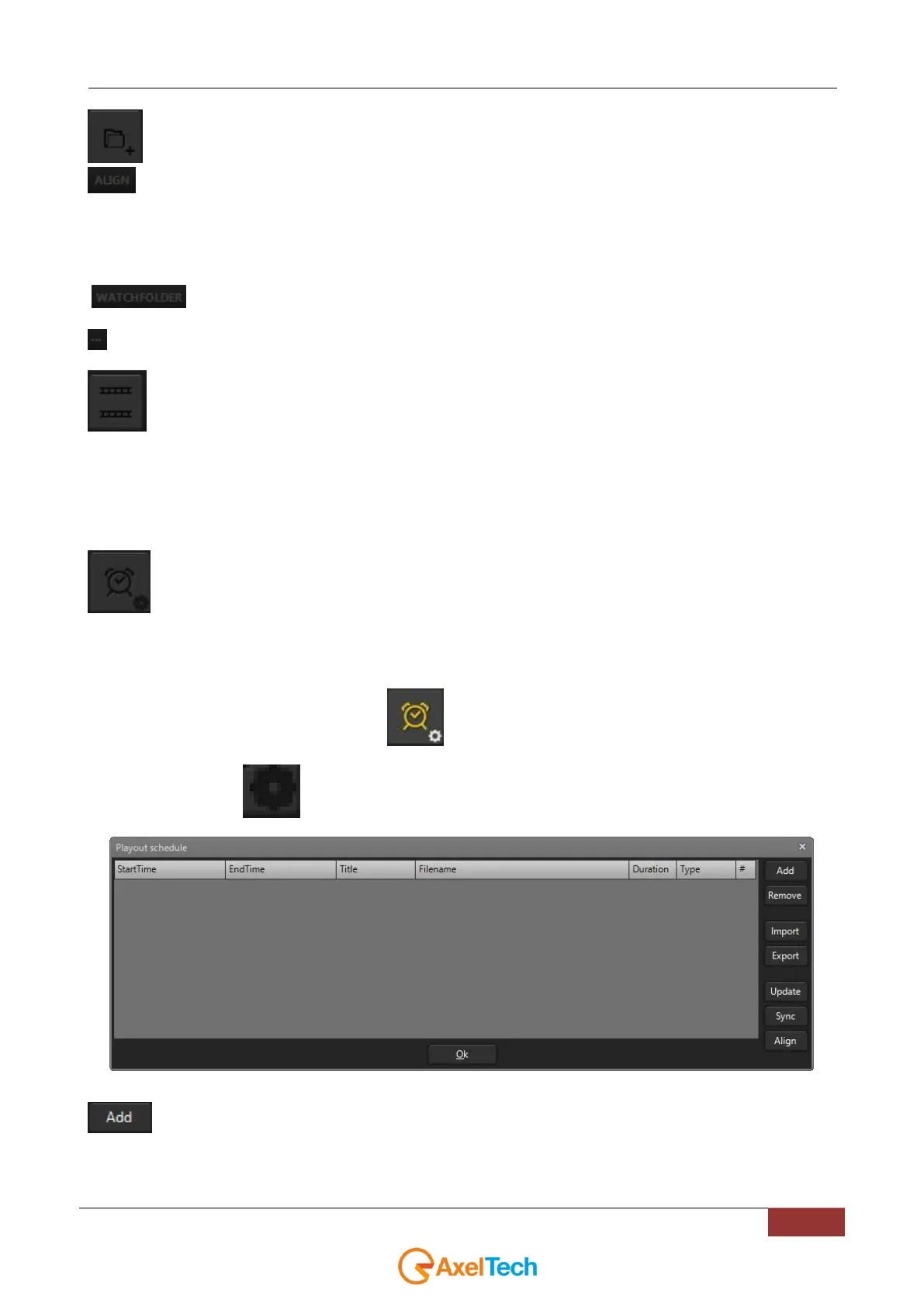
Through this button will be possible to create a schedule with all the desired .lst playlists.
From this scheduler it will be also possible to decide the exact playing time for each .lst playlist.
By clicking it, you will activate PLAYLISTS SCHEDULER.
When it is ON, the button will turn to yellow
Press the settings wheel at the bottom-right to enter in the following scheduler tab:
At the right side of the window you could find all the buttons for the schedule management:
press it to add a .lst playlist line for the current schedule.
A single .lst playlist line of the current schedule could be moved up or down by dragging it in the desired schedule
position.



 To Next Page