ENG
2.2 HOW TO INSERT A CLIP ON THE PLAYLIST
There are four different ways to add a clip to the list:
1. Click on the button, then browse the clip in windows mode
2. Open the clip folder, then drag and drop it into the playlist space (right part of the screen)
3. Open the clip folder, then drag and drop it on the preview space (left part of the screen)
4. Use the APPEND CLIP button . WARNING: the APPEND CLIP button will put the clip AT
THE END of the playlist
5. Drag and drop from another YouPlay instance (If you keep pressed the CTRL, the clip will be copied
and past, otherwise the clip will be moved)
2.3 PLAYLIST MANAGEMENT OPTIONS
Open a previously saved playlist
The playlist format that can be used with YouPlay are:
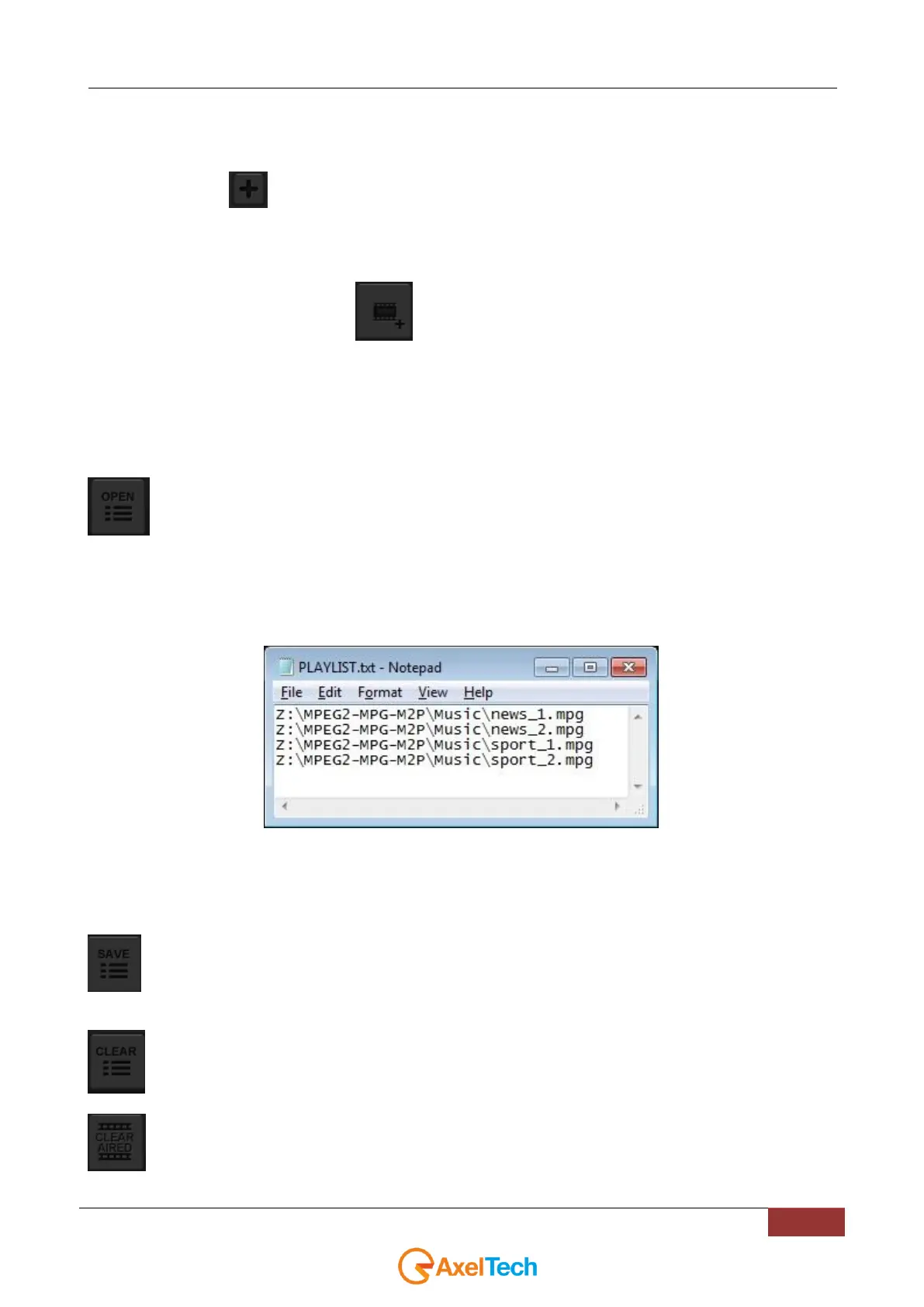
.TXT – It is possible to edit manually the playlist using a notepad and listing the paths of the clips
Example of a .TXT playlist:
.LST – Playlist format by YouPlay. When you save a playlist with YouPlay, it will be in .LST format
.XSC – Playlist made with Xscheduler (scheduler software of XTV suite by Axel Technology)
.FCPXML – Playlist made with Final Cut Pro
.XML – Playlist made with Final Cut
Save the current YouPlay playlist in an external .LST file. Choose the desired file location and open it
when you will need it again.
Delete all the clips from the playlist.
If enabled, when a clip will be played, it will be deleted from the playlist.



 To Next Page