ENG
4.12.2 REMOTE VCR
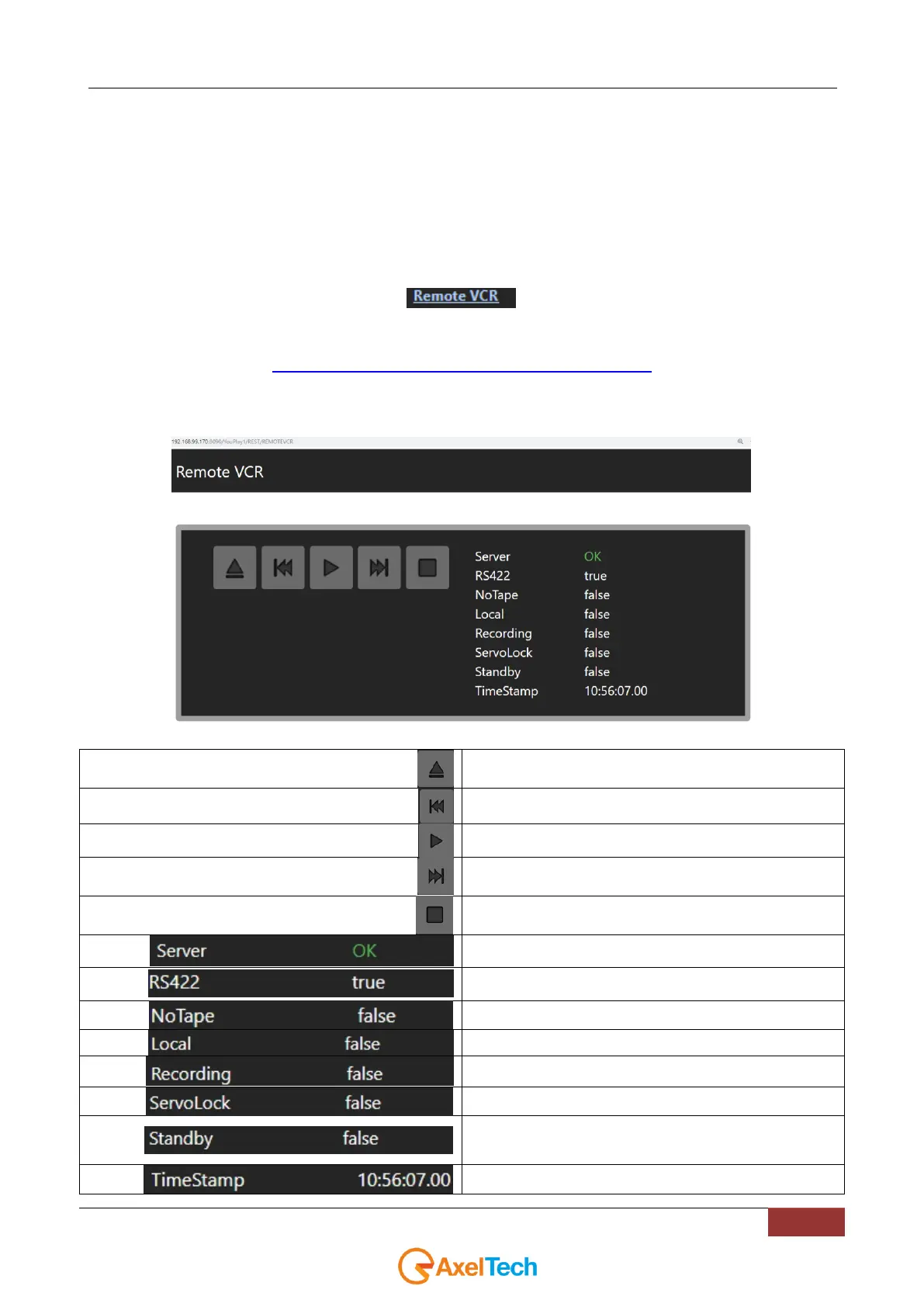
The YOUPLAY environment allows you to control a VCR connected to the Youplay PC via RS422 Comm port.
It’s possible to control the VCR and all the operations to be performed on the contained videotape:
6. remotely from a browser webpage
7. directly from the YOUPLAY GUI
4.12.2.1 CONTROLLING THE VCR REMOTELY BY WEB PAGE
It’s possible to reach the REMOTE VCR web page by clicking on the following link in Youplay > Settings > API:
It’s also possible to reach the REMOTE VCR web page by typing the following syntax on the URL field of your browser:
HTTP://IPADDRESS:8090/YOUPLAY1/REST/REMOTEVCR
instead of “IPADDRESS” type the IP ADDRESS of the YOUPLAY instance PC.
For other youplay instances only change YOUPLAY1 in YOUPLAY2 or other available channels.
Ejects the tape of the VCR connected to the remote
Youplay PC
Rewinds the tape of the VCR connected to the remote
Youplay PC
Starts the playback of the VCR connected to the remote
Youplay PC
Fast Forwards the tape of the VCR connected to the
remote Youplay PC
Stops the playback of the VCR connected to the remote
Youplay PC
Displays if the server of this remote webpage correctly
communicates with the related YouPlay
Displays if the RS422 external VCR is correctly connected
to the PC Comm port
Displays if the tape is missing
Displays if the controlling of VCR is local or remote
Displays if the connected VCR is in recording mode
Displays if the playback of the connected VCR is blocked
Displays if the connected VCR is in standby mode. To
disable the STANDBY mode press the POWER button on
VCR own panel
Displays the connected VCR



 To Next Page