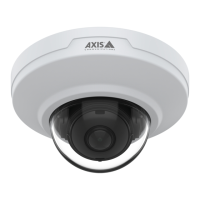
AXIS M3045-V Network Camera
Access the Product
Click the View Full Screen button and the video image will ll the entire screen. Press ESC (Escape) on the computer
keyboard to cancel full screen view.
The Record button is used to record the current video stream on your computer. The location where the recording is saved
can be specied in the AMC Control Panel. Enable this button from Live View Cong > Viewer Settings.
PTZ Controls
Note
These controls are available if digital PTZ is enabled in the selected view area, see View Area on page 20.
Click the Emulate joystick mode button and click in the image to move the camera view in the direction of the
mouse pointer.
Click the Center mode button and click in the image to center the camera view on that position.
The center mode button could also be used to zoom in on a specic area. Click in the image and drag to draw a
rectangle surrounding the area to be magnied. To zoom out, rotate the mouse wheel.
To view a specic view area or preset position, select it from the Source list.
Pan and Tilt bars – Use the arrows to pan and tilt the camera view, or click on a position on the bar to steer the camera view to
that position.
Zoom bar – Use the arrows to zoom in and out, or click on a position on the bar to zoom to that position.
The PTZ controls can be disabled under PTZ > Advanced > Controls, see Controls on page 27.
12


 To Next Page