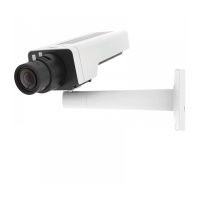
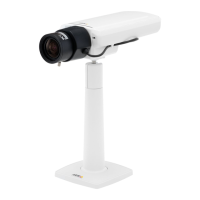
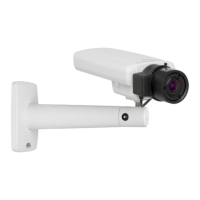
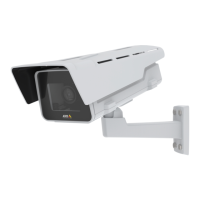
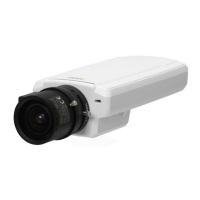
AXIS P1344 Network Camera
Video and Audio
To use your own image, such as a logo, first upload the image to the Axis product. Go to Video & Audio > Overlay Image, click
Browse to locate the file and the n click Upload.ThefilecanthenbeselectedfromtheUse overlay image drop-down list.
To place an overlay image at specificcoordinates,gotoVideo & Audio > Video Stream and se lect the Include overlay image at
coordinates check box option and enter the X and Y coordinates.
For more i nformation see the online help
Privacy Mask
A privacy mask is an area of solid color that prohibits users from viewing parts of the monitored area. Privacy masks cannot be
bypassed via the VAPIX® Application Programming Interface (API).
The Privacy Mask List (Video & Audio > Privacy Mask) shows all the masks that are currently configured in the Axis product and
indicates if they are enabled.
You can add a new mask, re-siz e the mask with the mouse,chooseacolorforthemask,andgivethemaskaname.
For more i nformation, s ee the online help
Focus
You can focus the Axis product under Video & Audio > Focus. For most applications, the adjustments on the Basic tab are sufficient.
If re quire d , add itional adjus tments can be made on the Advanced tab. Before focusing, always click Open iris to open the iris to its
maximum. This gives the smallest depth of field and thus best conditions for correct focusing. C lick Enable iris when finished focusing.
Basic
Follow the on-screen instructions on the Basic tab to adjust zoom and focus. The pixel counter is used to determine the number of
pixels in an area of the image, for example to ensure that the image size fulfills s
pecific requirements. To position the pixel counter,
click on the text and drag the window to the desired position.
Note
• The back focus (step 2) should only be reset if the camera has b een focused previously.
• Set focus as precisely as possible using the focus puller on the lens (step 3) before starting the a utomatic fine-tuning
(step 4).
• If the camera is placed so that it is difficult to look at the image and move the pullers at the same time, you can use the
Focus Assistant to focus the ca mera; for instructions, see the Installation Guide supplied with the product.
Advanced
The tools on this page can be used to find the optimal focus position. Always open the iris before focusing and ena b le it when finished
focusing. Focus is measured in th
epartoftheimagecoveredbytheFocus window. Use the mouse to move and resize the window
and t he n click Fine-tune focus automatically. If needed, click in the Focus position baroronthearrowsattheendsofthebar,to
further adjust the focus. The buttons < and > move the focus position one step in either direction. The buttons << and >> move the
focus position multip
le steps in either direc tion. Clicking on the bar sets focus to tha t position. If the camera is not focuse d after
completing the above instructions, try the Full range focus scan. The scan, which can take several minutes, transforms the focus
position bar to a graph where peaks indicate the best focus positions. Click in the graph to set focus to the desired position.
Audio Settings
The audio functionality for each video stream is enabled under Video & Audio > Video Stream > Audio.
Audio Channels
Select the type of audio transmission from the Audio mode: drop-down list (Video & Audio> Audio Settings). The diffe rent typ es are:
Full duplex - Simultaneous two-way audio allowing you to transmit and receive audio (talk and listen) at the same time. There is no
echo cancellation; if feedback loops appear, try moving the microphone or the speaker.
22


 To Next Page