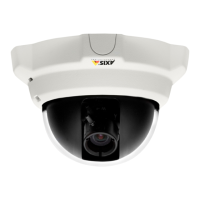
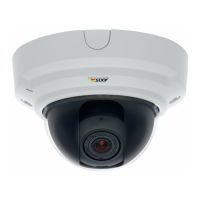
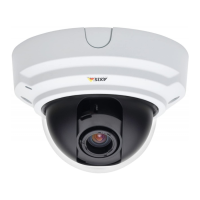
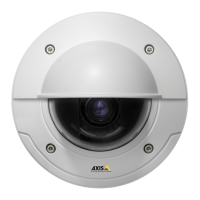
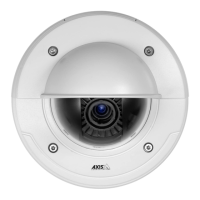
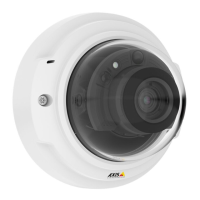
AXIS P3301 Fixed Dome Network Camera
Accessing the product
The Play button connects to the Axis product and starts playing a m edia stream.
The Stop button stops the media stream.
The Snapshot button takes a snapshot of the video image. The location where the image is saved can be specified
in the AMC Control Panel.
Click the View Full Screen button and the video image will fill the entire screen. Press ESC (Escape) on the computer
keyboard to cancel full screen view.
The Record button is used to record the current video stream. The location wher e the recording is saved can be specified
in the AMC Control Panel.
AMC Audio controls
AMC audio buttons control the speakers and microphone connected to the client computer. The buttons are only visible when
audio is enabled.
Speaker button — Click to turn the speakers on or off.
Microphone button – Click to mute or unmute the micro phone. In Simplex - Network Camera speaker only mode,
click this button to stop sending audio to the product.
Use the slider to control the volume of the speakers and the microphone.
Half-duplex mode
The Talk/Listen button is used to switch between sending and receiving audio. The button can be configured
from the Audio tab in the AMC Co ntrol panel:
• Push-To-Talk mode: Click and ho ld the button to talk/send. Release the button to listen.
• Toggle mode: Click once to switch between talking and listening.
Simplex – Network Camera speaker only mode
To send audio, the Talk and Microphone buttons must both be enabled. Click either button to stop audio
transmission.
10



 To Next Page