Azure Imaging System User Manual Page 10
3. Image Capture Overview
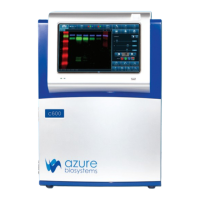
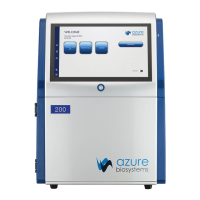
The Azure Imaging System captures high quality images with an intuitive user interface. The icon based
software allows you to program multiple applications with the touch of a button. There is no need to adjust
the focus on your sample. Simply put your sample in the system, select an exposure time, then hit capture.
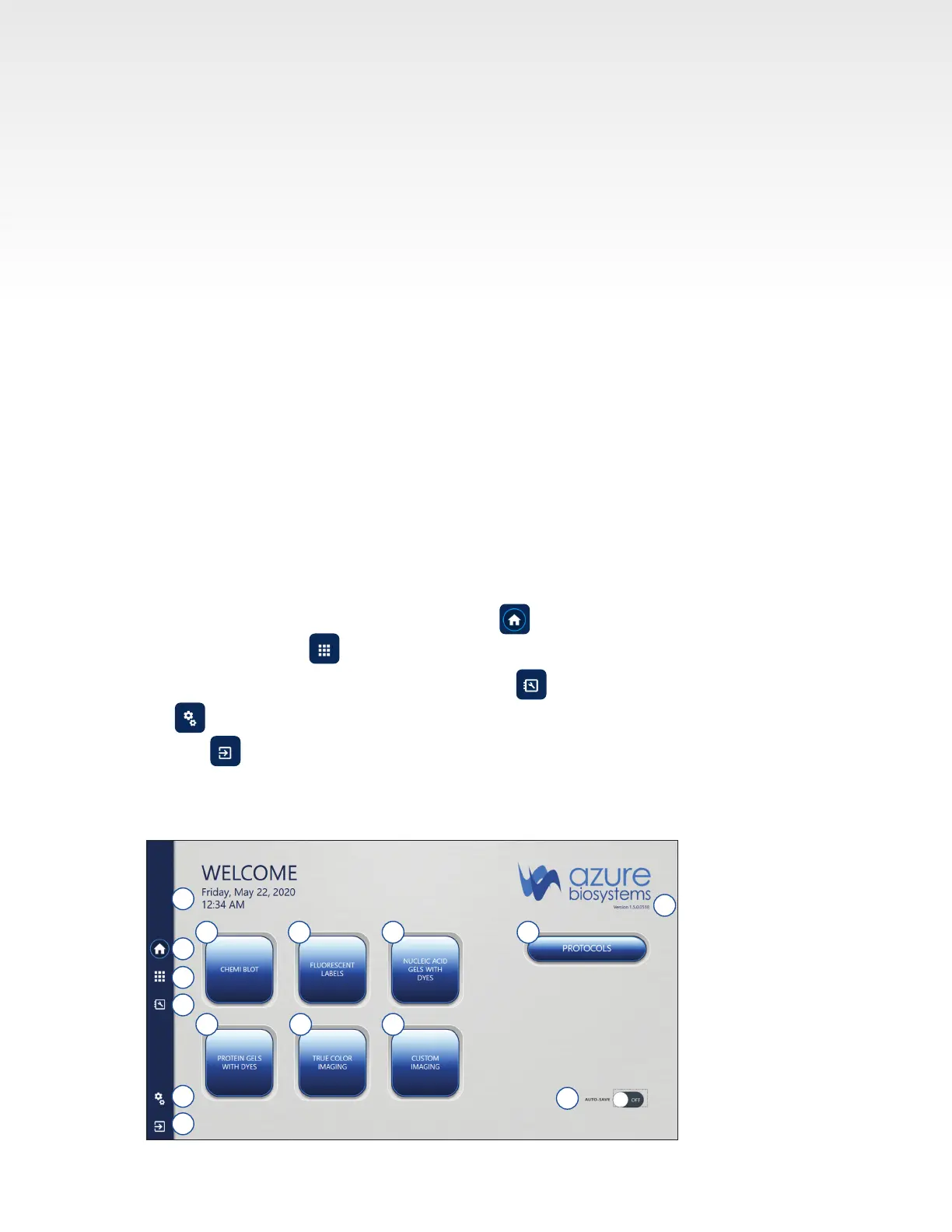
3.1 The home page contains the following imaging options:
1. Chemi Blot – for samples with luminescent and chemiluminescent signals such as from ECL-HRP.
See Section 3.3 for additional information.
2. Fluorescent Labels – for samples with uorescent signals in up to four channels (red, green, blue,
and grayscale) for multiplex imaging. See Section 3.4 for additional information.
3. Nucleic Acid Gels with Dyes – image uorescent stained nucleic acid gels. See Section 3.5 for
additional details.
4. Protein Gels with Dyes – image stained protein gels. See Section 3.6 for additional details.
5. True Color Imaging – image colorimetric dyes and colored samples with full color rendering.
See section 3.7 for details.
6. Custom – customize each imaging specication. Protocols created here can be saved for later use
and recalled using the Protocols button. See Section 3.8 for additional details.
Other options include:
7. Protocol selection – use to create and recall saved, custom imaging protocols.
8. Auto Save Functionality – automatically save any image taken during a session.
On the left-hand side menu there are the following buttons:
9. Reach the home page at any time by clicking .
10. Access the Gallery to view and edit images. See Section 4.1 for details.
11. Access this User Manual at any time by clicking .
12. takes you to Settings. See Section 4.3 for details.
13. Click to exit the program and return to the desktop.
14. Time and date based on Windows settings.
15. Software version number.
1 2 3
4 5
7
8
9
10
11
12
13
14
15
6


 To Next Page