Azure Imaging System User Manual Page 21
4. Image Gallery Overview
This section discusses the ways in which you can visually analyze images.
4.1 Gallery
Reach the gallery at any time by clicking .
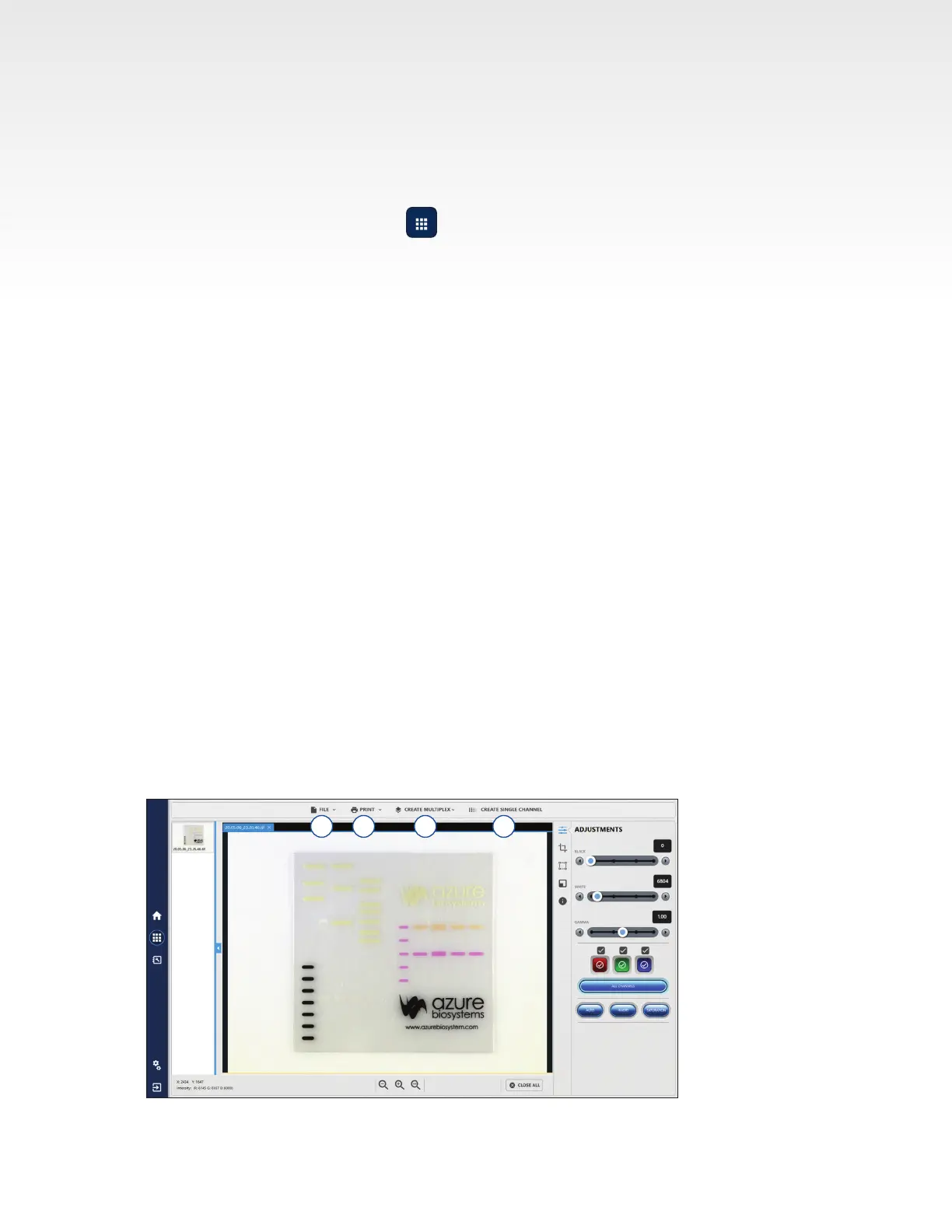
1. The following options are available within the File dropdown menu:
• Open – open an image that is stored locally, on a USB, or on the network.
• Close – close the image that you’re currently viewing.
• Close All – close all images currently open in Gallery.
• Save – save an image to a USB, the integrated computer, or to a network drive. Images can be
saved as a TIFF, Publication TIFF, JPEG or BMP. File names are automatically generated with the
date and time stamp. You can overwrite this name by editing it in the displayed textbox.
• Save As – save a copy of a previously saved image with an alternate name, le type, or to an
alternate le location.
• Save All – saves any unsaved images open in the gallery tab. The le names will be automatically
generated with the date and time stamp.
• Export to AzureSpot – export les and multiplex images as les ready for AzureSpot analysis.
• Exit – exit the software. Program will prompt you to save any unsaved images. If you leave the
gallery by the home button, the image(s) will still be there when you return to the gallery.
2. From the Print dropdown menu, you can:
• Print – print to a local printer connected to the system, or to a network printer.
• Print Report – print the image you’re viewing as well as data about the image. These include
image name, date, protocol type, capture type, binning, exposure time, exposure type, channel
name, light sources, lter, aperture, tray type, focus, calibration, software version, and serial
number. The images must be the same size and resolution.
3. Create a multichannel image by merging between two and four channels.
4. Create Single Channel separates multiplex images into individual, single-channel images.
2 3 41


 To Next Page