Azure Imaging System User Manual Page 18
8
13
9
10
11
12
3.7 True Color Imaging Mode
Use this mode to capture the true color of opaque or translucent colorimetric samples.
1. Place sample in the center of the eld of view using the tray/table indicated by each imaging option.
2. Close the Azure Imaging System door.
3. Select True Color Imaging from the home screen.
4. Choose the imaging type based on sample type
• Use Opaque Sample Epi for opaque colorimetric samples such as colorimetric western blots or
TLC plates using the Black Tray.
• Use Translucid Sample Epi for imaging translucent samples such as Coomassie gels using the
White Tray.
• Use Translucid Sample Trans for imaging translucent samples such as Coomassie gels using the
Trans White Table
Note: This feature is only available in the Azure 400 and 600 imagers.
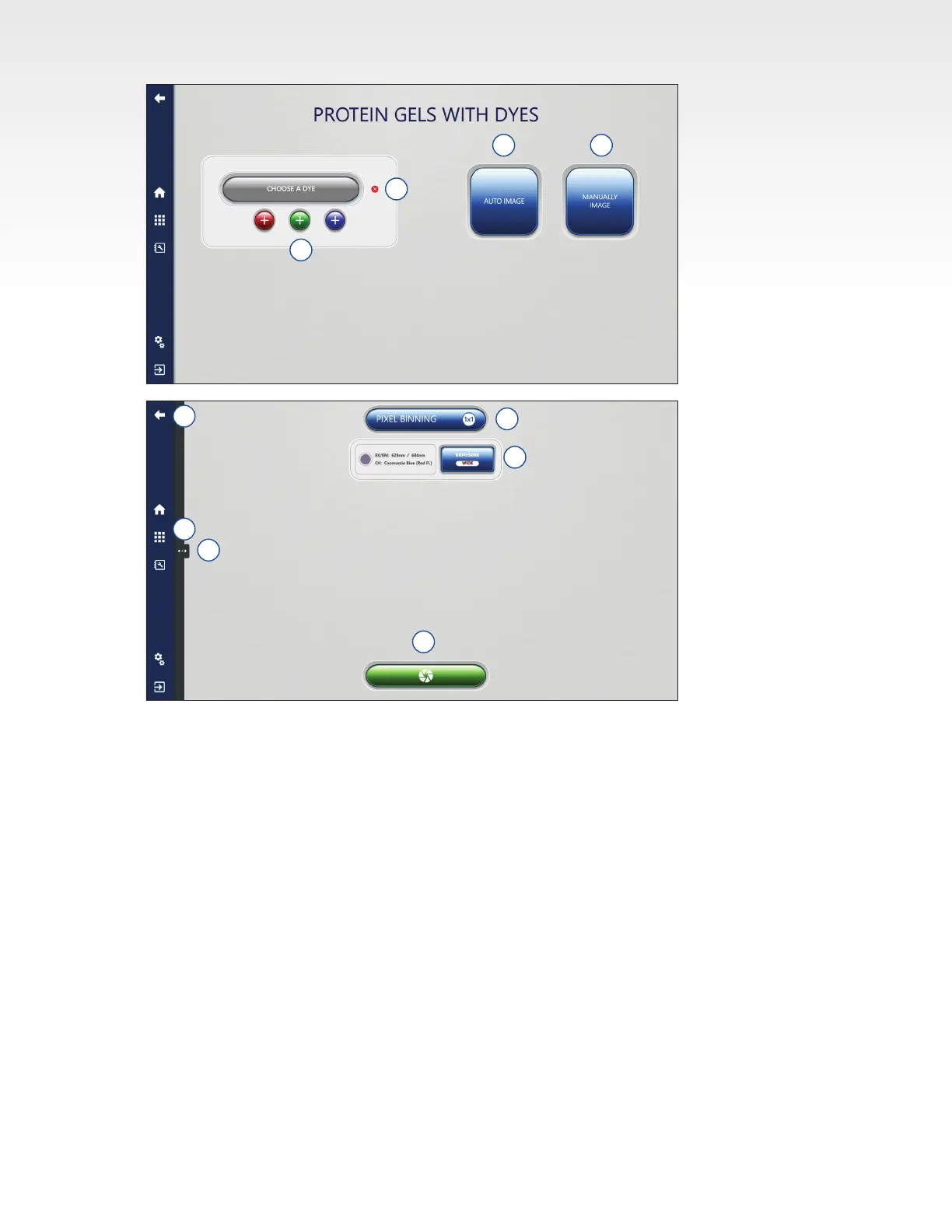
5. Click Auto Image to capture image. The system will determine the optimal exposure using the Wide
Dynamic Range exposure mode.
6. After capture, images will appear in the Gallery automatically. The Gallery can be reached at any
time by pressing the Gallery icon.
7. Go back one screen at any time by pressing the back icon.
6 7
5
4


 To Next Page