Setting up the BeoLink Converter NL/ML 9
Tools > Software update
To update the software on-line in the BeoLink Converter NL/ML, it must be connected to the Internet via a router.
Software status (Check available version/Update)
Shows the actual software version. It is possible to check the available software version and if required to download the latest version. The Check
available version button is used to check the latest software version. The version of the current software in the BeoLink Converter NL/ML and the
available version are shown at the same time. The Update button starts the software updating.
Automatic update (Enable/disable)
The automatic software update can be disabled or enabled. If the automatic software
update is enabled the owner of the BeoLink Converter NL/ML must agree that Bang &
Olufsen are allowed to update the BeoLink Converter NL/ML and other products
connected in the link system, when a new software version is available.
Usage patterns (Enable/disable)
When this function is enabled Bang & Olufsen are able to upload statics, e.g.
information about the Service Counters from the BeoLink Converter NL/ML. Enabling the
Usage patterns must be agreed by the owner of the BeoLink Converter NL/ML.
! Never switch the BeoLink Converter NL/ML off during the installation of new software.
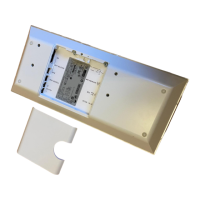
Check the LED indicator on the socket panel. If it lights solid red a software update is in
progress. If the BeoLink Converter NL/ML is not working properly after a software update
it must be restarted using the default installed software.
! Remember to save the settings.
Conguration > Settings
Set up sources in other Network Link products before setting up the Conguration
Menu in BeoLink Converter NL/ML. As the BeoLink Converter NL/ML makes initial source
settings based on the products selected in Connect to (primary) and Connect to (secondary) It can save a lot of manual work.
MasterLink (Enable/disable)
The Master Link can be disabled or enabled. Disable Master Link when the BeoLink Converter is used for driving Power Link speakers only as in
Example 1 (Network Link without Master Link setup), see page 20. The ML Role is default set as a V Master, but can be changed. The BeoLink
ConverterNL/MLhastheconguredroleseenfromtheMasterLinkside.ForfurtherinformationaboutMLRoles,seepage 39.



 To Next Page
 Loading...