3. Driver and software installation
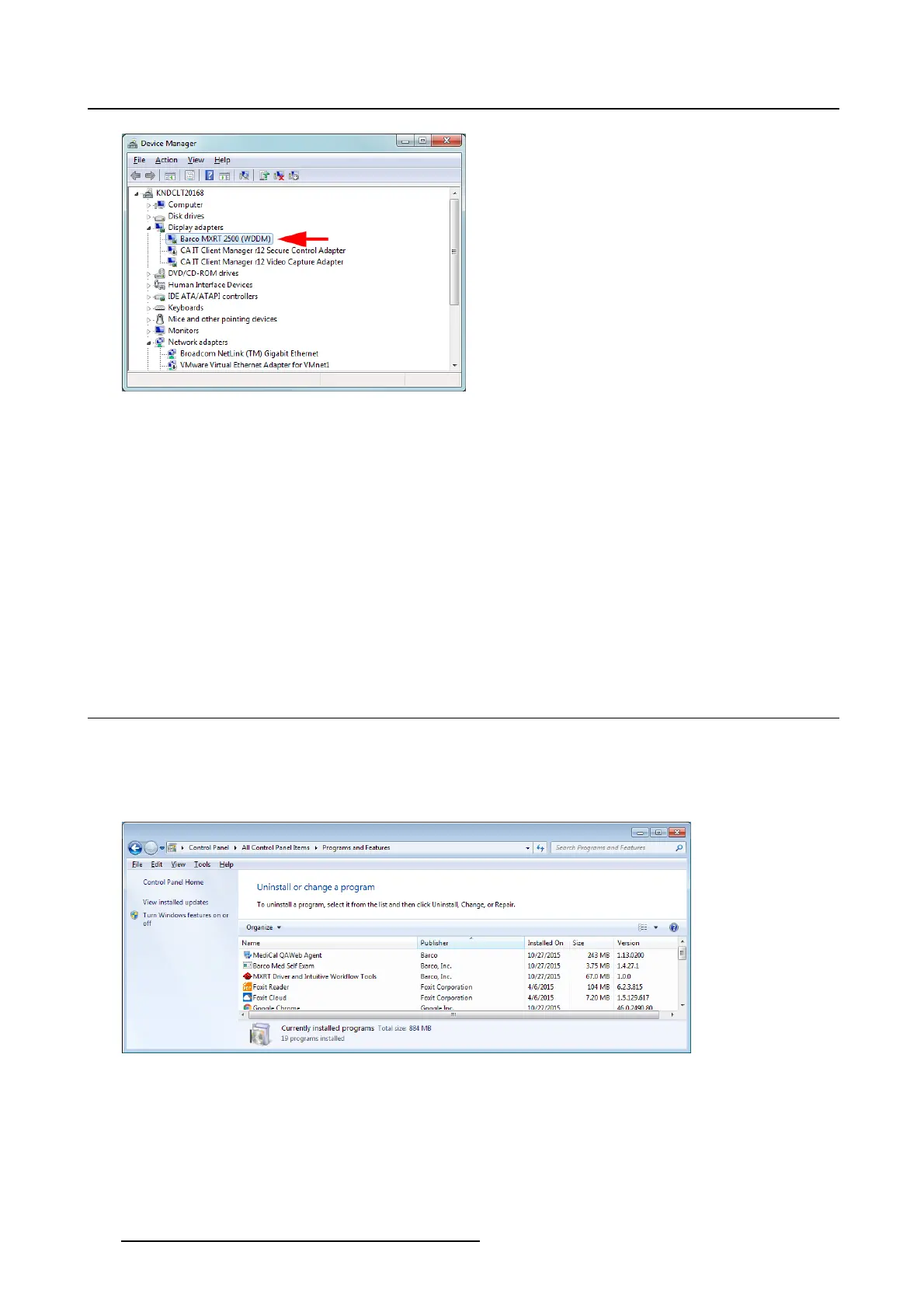
Image 3-2
Verifying d river installation
Automatic display configuration
Once the drivers, software and documentation have been installed and the system has been rebooted,
the computer should automatically detect your Barco displays and attach them to the desktop with the
correct resolution. If the computer fails to detect your Barco displays or fails to attach them to the desktop
correctly, please use the Windows Screen Resolution to set the
correct resolution.
Upgrade drivers
When performing a driver upgrade, the Barco System Settings Control P anel default profile will be
applied. Any user profile that was saved on the system previously is still available and can be selected
through the Barco System Settings Control Panel.
3.6 Unin s tallation
Uninstalling the drivers and soft ware
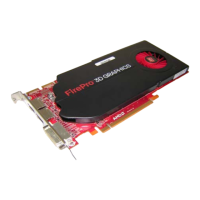
To uninstall the Barco drivers, software or doc
umentation for your Barco Display System, please use the
Windows Add/Remove Programs. This can be found in the Windows Control Panel under Programs
&Features.
Image 3-3
Windows 7 Add /Rem ove P rograms
Barco System Cleaner
The Barco System Cleaner is a tool that will remove all Barco software components from your workstation.
This includes the display driver, the accompanying software for supporting Intuitive Workflow features,
BMSE, and QAWeb calibration software. The application can be found at C:\Progra m Files\Barco.
16
K5905271 DISPLAY CONTROLLER 27/02/2017


 To Next Page