5. Driver and software features
Touchpad gesture Emulated Mouse action
Drag two fingers up Scroll wheel up
Drag two fingers down Scroll wheel down
Drag two fingers left Click scroll Wheel and drag left
Drag two fingers right Click scroll Wheel and drag right
Using the Barco Touchpad Gesture Recognition
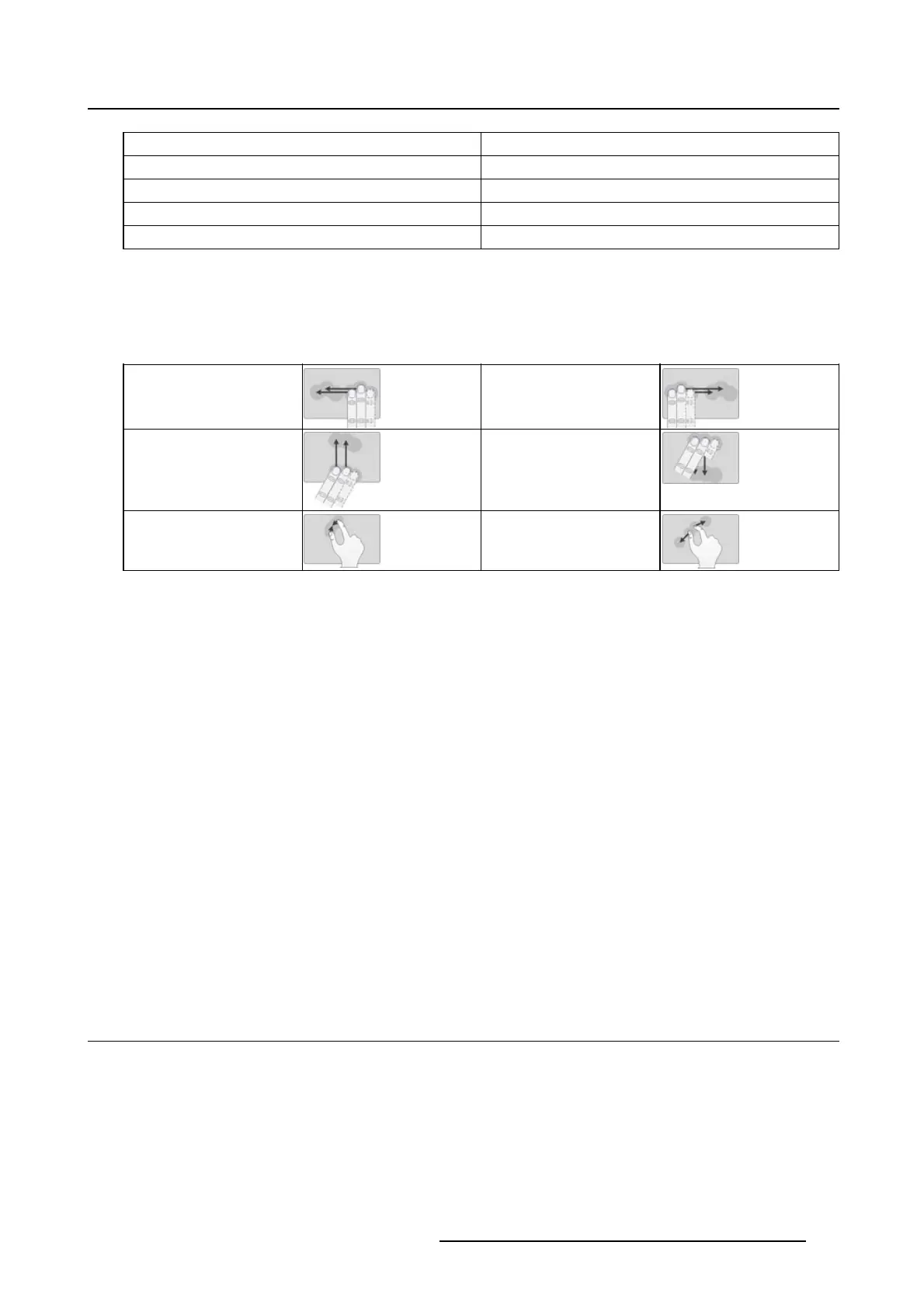
The Barco Touchpad recognizes ten two- and three-finger gestures: Two- and Three-finger Swipe Left,
Two- and Three-finger Swipe Right, Two- and Three-finger Swipe Up, Two- and Three-finger Swipe Down,
Two-finger Pinch In, and Two-finger Pinch Out. These are shown in the table below .
Swipe Left
Swipe Right
Swipe Up Swipe Down
Pinch In
Pinch Out
Each gesture can be programmed to send keystroke shortcuts, as if those keys were pressed on the
keyboard. The gesture can send a single keystroke or send the keystroke continuously until the gesture
ceases. Some gestures are used by default in Mouse Emulation Mode; those defaults can be overwritten
in the Barco System Settings Control Panel.
5.14.3 Configuration
Configuring th e Barco Touchpad
From the Barco System Settings Control Panel, navigate to the Touchpad Gestures section to associate
the Barco Touchpad gestures with desired shortcut keys.
• Enable Mouse Emulation: Click on this checkbox to control the cursor with the touchpad.
• Speed: This slides controls the responsiveness of the cursor in Mouse Emulation Mode.
• Emitted Shortcut: This field shows the currently defi ned keyboard shortcut for each gesture. Click
on the fieldtodefine a new shortcut.
• Clear: Click the Clear button to remove the hotkey for a given gesture or button.
• Continuous: This checkbox enables continuous shortcut emission.
• Rate: This slide controls the rate of continuous shortcut emission.
• Shortcut Description: Clickonthisfreetextfield to describe the intention of the shortcut.
5.15 VirtualView
5.15.1 Description
Overview
VirtualView gives the user additional real-estate on the screen by creating a virtual display in Windows
without the need for an additional physical display on the desk. A virtual display is created for the user to
use as a navigational head, or for other software, such as dictation. The user can set the location of the
K5905271 DISPLAY CONTROLLER 27/02/2017
35


 To Next Page