20-2 9492600990
Communication DECS-150
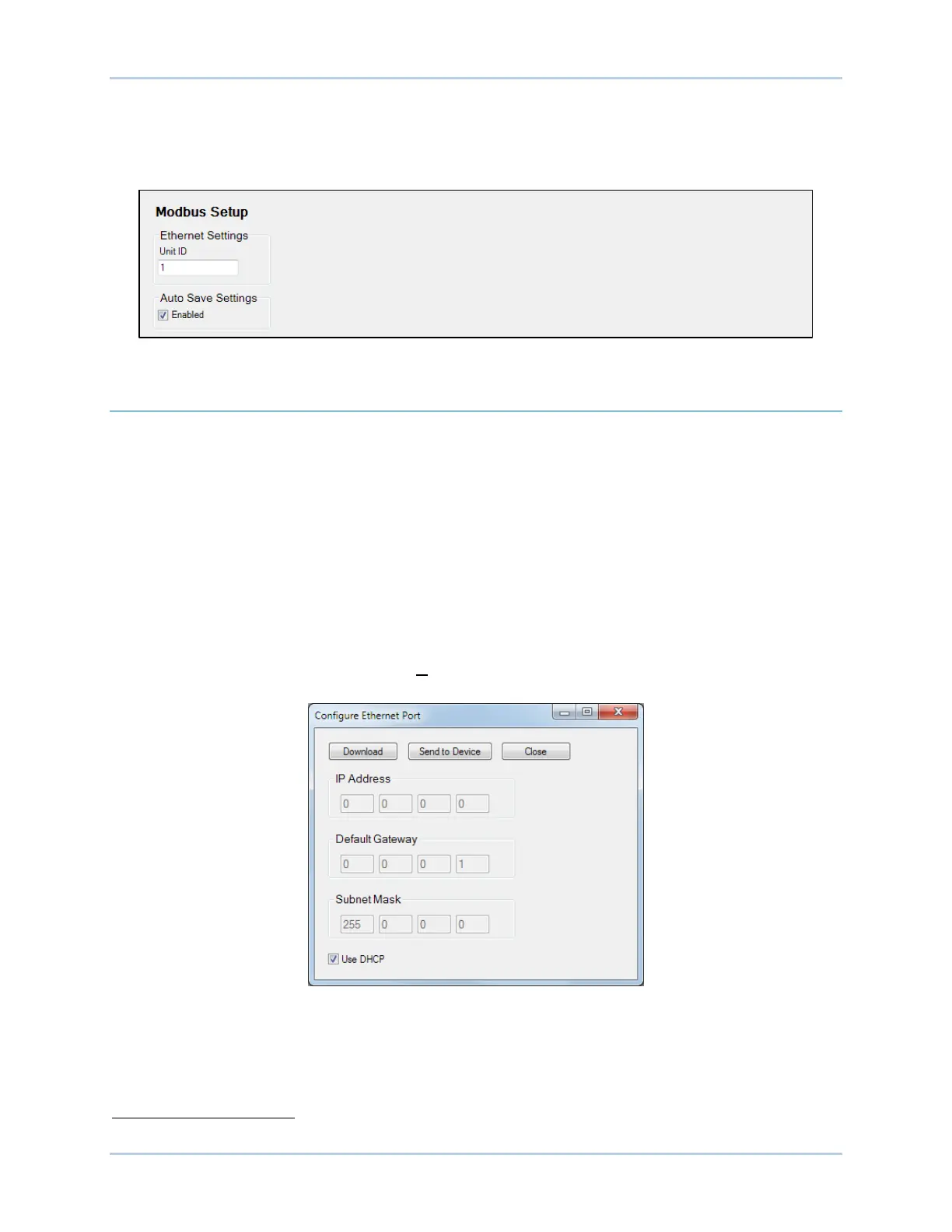
Modbus settings for Ethernet are illustrated in Figure 20-1.
When Auto Save Settings is enabled, settings are automatically saved to nonvolatile memory after
Modbus writes. Alternately, when Auto Save is disabled, you must write to the Save All Settings Modbus
register to save settings.
Figure 20-1. Modbus Setup
Ethernet Communication
Located on the rear panel, the Ethernet port provides communication with a PC running BESTCOMSPlus
and uses the Modbus TCP protocol for polled communication with other networked devices. This
10BASE-T/100BASE-TX port is an eight-pin RJ45 connector that connects to shielded, twisted-pair,
Category 5 copper wire media.
Ethernet Setup
Initially you must use a USB connection on the front panel to configure communications.
1. Connect an Ethernet cable between the DECS-150 and your network.
2. Connect a USB cable between the DECS-150 and your PC.
3. Use BESTCOMSPlus to connect to the DECS-150 through the USB port.
4. Select Configure, Ethernet from the Communication pull-down menu. If the DECS-150 is
connected properly, the Configure Ethernet Port screen shown in Figure 20-2 will appear.
Figure 20-2. Configure Ethernet Port
DHCP (Dynamic Host Configuration Protocol) is enabled by default and allows the DECS-150 to send a
broadcast request for configuration information. The DHCP server receives the request and responds
with configuration information. Use the Device Discovery function on the DECS-150 Connection screen in
BESTCOMSPlus to locate the Active IP address of the DECS-150.
If DHCP is not being used, use BESTCOMSPlus to configure the Ethernet port as described in the
following paragraphs.



 To Next Page