Introduction 13
Remote control
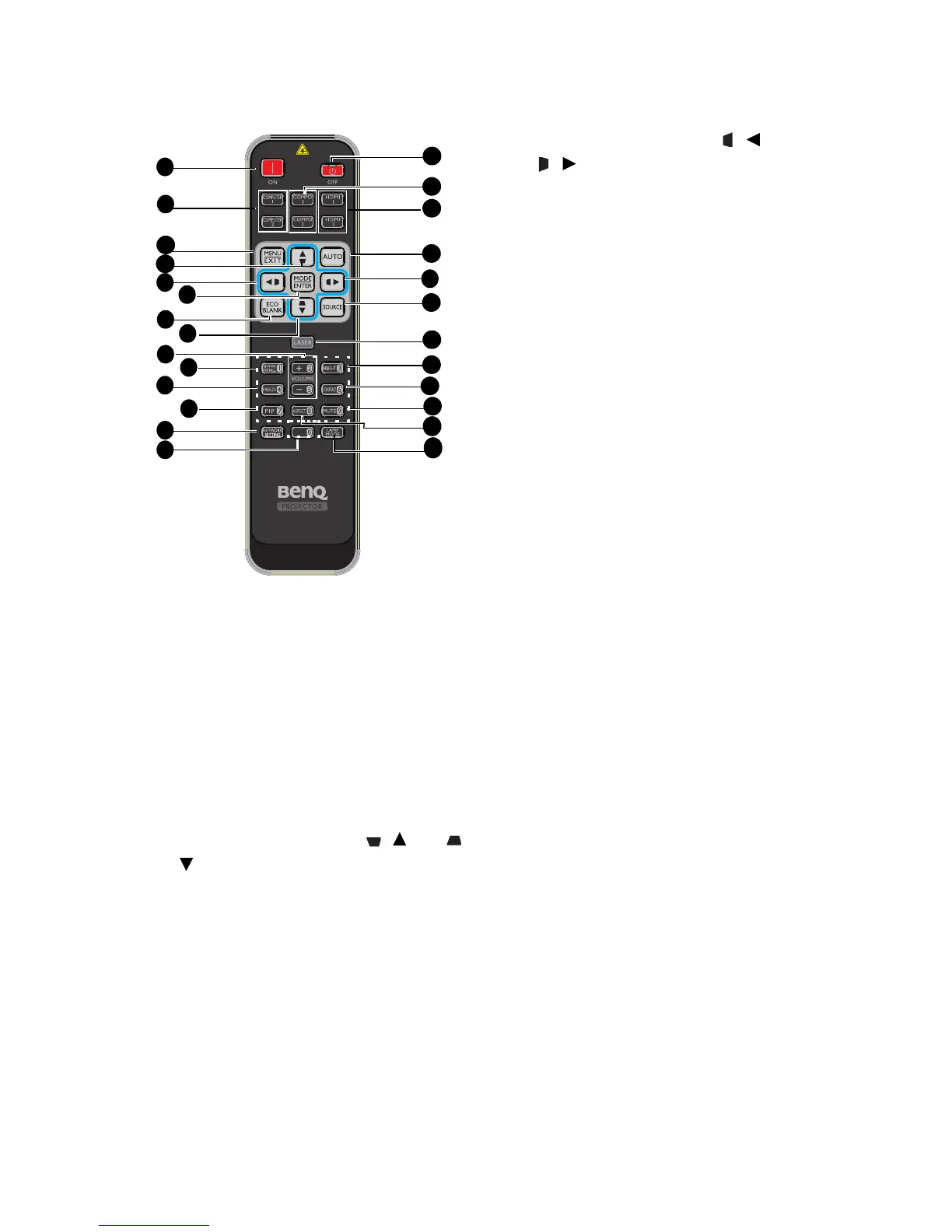
1. ON
Turns on the projector. See "Starting up
the projector" on page 27 for details.
2. COMPUTER 1/COMPUTER 2
Displays RGB (PC)/Component video
(YPbPr/ YCbCr) signal.
3. MENU/EXIT
Turns on the On-Screen Display (OSD)
menu. Goes back to previous OSD menu,
exits and saves menu settings. See "Using
the menus" on page 33 for details.
4. Keystone/Arrow keys ( / Up, /
Down)
Displays 2D Keystone page and adjusts the
vertical keystone values. See "Using the
menus" on page 33 for details.
5. Keystone/Arrow keys ( / Left,
/ Right)
Displays 2D Keystone page and adjusts
the horizontal keystone values. See
"Using the menus" on page 33 for
details.
When the On-Screen Display (OSD)
menu is activated, the #5, and #6 keys
are used as directional arrows to select
the desired menu items and to make
adjusents. See "Using the menus" on
page 33 for details.
6. MODE/ENTER
Selects an available picture setup.
mode. See "Selecting a picture mode" on
page 39 for details.
Activates the selected On-Screen
Display (OSD) menu item. See "Using
the menus" on page 33 for details.
7. ECO BLANK
Press the ECO BLANK button to turn
off the image for a period of time with
70% lamp power saving. Press again to
restore the image. See "Hiding the
image" on page 44 for details.
8. VOLUME + / -
Adjusts the microphone’s sound level.
See "Adjusting the sound level" on page
45 for details.
9. QUICK INSTALL
A menu shortcut that includes Test
Pattern, Projector Installation, 2D
Keystone, Corner Fit and Surface Fit.
10. FREEZE
Freezes the projected image. See
"Freezing the image" on page 44 for
details.
11. PIP
Not operational on this projector.
8
18
4
9
24
23
1
2
3
5
6
7
4
10
12
13
14
15
16
17
5
19
20
22
11
21


 To Next Page