Operation
64
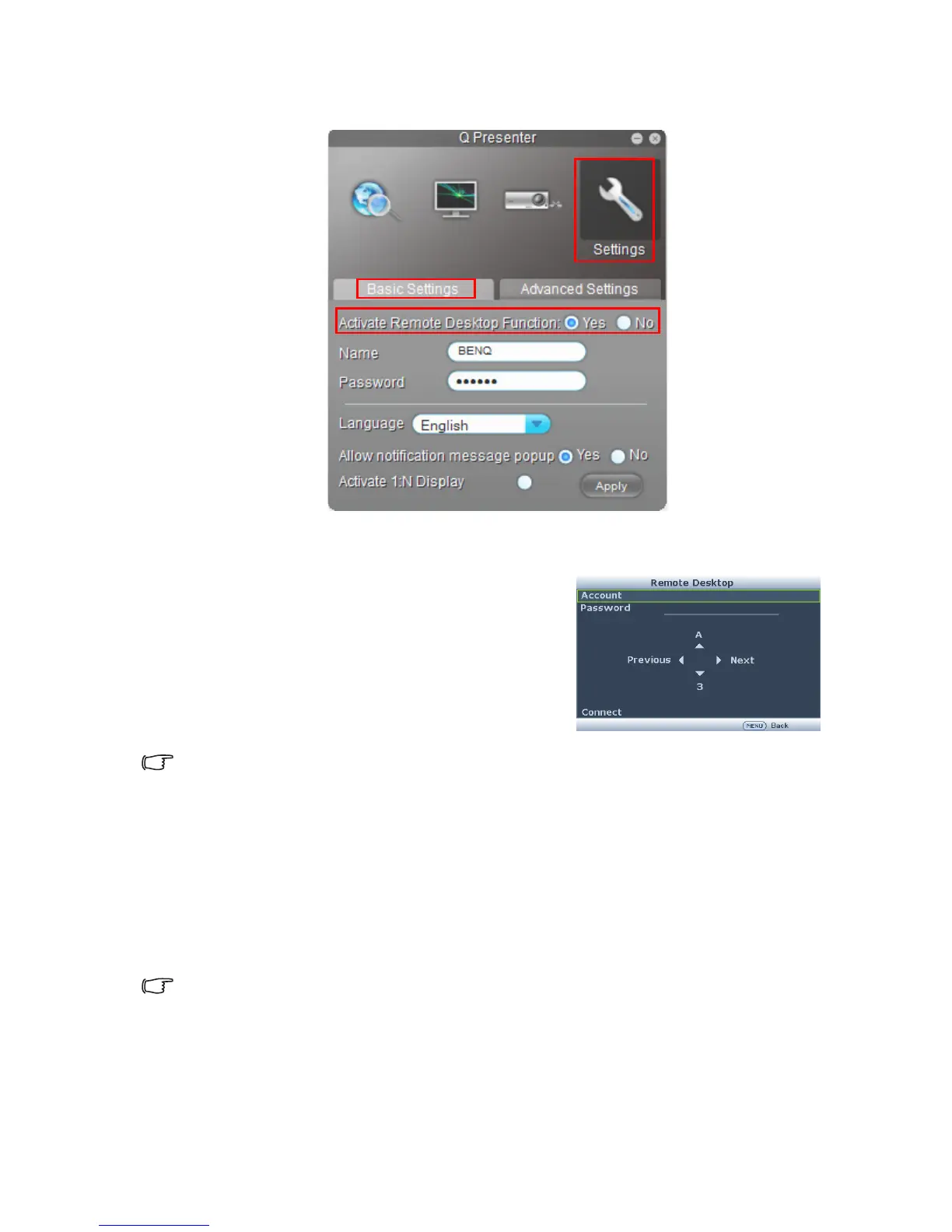
2. Activate Remote Desktop Control Function in Q Presenter > Settings > Basic
Settings.
3. Open the OSD menu and go to the SYSTEM SETUP: Advanced > Network
Settings menu. Press MODE/ENTER.
4. Select Remote Desktop and press MODE/
ENTER.
5. Enter the Account and Password the same as
step 1.
6. Select Connect and press MODE/ENTER to
connect the selected PC.
7. Connect USB keyboard or mouse to control the
host PC’s desktop through the projector.
• Remote Desktop Control does not support PC Standby mode.
• Remote Desktop Control only supports LAN source so the projector source is fixed on
LAN.
Presenting From a USB Reader
This fature displays a slide show of images stored on a USB flash drive connected to the
projector. It can eliminate the need for a computer source.
Image File Types
USB Reader displays images files in JPEG, GIF, TIFF, PNG and BMP formats.
• A square box will display on the filename for unidentified characters.
• Thai filename is not supported.
• Files in GIF, TIFF, PNG and BMP formats can be displayed for the file size smaller than
WXGA (1280 x 800) only.
• If a folder consists of more than 200 photos, only the first 200 photos can be displayed.
Preparation


 To Next Page