Operation
61
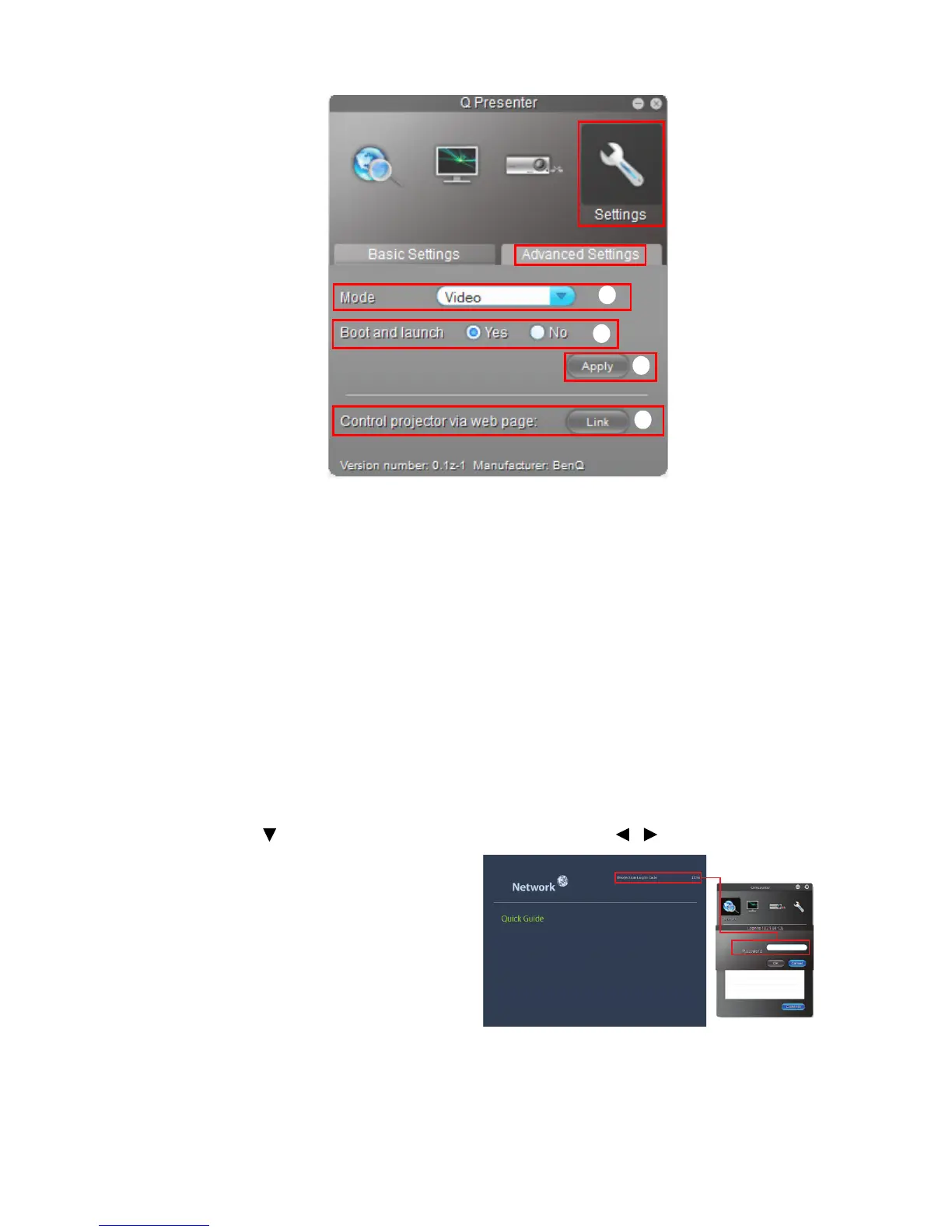
vii. You can select Video or Graphic display mode. Graphic Mode: worse image
quality but faster tramsmission speed. Video Mode: better image quality but
slower transmission speed. However, the actual transmission performance was
determined by the status of network usage at that time.
viii. You can select whether to automatically open the Q Presenter application when
the computer is powered on.
ix. Once set, press Apply to save the changes.
x. You can link to the BenQ remote network operation page on page 49.
Using the Projection Login Code
This function is designed to ensure network display through the correct projector. To
toggle this function:
1. Go to the SYSTEM SETUP: Advanced > Network Settings menu after
opening the OSD menu system. Press MODE/ENTER.
2. Press to select Projection Login Code and press / to select On or Off.
When this function is on, the projector
generates a random 4-digit code in the
upper right corner when you switch the
source to Network Display. You need
to key in this 4-digit code in the Q
Presenter when connecting to the
projector.
viii
ix
x
vii
1. Make sure your WLAN is enable,
and connect BenQ presenter.
(refer to below SSID)
2. Open your browser, or enter the
IP address (refer to below IP address)
3. Click on “Download”, and execute
the installation program
4. Click search or enter IP address,
and select connect to start the projection
WIRED LAN
Projector Name
IP Address
Disconnect
BenQ Projector
0.0.0.0
WIRELESS LAN
SSID
IP Address
Connection
Connect
NetworkDisplay
172.28.120.1
AP


 To Next Page