Configuration SIS System
64
How to send a Message to all Interpreter Stations
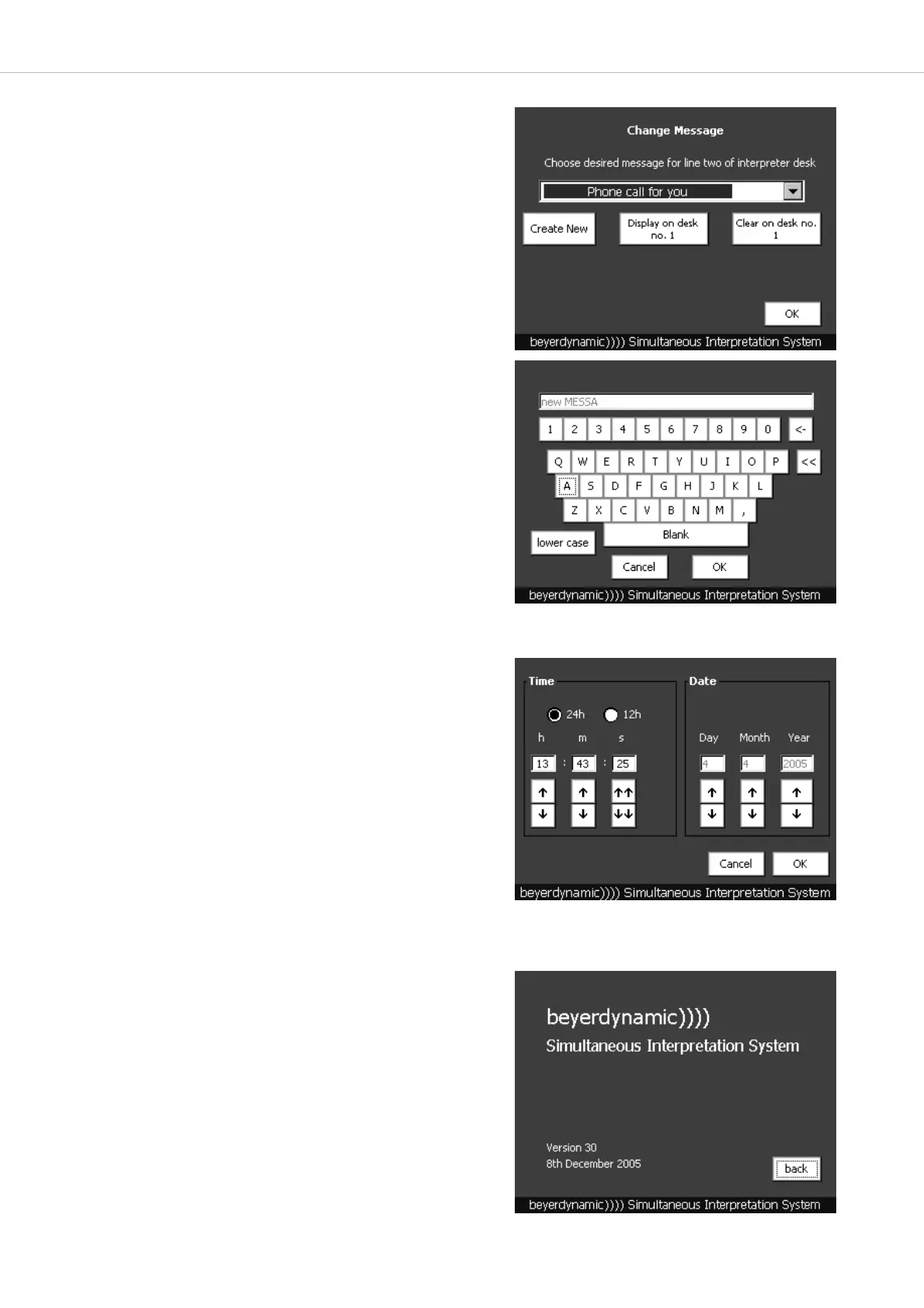
• Existing messages can be selected from the pull-down menu by pressing
the arrow button and selecting the appropriate message.
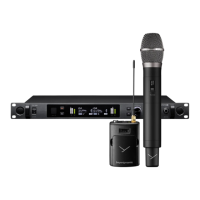
• By pressing the “Create New” button you can create new messages. A
window with a keyboard will be opened. With the “Cancel” button you
can cancel the entry. With the “<-” button you can delete individual
characters. With the “<<” button you can delete a whole line. If you
press the “lower case” button, you can write small letters.
• Write your message with the keyboard and then press the “OK” button.
• You will return to the “Change Message” menu and can select the new
message from the pull-down menu.
• To send the message press the “Display on desk no.” button.
• The message appears in the second line of the display of the selected
interpreter station.
• If you want to delete the message on the interpreter station, press the
“Clear on desk no.” button.
• If you press the “OK” button you will return to the window “Displayed
Messages”.
5.2.5 How to enter Time / Date
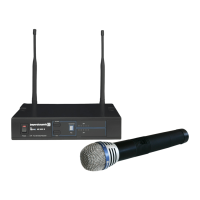
• To display the time and date in the display of the interpreter
stations, press the “Time/Date” button in the main menu.
• You can choose if the time is to be displayed in the 24 or 12-hour
mode.
• Under “Time” you can set the current time with the appropriate arrow
buttons.
h = hour, m = minute, s = seconds.
• Under “Date” you can set the current date with the appropriate arrow
buttons.
• Press the “OK” button to save the settings and to leave this menu.
• If you want to cancel the entry, press the “Cancel” button.
5.2.6 How to display the Software Version
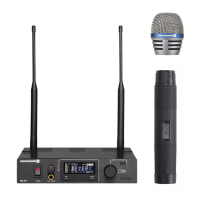
• To display the software version of the control unit, press the “About”
button in the main menu.
• Press the “back” button to return to the main menu.


 To Next Page