27 Basic Operations
4.9 Timeshift
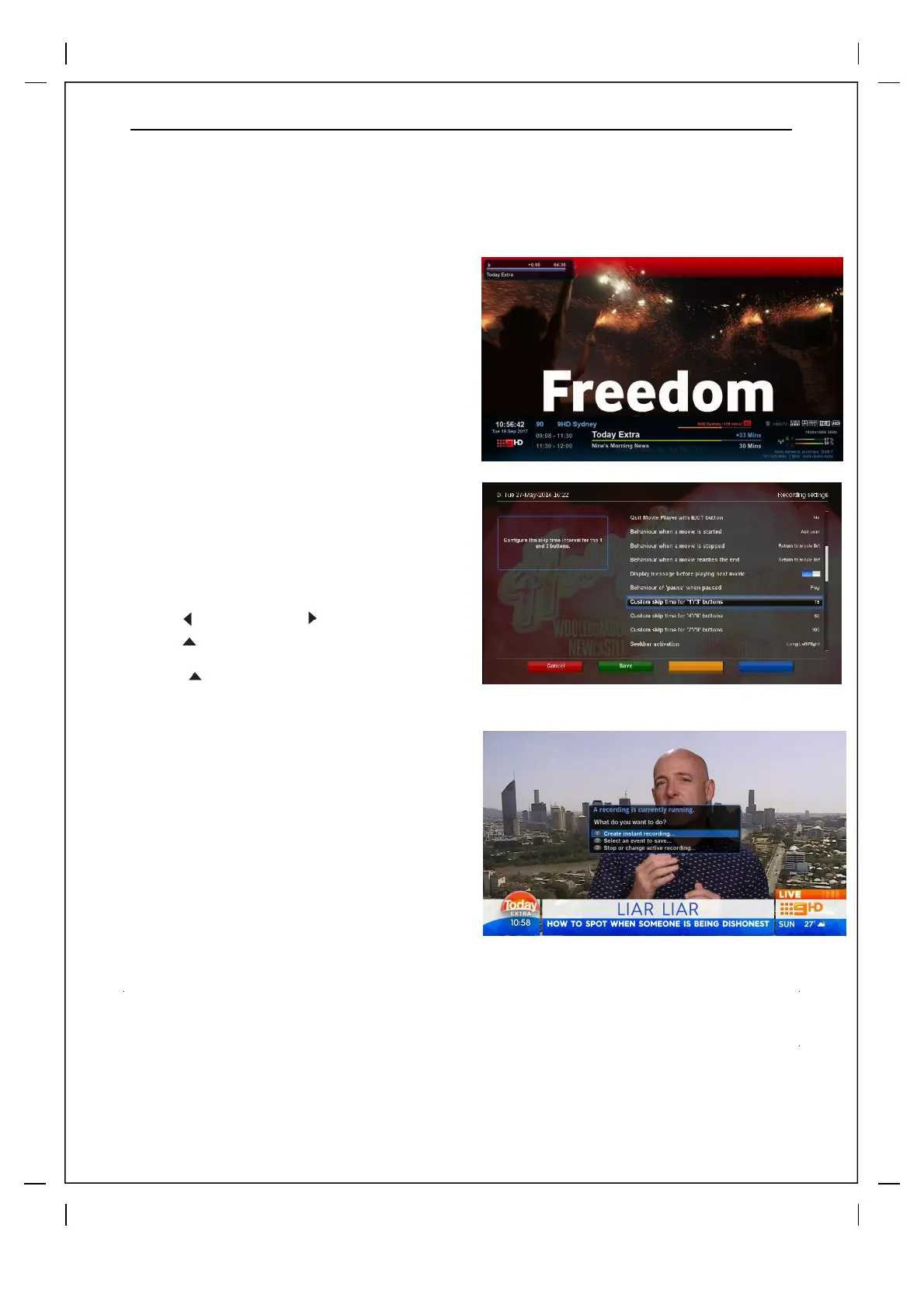
The best way to activate Timeshift mode is to Press PLAY/PAUSE ▶ll or by pressing the left or
the down arrow on your V2 remote, you can also press the rewind button but we highly recomend
the skip arrows.
If you try to change channel while in Timeshift mode you will be warned and asked to confirm.
10 seconds after changing to a channel a
timeshift buffer will be saved so you can
rewind or record from any point after that
time. .As soon as you change channels the
timeshift buffer will be deleted from the
previous channel and a new buffer will start
on the current channel.
When in timeshift mode you can Pause,
Rewind and Fast Forward Live TV or you can
use the fully programmable Skip buttons.
Skip Buttons on your Remote
Press ' ' skip back or ' ' forward 15secs
Press ' ' forward 180secs
Press ' ' forward 60secs
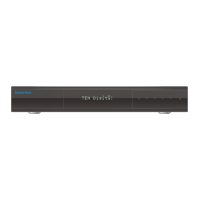
You can customize to your liking by
pressing Menu>Setup>System>Button Settings
Here you can also activate the numbers
buttons to be skip keys.
If you want to stop Timeshift mode and to
return to the live mode, press STOP key.
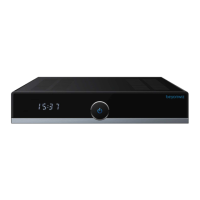
Recording Timeshift
Timeshift is saved as events for as long as
the V2 has been idle on a particular
channel, so if the V2 has been on a
channel for 3 hours and there have been 4
programs on it that time you can save any
of them permanently by pressing the 'Red'
button or the 'Rec' button on the remote
and then selecting Timeshift save
recording (select event) and then simply
click on the show you missed that you
wish to record.
Tip: The timeshift default start time can be modified
by pressing Menu>Setup>TV>Timeshift Settings,
you can also disable timeshift in this menu


 To Next Page