25
Chapter 5 Additional Features
Limit Line
The limit line helps to set off those parts of a trace that are outside of the
acceptance (limit) values. It appears as a red horizontal line at the limit line
value. The part of the trace that is not acceptable will display in white.
Additionally, identification of signals falling outside acceptable limits can be
visually and audibly enhanced using a failure flag and alarm.
Note: Limit lines are available in any measurement mode.
Setting Limit Lines
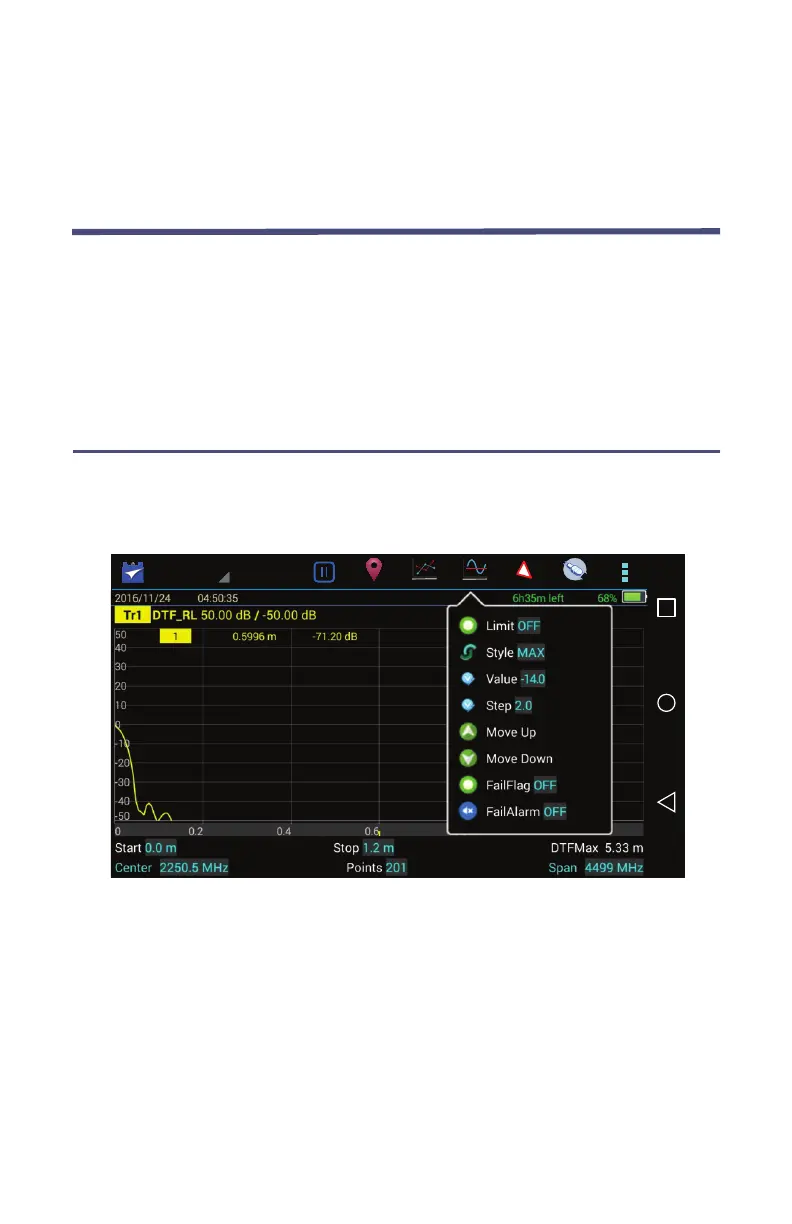
1. Press LIMIT icon.
Figure 14 Limit Menu
2. Select from the following limit options.
Limit (On/Off)
Press to toggle limit line on and off.
Style (Max/Min)
Press to toggle maximum or minimum limit line.
Note: When the Style is set to Max, anything above the Limit Line will
be flagged as Fail. When the Style is set to Min, anything below the
limit line will be flagged as Fail.



 To Next Page