9
1.4 Viewing Exercise Parameters
At the end of each exercise program, the computer will display four exercise parameters. These parameters will be
TOTAL DISTANCE, CALORIES BURNED, TOTAL EXERCISE TIME, and AVERAGE SPEED.
• TOTAL DISTANCE displays the distance travelled for the entire exercise.
• CALORIES BURNED displays the approximate caloric expenditure for the entire exercise.
• TOTAL EXERCISE TIME displays the length of the exercise in minutes and seconds.
• AVERAGE SPEED displays the average speed value for the entire exercise.
The total exercise parameters on the T280P–T280C–T300 will loop for 2 minutes, showing your exercise parameters until you press
CLEAR/STOP to exit back to the welcome screen. If you do not wish to view the exercise parameters, press the CLEAR/STOP key to return to
the welcome screen.
2. Setting Up the Computer to Your Environment
The T280P–T280C–T300 treadmills offer unique features that allow the user to tailor the treadmill to its current environment. The treadmill
computer can also display a series of diagnostic features and calibration features. T280P–T280C–T300 treadmills allow you to select and
modify the following settings:
• Language (English, French, Spanish) • Heart Rate Access Options
• Weight Unit (Pounds or Kilograms) • Beeper (On or Off)
• User ID • Speed Limits
• Distance Unit (Miles or Kilometers) • Big Number Option
• Time, Distance or Calories • Learn Program
• Warm Up (On or Off) • Heart Rate Recovery
• Cool Down (On or Off) • Pause Time
• Heart Rate Control Options • Max Duration
2.1 Access to ”Settings Menu”
To view the above settings, you must enter into the “SETTINGS MENU” as followed:
1. Turn power ON.
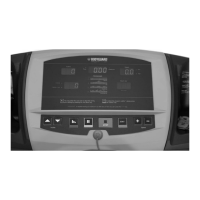
2. While the introduction screens are displayed, simultaneously hold down the elevation INCREASE and the SELECT TOP keys.
3. Release the ELEVATION INCREASE and the SELECT TOP keys once entered into the Settings menu.
2.2 Language Feature
You can display all the instructions and information on the computer display screen in a choice of three languages.
To select a language: Enter into the Settings menu, see Section 2.1.
1. Select the LANGUAGE option, and press the JustGo
TM
/ENTER key to accept.
2. Select the language you wish to be displayed on the screen. Choose from English, French and Spanish. Press the INCREASE or DECREASE keys
to select the language.
3. Press the JustGo
TM
/ENTER key to accept.
From now on, all text will be displayed in the language you selected.
2.3 Weight Unit Feature
The weight unit can be selected to display in pounds or kilograms.
To select a weight unit: Enter into the Settings menu, see Section 2.1.
1. Select the WEIGHT UNIT option, and press the JustGo
TM
/ENTER key to accept.
2. Select the weight unit you wish to be displayed on the screen. Choose from POUNDS or KILOGRAMS. Press the INCREASE or DECREASE keys
to select.
3. Press the JustGo
TM
/ENTER key to accept.
From now on, weight values entered will be in the selected units.


 To Next Page