Model 621 User’s Manual APPLICATION PROGRAMMING INTERFACE (API)
Bristol Instruments, Inc. 25
8 Repeat the steps to configure any other function calls needed and then wire the
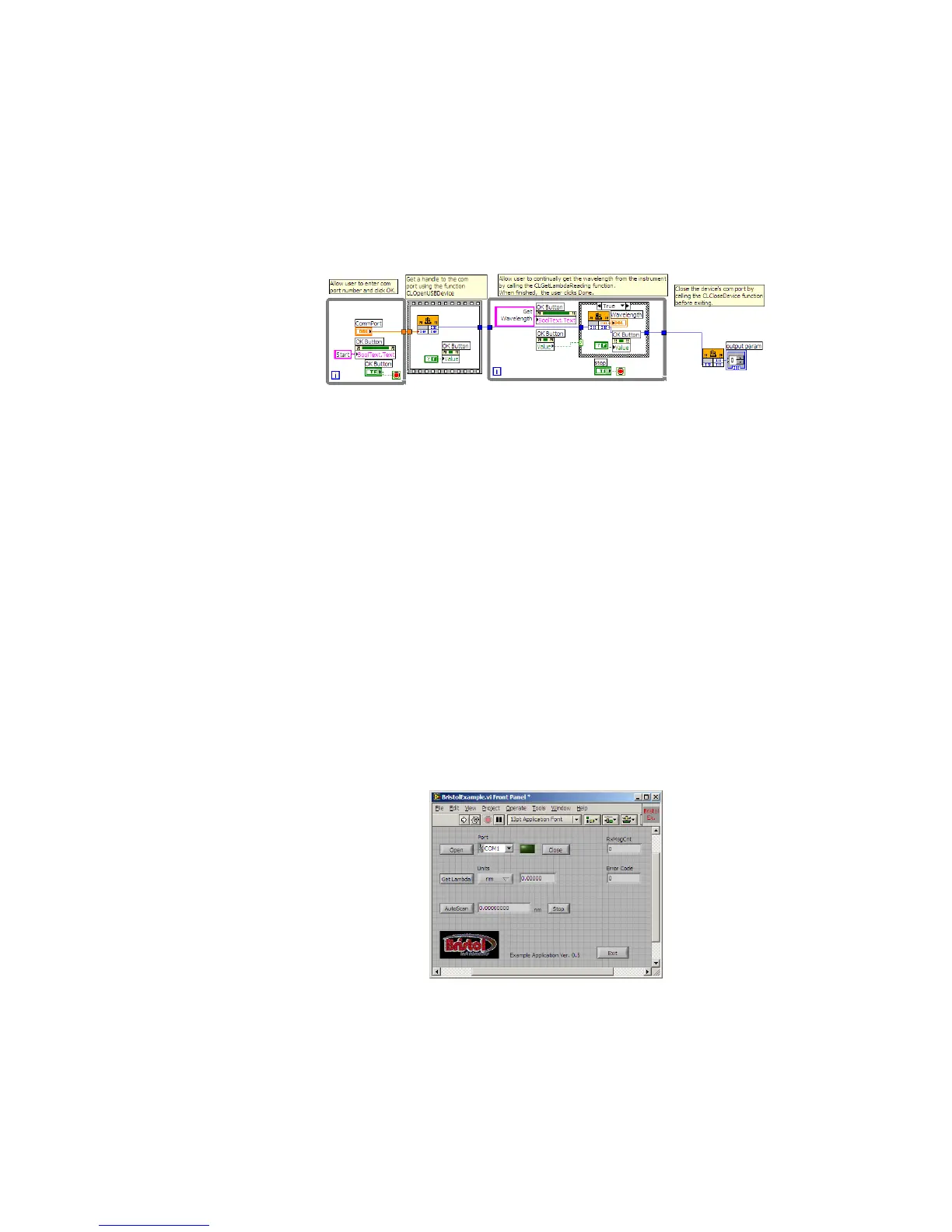
nodes together. The sample .vi getWavelength_v80.vi (Figure 6.2) opens the serial
device based on the com port specified, and then gets the wavelength every time the
user clicks on “Get Wavelength”.
9 When finished with the application, click on “Done” and the getWavelength_v80.vi will
close the com port and exit. Sample getWavelength_v60.vi does not close the com
port, and is only included here for reference.
Figure 6.2: Sample getWavelength_v80.vi.
The sample .vi located in the LabVIEW Example II folder, BristolExample.vi,
demonstrates how to interface LabVIEW directly to the 621 Laser Wavelength Meter
without using the Windows dll. Because the communications functions that are contained
in the dll are replicated in the .vi, the .vi is considerably more complex than the sample
described above, which accesses the 621 Laser Wavelength Meter via the dll.
In order to interface directly with LabVIEW, the National Instruments’ NI-VISA API/code
library must be installed on the PC. This software is available for download at no charge
from the National Instruments website.
Direct communication between LabVIEW and the 621 Laser Wavelength Meter can be
initiated using the BristolExample.vi and the following instructions.
1 On the BristolExample.vi Front Panel, shown in Figure 6.3, choose the appropriate
com port from the pull-down list under the label “Port.” The appropriate com port is
the same port that was indicated in the PC’s device manager when the instrument
software was initially installed.
Figure 6.3: Sample BristolExample.vi.
2 If the appropriate com port is not shown, select “Refresh” at the end of the pull-down
list. Also, make sure that the instrument is powered on and that the USB cable is
properly connected.


 To Next Page