Model 621 User’s Manual APPLICATION PROGRAMMING INTERFACE (API)
Bristol Instruments, Inc. 24
6 APPLICATION PROGRAMMING INTERFACE (API)
LabVIEW Program Interface
Two sample LabVIEW .vi’s can be found in the Programming Interface folder on the
NuView Software CD. The sample in the LabVIEW Example I folder,
(getWavelength_v80.vi) uses calls to functions in the Windows dll CLDeviceIface.dll to
access the wavelength meter. The functionality of this sample can be increased, or a new
.vi can be written, by incorporating function calls using the following procedure.
1 Add a Library Function Node to the .vi.
2 Right click on this node to configure it.
3 In this configure window, click on Browse and find the path to the CLDevIface.dll.
This file is found on the NuView Software CD in the Bristol Wavelength Meter folder.
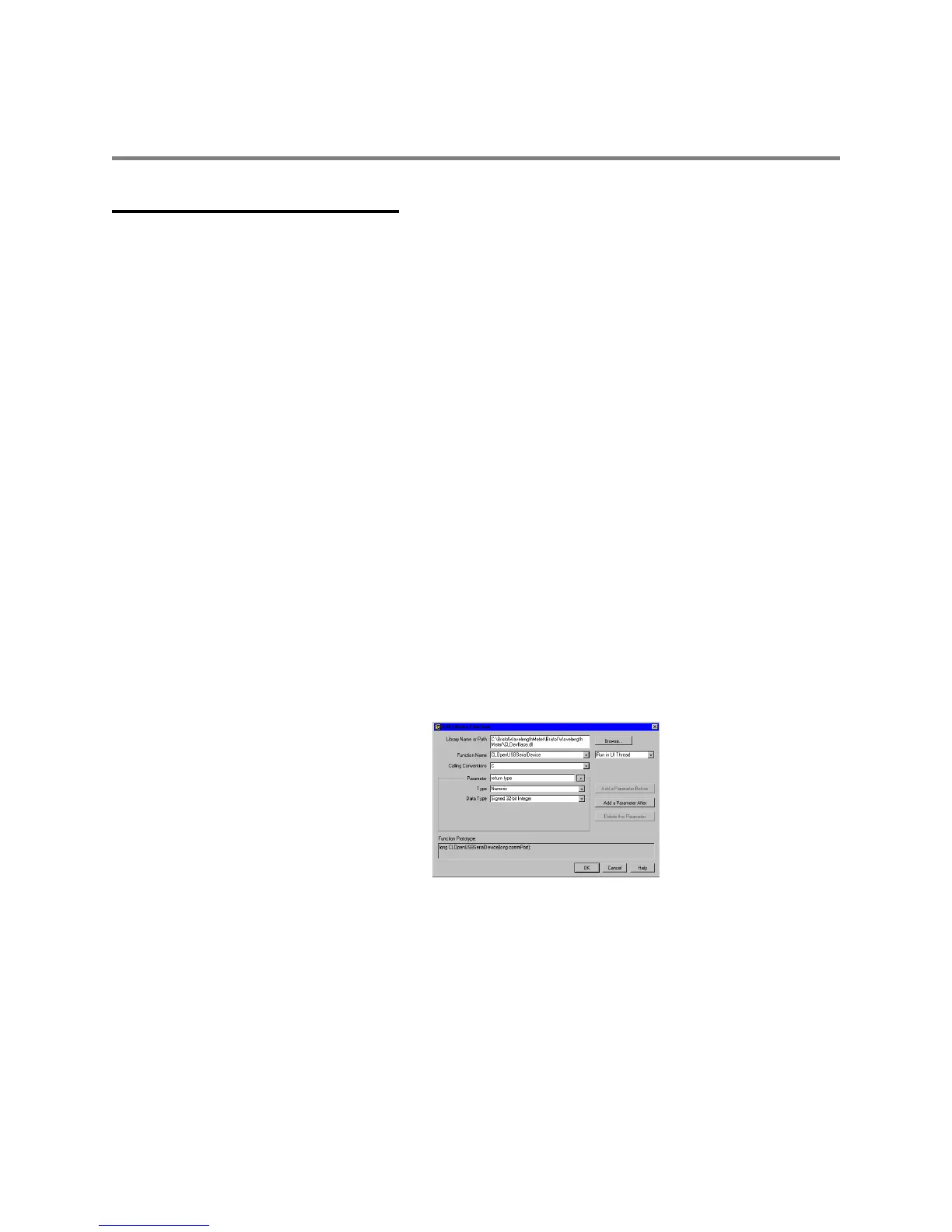
4 Click on the drop-down arrow next to Function Name to choose the function call
needed. For this example, the CLOpenUSBSerialDevice call is used. This should be
the first function call in the .vi.
5 Add the Return Type this function call expects. For the CLOpenUSBSerialDevice, the
return type is long. Refer to the cldevdll.h file for the return types and parameters for
each function. This file is found in the Bristol Wavelength Meter folder on the NuView
Software CD.
7 If the function call requires input parameters, these need to be specified by clicking
Add a Parameter After. The parameter will be added in the parentheses.
8 When finished, the configuration window for the CLOpenUSBSerialDevice call should
look like the image below.
Figure 6.1: Configuration Window for the CLOpenUSBSerialDevice Call


 To Next Page