Need help?
Do you have a question about the Broadcom Brocade G620 and is the answer not in the manual?
Lists supported switch types, power supply assemblies, fan assemblies, and rack mount kits.
Provides information on how to contact technical support for Brocade products.
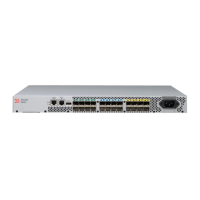
Illustrates and labels the port-side view of the Brocade G620 switch.
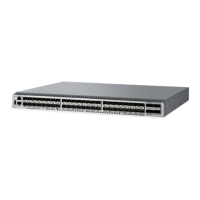
Illustrates and labels the nonport-side view of the Brocade G620 switch.
General safety warnings and precautions to be observed during installation.
Safety measures related to electrostatic discharge (ESD).
Safety guidelines for handling power connections and sources.
Specifies the electrical, thermal, and rack requirements for installation.
Specific safety precautions related to mounting the device.
Steps for installing the device in a four-post rack using a specific kit.
Steps for flush-front mounting in a four-post rack.
Instructions for installing the device in a two-post rack.
Lists items needed for initial setup and verification.
Instructions for powering on the device.
Steps to establish an initial serial connection to the device.
Details how to configure IP addresses for the device.
Instructions for setting the device's date and time.
Instructions for establishing an Ethernet connection to the device.
Methods to verify the device's operational status.
How to back up the device configuration to an FTP server.
Steps to safely shut down and power off the device.
Safety warnings for handling transceivers and cables.
Step-by-step guide to installing an SFP+ transceiver.
Procedures for removing and installing SFP+ transceivers.
Guide for installing QSFP transceivers.
Procedures for removing and installing QSFP transceivers.
Explains the meaning of port-side LEDs for status indication.
Interpretation of the system status LED patterns.
Interpretation of FC port status LEDs.
Interpretation of QSFP port status LEDs.
Safety precautions for power supply and fan assemblies.
Guide for installing or replacing power supply and fan assemblies.
Steps to remove a power supply and fan assembly.
Steps to replace a failed power supply and fan assembly.
Details enclosure, power, fans, cooling, architecture, and latency specs.
Specifications for Fibre Channel ports, transceivers, and protocols.
Operational and non-operational environmental requirements.
CE mark compliance information for European directives.
China RoHS compliance table for hazardous substances.
FCC warning for Class A computing devices.
VCCI statement regarding radio interference in domestic environments.
General cautionary statements regarding modifications, temperature, and airflow.
Safety precautions related to electrical connections and static electricity.
Warnings regarding laser hazards from fiber-optic interfaces.

 To Next Page
 General