32
6.3. Upload My Schedule for Series C
As noted earlier, programming the control with the Bryant® Home
mobile app is the most convenient way. You can program a system that is
not connected to the Internet using a PC or MAC computer using the
process shown, below.
The Upload My Schedule feature with the desktop app will allow you to
upload your schedules from a PC or MAC computer, load those
schedules onto a USB C device, and upload the schedules into the
Evolution Connex Control.
NOTE: Use a 4GB to 32GB USB C device.
• To download the MyEvolution application for your computer, go to
www.MyEvolutionConnex.com.
– Click on the Downloads tab.
– Download the MyEvolution Desktop application.
– The MyEvolution Desktop application provides you the ability to
create your schedule for the Evolution Connex Control.
• Once the schedules are complete, insert a USB C device into your
computer. Add a new folder to the USB C device labeled User. Make
sure that this folder is at the top of the folder chain in the USB C; this
is also called the “root directory.”
– Select the Save Schedule to the USB C option on the computer
Desktop application Schedules menu. Read the directions and then
select Export.
– Save the schedule file in the User folder on the USB C.
– Once that is complete, safely remove the USB C from the
computer.
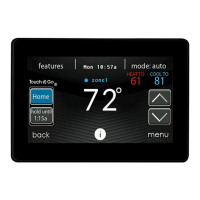
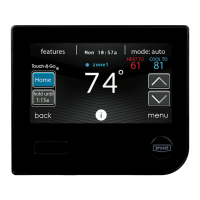
• Install the USB C into the USB C slot on the bottom of the Evolution
Connex Control.





 To Next Page