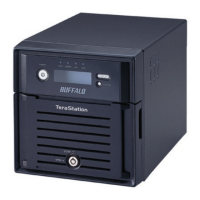
The Buffalo TeraStation is a Network Attached Storage (NAS) device designed for data storage, backup, and management, with a strong emphasis on RAID configurations and external drive support. It offers various RAID modes to balance performance, data redundancy, and usable storage capacity.
Function Description:
The TeraStation serves as a central storage hub, allowing users to store, share, and manage files across a network. Its primary functions include:
- RAID Management: Supports multiple RAID levels (RAID 0, 1, 5, 6, 10, 50, 51, 60, 61) to optimize data protection and performance. It also supports JBOD (Just a Bunch Of Disks) mode, treating each hard drive as an individual unit.
- External Drive Connectivity: Features USB ports for connecting external hard drives, expanding storage capacity, and facilitating backups.
- Data Protection: Offers features like RAID for redundancy, hot spare configuration for automatic drive replacement, and disk checking to identify and fix errors.
- Access Control: Provides mechanisms for restricting access to shared folders and external drives, ensuring data security.
- Volume Management: Includes Logical Volume Manager (LVM) for dividing and extending storage volumes.
- Direct Copy: Enables automatic copying of media files (movies, music, images) from connected USB devices to the TeraStation.
- Disk Quotas: Allows administrators to set limits on the disk space users and groups can consume.
- Media Cartridge System: Converts internal hard drives into removable storage devices, enabling easy transfer of data between TeraStations.
Important Technical Specifications:
- RAID Modes:
- RAID 0: Combines 2 or more drives for improved performance; all data is lost if one drive fails. Usable space is the total capacity of all drives.
- RAID 1: Combines 2 or more drives into a mirrored array; data is identical on all drives. Usable space is the capacity of a single drive. Data can be recovered if one drive fails.
- RAID 5: Available for 4 or more drives (3 or more drives combined). Generates parity during writes (slower access). Usable space is total capacity minus one drive's capacity. Data can be recovered if one drive fails.
- RAID 6: Available for 4 or more drives. Generates parity during writes (slower access). Usable space is total capacity minus two drives' capacity. Data can be recovered if two drives fail.
- RAID 10: Available for 4 or more drives. Mirrored pairs of drives in RAID 1 arrays are combined into a RAID 0 array. Usable space is the sum of 2 drives' capacity.
- RAID 50: Available for 6 or more drives. Two RAID 5 arrays combined into a RAID 0 array. Generates parity during writes. Usable space is (smallest drive capacity) * (number of hard drives ÷ 2 - 1) * 2.
- RAID 51: Available for 6 or more drives. Two RAID 5 arrays combined into a RAID 1 array. Generates parity during writes. Usable space is (smallest drive capacity) * (number of hard drives ÷ 2 - 1).
- RAID 60: Available for 8 or more drives. Two RAID 6 arrays combined into a RAID 0 array. Generates parity during writes. Usable space is (smallest drive capacity) * (number of hard drives ÷ 2 - 2) * 2.
- RAID 61: Available for 8 or more drives. Two RAID 6 arrays combined into a RAID 1 array. Generates parity during writes. Usable space is (smallest drive capacity) * (number of hard drives ÷ 2 - 2).
- JBOD: Hard drives are used as individual drives. Total usable space is the sum of all hard drives. Data on a damaged drive cannot be recovered.
- Encryption: 128-bit AES encryption for drives/arrays (during reformat). Encrypted drives are only readable by the specific TeraStation.
- USB Support: Supports USB storage devices, single-card card readers, digital cameras, and USB printers. USB hubs, multi-card readers, mice, and keyboards are not supported. Only Buffalo drives are officially supported for external connections.
- File Systems: XFS is mentioned as a file system option for formatting.
- User IDs: User IDs for disk quotas are between 1000 and 1999.
Usage Features:
- Changing RAID Modes: Users can change RAID modes, but this typically deletes all data on the drives, requiring a backup beforehand. The RMM (RAID Mode Manager) allows creating or expanding RAID arrays without erasing data, but requires drives of the same capacity and can only expand one drive at a time.
- Connecting External Drives: External drives are automatically detected if formatted. If not, they can be formatted via Settings. Each USB port supports one external hard drive.
- Dismounting Drives: External USB drives must be dismounted (either via the function button or Settings) before physical removal to prevent data corruption.
- Creating RAID Arrays from JBOD: Allows combining individual JBOD drives into a RAID array. A RAID check (taking ~10 hours per TB) occurs after changing RAID modes (except RAID 0 creation), during which file transfers are slower.
- Configuring Hot Spare: An extra, unused drive can be configured as a hot spare to automatically replace a failed drive in RAID 1, 5, 6, 10, 50, 51, or 60 arrays. Data on the hot spare is deleted when configured and again when it becomes part of the array.
- Formatting Drives: Formatting deletes all data. Shared folders are inaccessible during formatting.
- LVM (Logical Volume Manager): Disabled by default. Enabling LVM allows dividing and extending volumes but degrades access speeds. Changing LVM settings deletes all volumes and data.
- Direct Copy: Activated by holding the function button for 3 seconds after connecting a USB device. Copies specific media file types to a designated folder.
- Disk Quotas: Can be set for individual users or groups, limiting their storage consumption per drive or array. Quotas do not apply to external USB drives.
- Media Cartridge System: Allows internal drives to be used as removable cartridges, preserving data integrity when moved between TeraStations.
Maintenance Features:
- RAID Scanning: Configurable to run automatically, scanning RAID arrays for errors and fixing them if possible. Can be scheduled weekly or monthly, or initiated immediately.
- Disk Check: Tests data on internal or connected USB drives, automatically fixing errors. Can take over ten hours, and shared folders are inaccessible during this time. A specific option exists to delete hidden, non-essential MacOS dedicated files if a power outage damages the database.
- Data Backup: Emphasized as crucial before changing RAID modes, formatting drives, or making LVM configuration changes, as these operations can lead to data deletion.
- Error Messages: LCD panel displays messages like "RAID 117 ARRAYx Resyncing" during RAID rebuilds/checks, indicating slower file transfers and warning against turning off the device.
- Power Management: Important to not turn off or disconnect power during formatting or disk checks to prevent data loss or operational issues.
- Troubleshooting: Notes provide guidance on issues like external drive recognition (waiting 3 minutes after dismounting), Mac OS backup errors with FAT32, and power problems with multiple external drives.

 Need help?
 General

 To Next Page