15
Disk Check
A disk check tests the data on a drive in the TeraStation or connected via USB. Errors are xed automatically. A disk
check may run for more than ten hours. Shared folders cannot be accessed during the disk check. Do not turn o
power to the TeraStation during the disk check.
Run a disk check as follows:
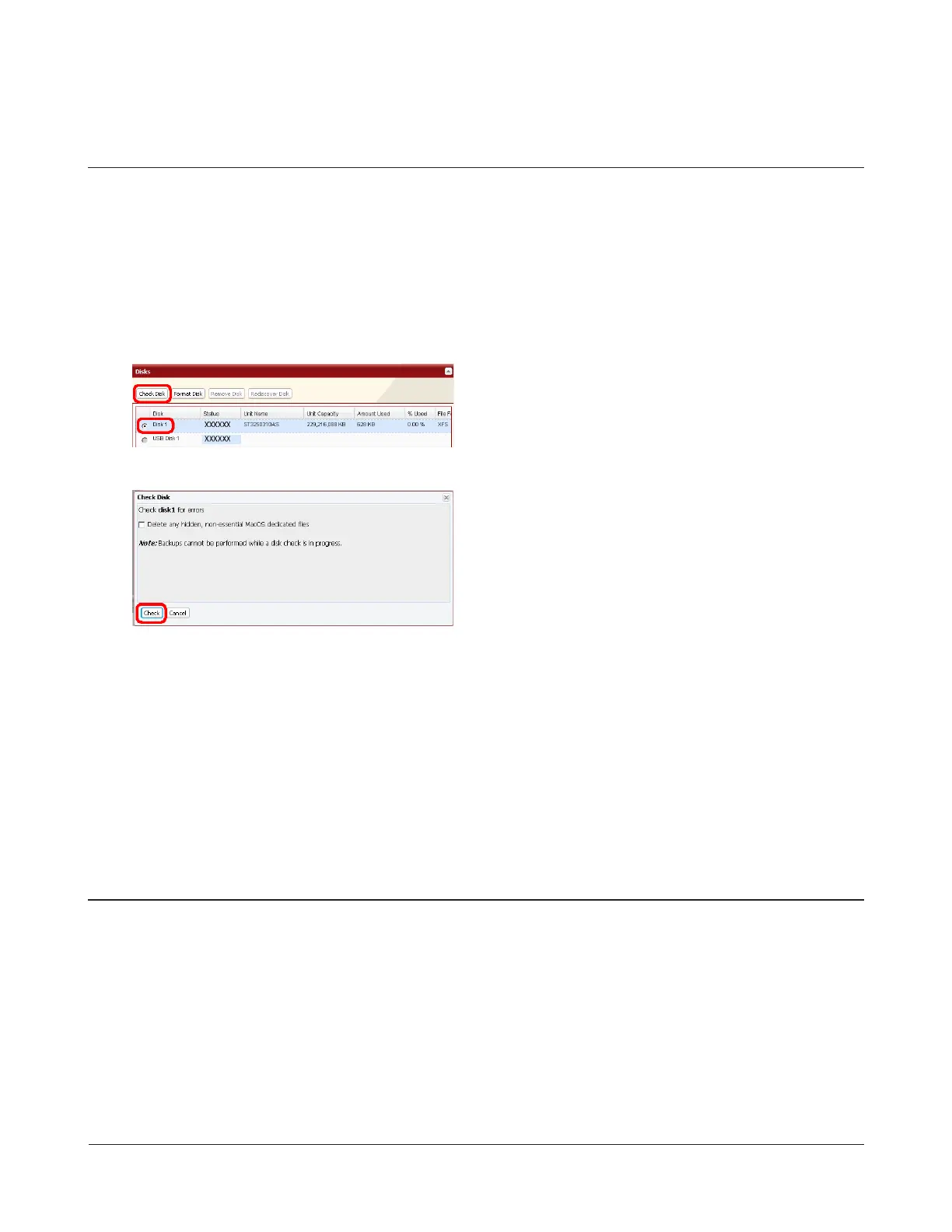
1 In Settings, navigate to System - Storage - Disks.
2
3
The message “Checking“ will be displayed on the LCD panel during the disk check. The TeraStation’s shared
folders cannot be accessed until the disk check is complete.
Note: If a power outage disconnects the TeraStation in the middle of a disk check, then you may not be able
to access shares on the TeraStation from Mac OS. This is because the database created by Mac OS is
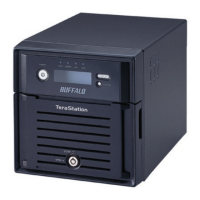
damaged. To resolve, navigate to System - Storage - Check Disk and check Delete any hidden, non-essential
Mac OS dedicated les. Rerun the disk check when done.
1 Select the hard drive to test.
2 Click Check Disk.
Click Check.
If encryption is selected during a reformat of a drive or array, it will be encrypted with 128 bit AES. The drive or array will
then be only readable from that specic TeraStation. To unencrypt the hard drive, uncheck Encrypt and format it again.
Notes:
• Performance will be slower if an array or drive is encrypted.
• USB drives cannot be encrypted.
• Data recovery services will probably not be able to recover data from an encrypted drive or array.
Encrypt Hard Drives on the TeraStation


 To Next Page