16
Formatting Disks
Notes:
• Formatting deletes all data from a hard drive. Be careful! Back up any important data on a drive before formatting it. It
will take a several minutes to format a hard drive.
• Shared folders cannot be accessed during formatting.
• Do not turn o the TeraStation or disconnect power cable while formatting a hard drive.
• To erase all data on a disk, choose System - Restore/Erase instead of formatting.
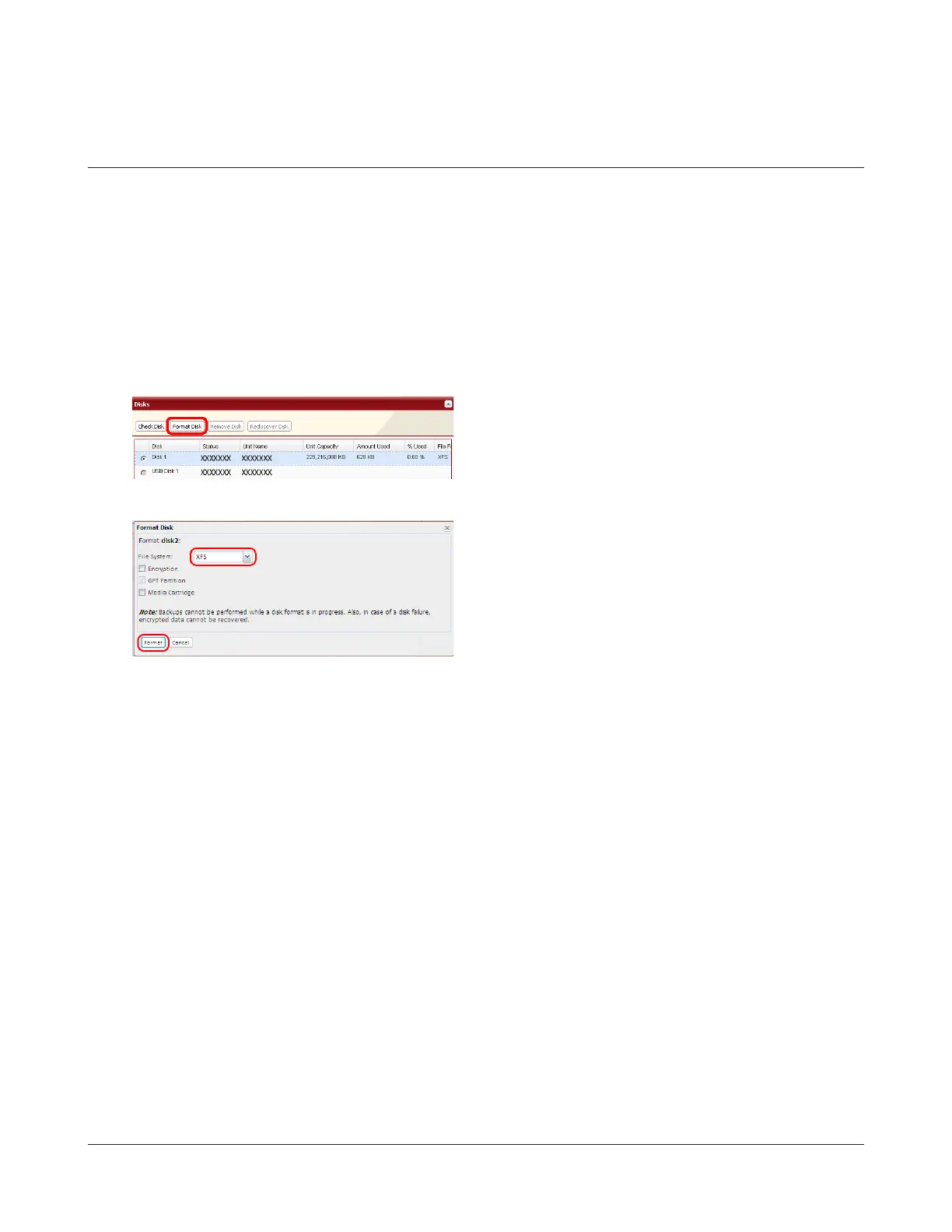
1 In Settings, navigate to System - Storage - Disks.
2
3
4 Enter the conrmation number and click Apply.
5 Follow the instructions displayed on the screen.
Notes:
• A format may take anywhere from a few minutes to several hours depending on the size of your drives.
• The message “Formatting” will be displayed on the LCD panel during formatting. The TeraStation’s shared folders
cannot be accessed until the disk format is complete.
• If the hard drive is an external USB drive, its partitions will be recreated.
1 Select the drive to format.
2 Click Format Disk.
1 Select File System.
Note: If you check Encryption, the drive will be encrypted
with 128 bit AES. It will be normally accessible
in the TeraStation, but if removed, it will not be
accessible from other devices. If encryption is
enabled, data recovery services will not be able to
recover data from a damaged disk. To unencrypt
the drive, uncheck Encryption and format it again.
2 Click Format.


 To Next Page