18
Chapter 5
Extensions
Direct Copy
Direct Copy automatically copies movie, music, and images directly to the TeraStation from a USB device.
You can connect many types of USB devices to the TeraStation, including USB hard drives, USB ash drives, single-card
card readers, digital cameras, and USB printers. USB hubs, mice, keyboards, and card readers that support 2 or more
cards are not supported.
Note: When two TeraStations are congured for failover, if the main TeraStation is in maintenance mode, Direct Copy
will not be available.
1 Connect the USB device. When it mounts (about 10 seconds), the function button will light up.
Note: Devices that don’t trigger the function button to light up are not supported.
2 You now have 60 seconds to hold down the function button for 3 seconds. If you do, the function button will
ash as all the les on the USB device are copied to the Direct Copy folder.
Notes:
• While the function button is ashing, hold it down for 3 seconds to cancel Direct Copy.
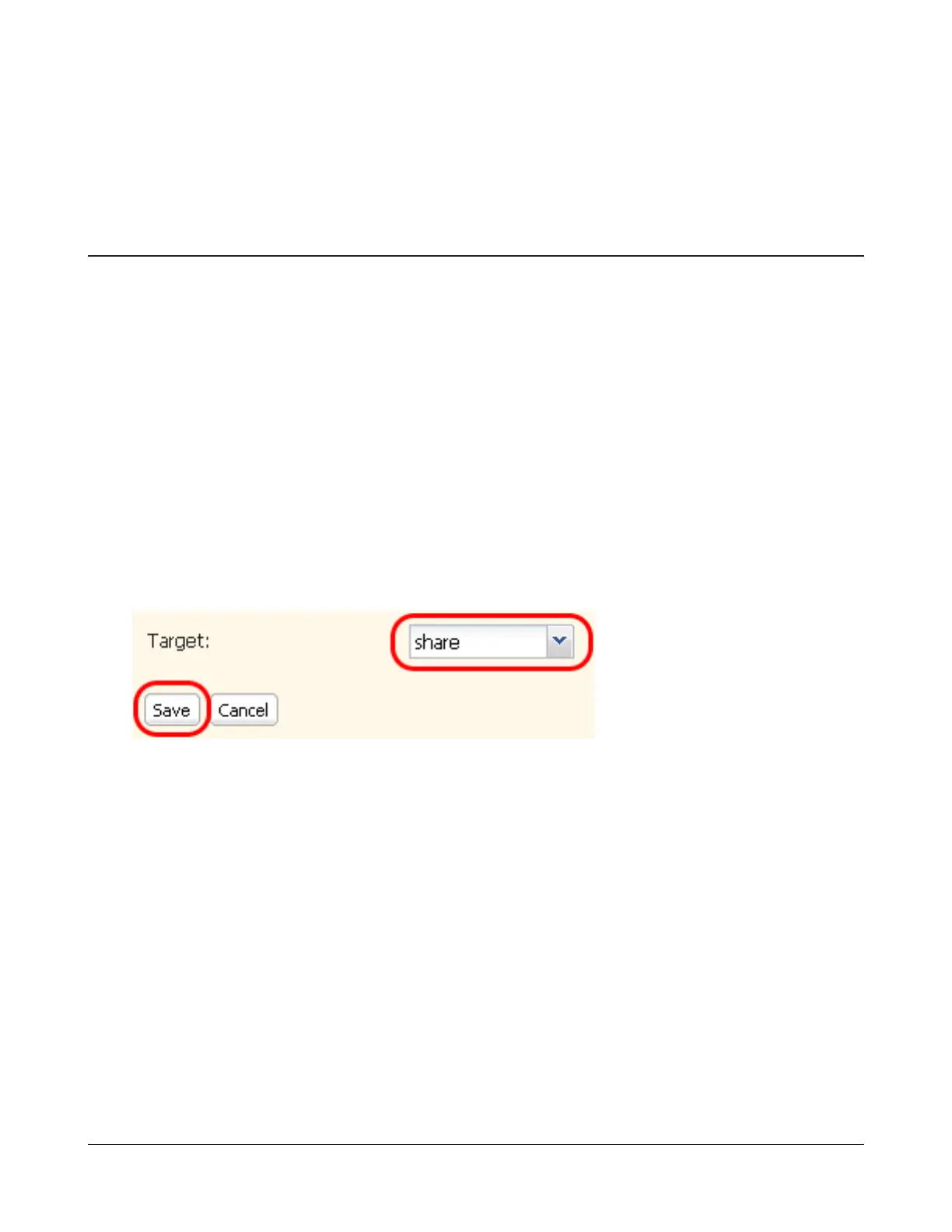
• To change the Direct Copy target folder, navigate to Backup - Direct Copy - Edit, select a new folder, and click
Save.
Files are copied to the folder:
<Direct Copy folder>/pictures/yyyymmdd
yyyy: year copied
mm: month copied
dd: date copied
You may change the destination shared folder for Direct Copy in Shared Folders - Direct Copy - Modify Settings in
Settings. Subsequent Direct Copy folders are created at:
<Direct Copy folder>/pictures/yyyymmdd/n
yyyy: year copied
mm: month copied
dd: date copied
n: 1st time n=0, 2nd time n=1, 3rd time=2 and so on.


 To Next Page