24
SAVING AND ARCHIVING ARC PLUS SL CONFIGURATIONS
SAVING CONFIGURATION CHANGES TO THE ARC PLUS SL
Any changes you make must be saved to the ARC Plus SL before they become active. After making a configuration
edit, click the save icon in the toolbar or go to the File menu and choose Save. If you make unsaved configuration
changes in AutoLoad Plus and wish to undo them, go to the File menu and choose Revert. You must revert any
changes before saving them to the ARC Plus SL.
ARCHIVING ARC PLUS SL SETTINGS TO THE PC
To save a copy of the ARC Plus SL configuration to your PC, select Save to File... from the File menu. Give the
configuration a file name and press Save.
UPLOADING ARCHIVED SETTINGS
To upload archived settings to an ARC Plus SL, connect to the desired ARC Plus SL site and click the Open from
File... toolbar icon. Select the desired file, click Open, and the settings will populate in AutoLoad Plus. Press the
Save toolbar icon to save the configuration to the ARC Plus SL.
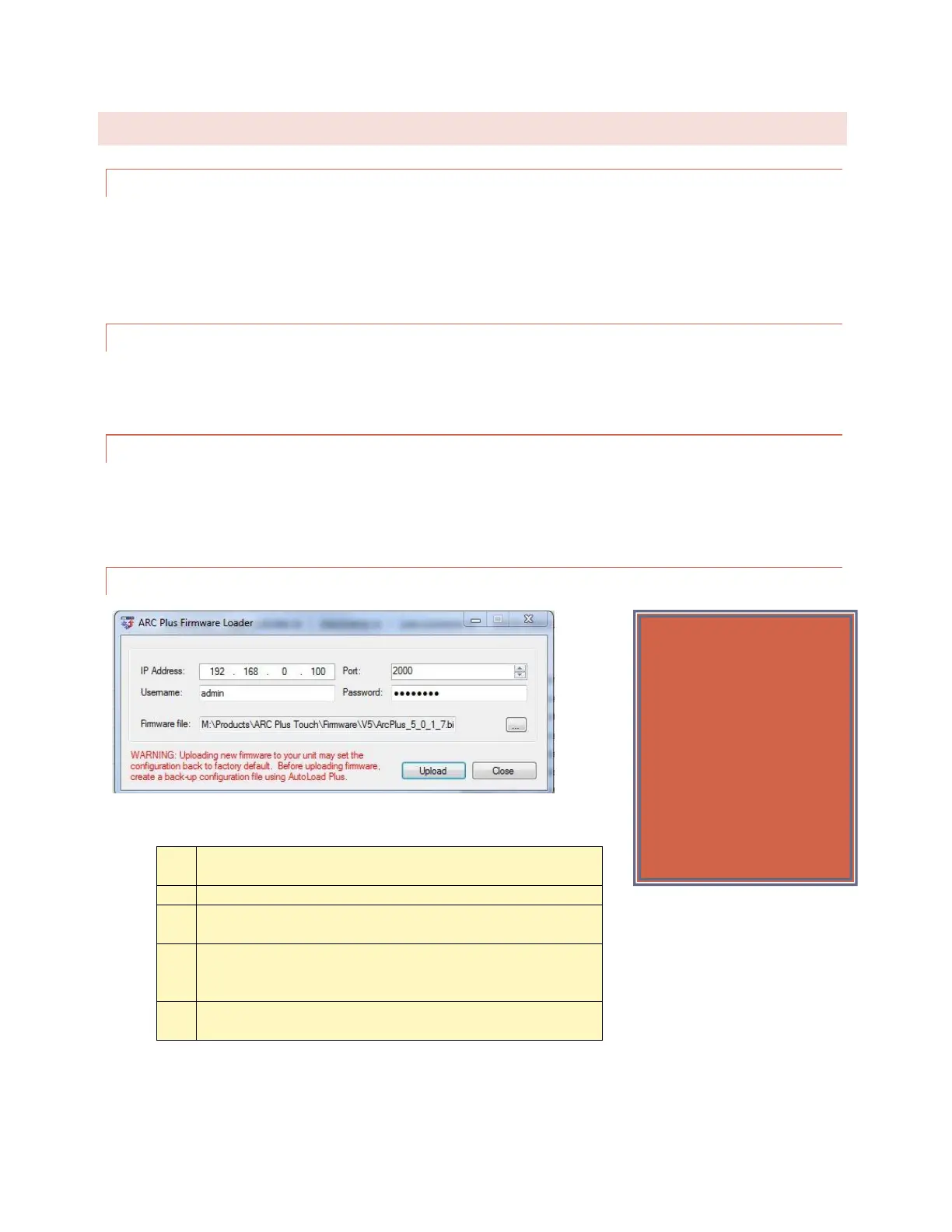
UPLOADING FIRMWARE
Programs > Burk Technology > AutoLoad Plus
If you do not want to retain the configuration settings on the
ARC Plus SL, uncheck the Preserve configuration checkbox.
Leaving this checkbox checked is recommended.



 To Next Page